How to show a live scoreboard on a TV from your PC
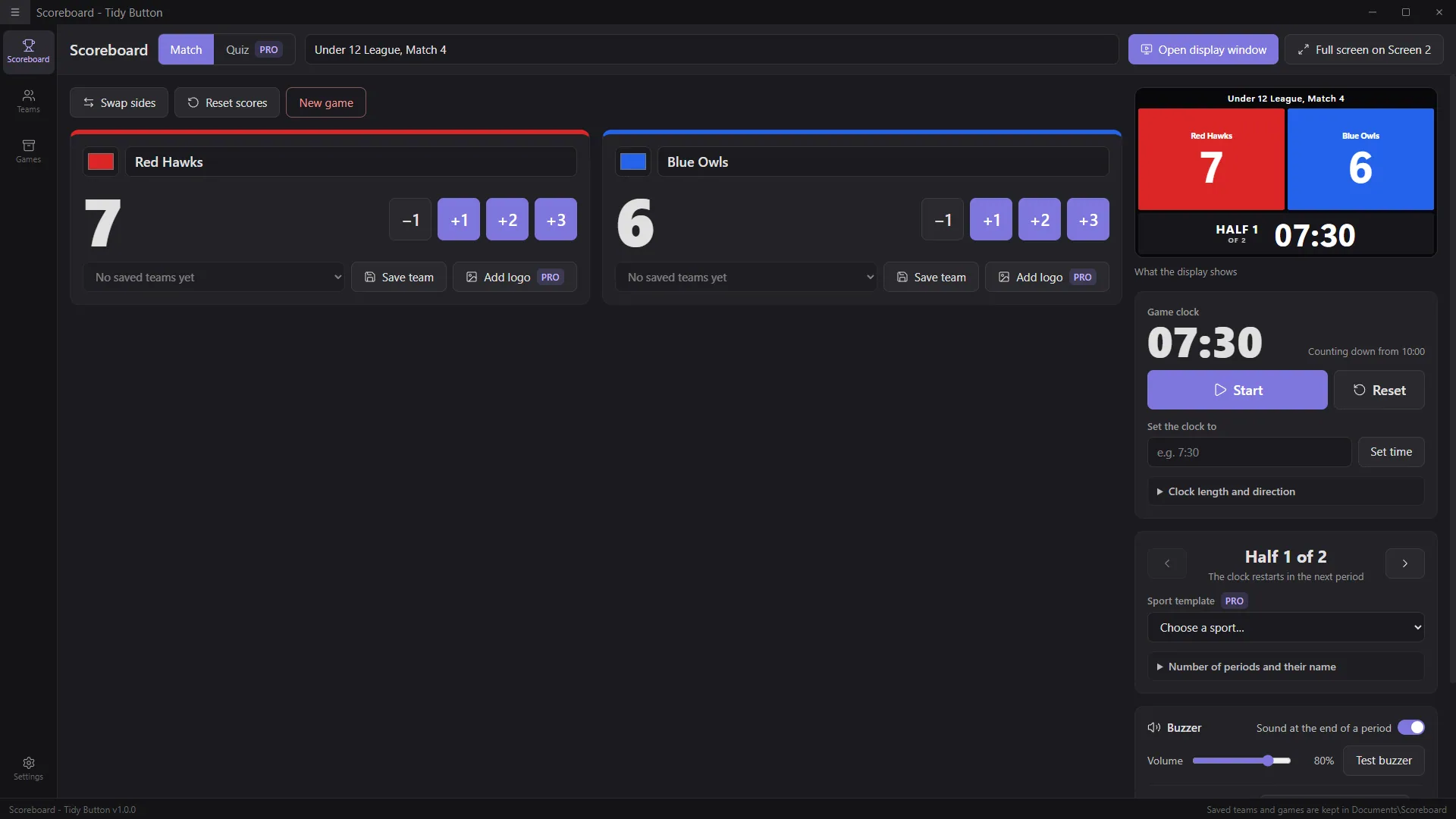
This guide shows how to set up a scoreboard, keep score with buttons or keys, run the game clock, and show it all on a TV or projector.
This app is not on the Microsoft Store yet. This guide is ready for the day it arrives.
Set up a game
- Open Scoreboard. The controller window opens on the Scoreboard screen.
- Type the names of the two teams in the name boxes.
- Click the colour box next to each name to choose a colour.
- Type a heading for the display in the event title box at the top.
- Press Swap sides if the teams should change places on the display.
Show the scoreboard on a TV or projector
- Connect the TV or projector to your PC.
- Press Open display window. A second window shows the scoreboard.
- Drag that window onto the TV, or press the full screen button next to Close display to fill the other screen.
- Press Close display when you are done.
Keep score
- Press the plus buttons on a team's card to add one, two or three points. The minus button takes a point away.
- Or use the keyboard: Q, W and E add one, two or three points for the home team, and I, O and P do the same for the away team.
- Press Reset scores to set both scores back to zero. The app asks first.
Typing in a name box never changes the score.
Run the clock and the periods
- Press Start to run the game clock. The button changes to Pause.
- To change the time, type it in the box under Set the clock to, for example 7:30, and press Set time.
- Open Clock length and direction to choose the length of a period and whether the clock counts down or up.
- Open Number of periods and their name to choose how many periods there are and what they are called.
- Press Next period to move on. The clock restarts for the new period.
A buzzer sounds at the end of a period. Press Test buzzer to hear it first.
Keep your teams for next time
- Open Teams.
- Type a team name, choose a colour and press Add to list.
- Back on the Scoreboard screen, choose the team from the list on a team's card.
If something goes wrong
The display window is on the wrong screen.
Drag the window to the other screen, or use the full screen button, which shows the name of the other screen.
The buzzer is too loud or too quiet.
Use the volume slider in the buzzer box, then press Test buzzer to check it.
I closed the app by mistake. Is the game lost?
No. The last game is still on screen when you open the app again.
How do I start a fresh game?
Press New game. The app asks first, then clears the scores and the clock.
Good to know
- The scoreboard shows scores, the period and the clock. It does not keep player statistics.
Coming to the Microsoft StoreAbout Scoreboard
Still stuck? Support is by email, and a person reads it.