How to turn photos of documents into one PDF on a PC
This guide shows how to turn phone photos or scanned pages into one tidy PDF. Pictures, text reading and the PDF all stay on your PC.
This app is not on the Microsoft Store yet. This guide is ready for the day it arrives.
Combine photos of pages into one PDF
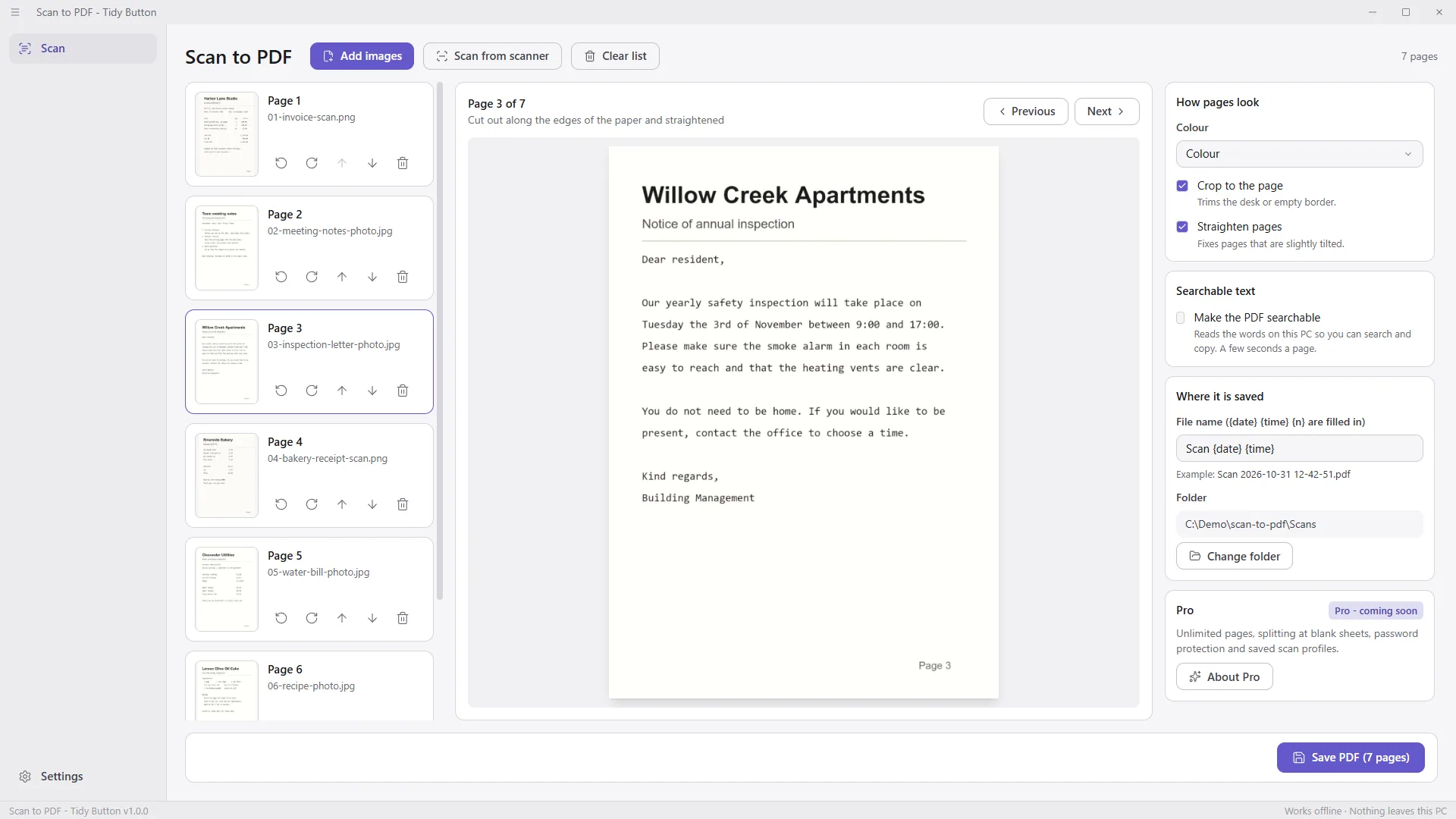
- Open Scan to PDF and press Add images, then choose your pictures. You can also drop them onto the window.
- Wait while each page is cut out and straightened. The page list shows progress.
- Click a page in the list to see it in the preview.
- Press Save PDF at the bottom right.
- When the saved message appears, press Open PDF to look at it, or Show in folder to find the file.
PNG, JPG, BMP, WebP and GIF files can be added.
Put the pages in order and fix the ones that are wrong
- Use Previous and Next above the preview to look at each page.
- Drag a page card in the list to a new place, or use the up and down arrow buttons on the card.
- Use the turn left and turn right buttons on a card to fix a page that is sideways.
- Use the bin button on a card to remove a page you do not want.
- Press Clear list to start again. Your image files are not touched.
Make the PDF searchable
- Add your pages with Add images.
- In the Searchable text section, tick Make the PDF searchable.
- Choose the language in Language of the text.
- Press Save PDF. The words are read on this PC, which takes a few seconds for each page.
You can then search the PDF and copy text from it.
Scan pages with a scanner
- Press Scan from scanner.
- Wait for the list under Scanner to fill in, or press Look again.
- Choose the Paper source (flatbed glass or document feeder) and the Sharpness.
- Press Scan and keep the lid closed until the scanner stops.
- The scanned pages appear in the page list, ready to save.
Scanning needs a scanner that Windows can already use. Without one, adding photos works the same way.
Choose how pages look and where the PDF goes
- In How pages look, choose a style in Colour.
- Leave Crop to the page ticked to trim the desk or empty border. Leave Straighten pages ticked to fix tilted pages.
- In Where it is saved, edit the file name. The example under the box shows the result.
- Press Change folder to pick another folder.
An existing PDF is never replaced. A number is added to the new file name instead.
If something goes wrong
The Save PDF button is greyed out. Why?
It stays off while pages are still being prepared, or when a page could not be opened. Remove the page marked as failed, or wait for the list to finish.
A page looks cut off or wrong in the preview.
Turn off Crop to the page or Straighten pages and look at the preview again. The text under the preview says what was done to the page.
The scanner window says no scanner was found.
The scanner needs a Windows driver. Check that it is on and connected, then press Look again. You can add photos in the meantime.
Some pages are not searchable.
After saving, the app tells you if the text on a page could not be read. Check that the language in Language of the text matches the page.
Good to know
- Text reading works in English, Spanish, French, German, Italian and Portuguese.
Still stuck? Support is by email, and a person reads it.