How to write a resume on a Windows PC and save it as a PDF
This guide shows how to build a resume, choose a design and paper size, and save it as a PDF you can send.
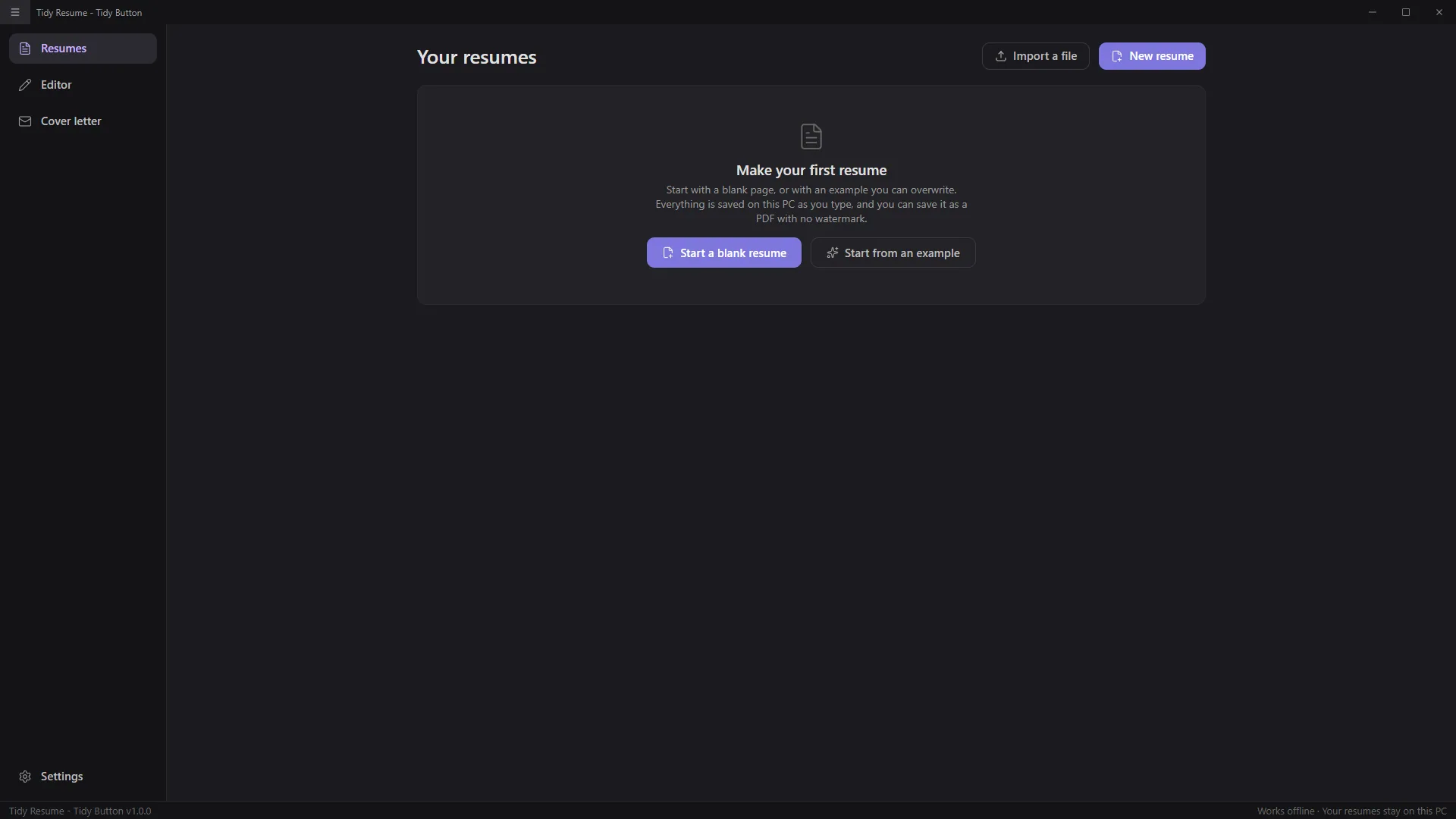
This app is not on the Microsoft Store yet. This guide is ready for the day it arrives.
Start a resume
You can begin with a blank page or with an example you overwrite.
- Open Tidy Resume. The Resumes screen is the first screen.
- Press Start a blank resume, or Start from an example to see how a finished page looks.
- Open the Details tab and type your name, headline, email, phone and summary.
- Watch the preview on the right change as you type.
Your edits are saved on your PC as you type.
Add jobs, education and skills
- Open the Sections tab.
- Open a section such as Experience and fill in the job title, employer, place and dates.
- Type what you did in What you did, one bullet per line.
- Use the arrow buttons to move an entry or a whole section up or down.
Choose a design and save a PDF
- Open the Design tab.
- Pick one of the free designs under Template.
- Choose a typeface and A4 or US Letter paper.
- Press Save as PDF at the top right and choose where to save it.
- Open the PDF. The text can be selected and copied, and there is no watermark.
Save a resume to a file
- Open All resumes.
- Press Export file on the resume you want to keep.
- To bring a file back later, press Import a file on the same screen.
If something goes wrong
Some letters in my PDF show as question marks. Why?
Text in scripts such as Indic, Arabic, Hebrew or Thai is not drawn in this version, and the app tells you on screen when your resume contains it. The rest of the page is not affected.
Where is my resume stored?
In a Tidy Resume folder inside your Documents folder, and it stays on your PC. A dated copy is also kept each day for two weeks.
Does the PDF carry a watermark or footer?
No. The PDF has no watermark and no footer.
Will a resume be deleted without asking?
No. The app always asks before a resume is deleted.
Still stuck? Support is by email, and a person reads it.