How to test a regular expression and see what it matches
This guide shows how to try a regular expression on your own text, read the matches and groups, preview a replacement and learn what each part does.
This app is not on the Microsoft Store yet. This guide is ready for the day it arrives.
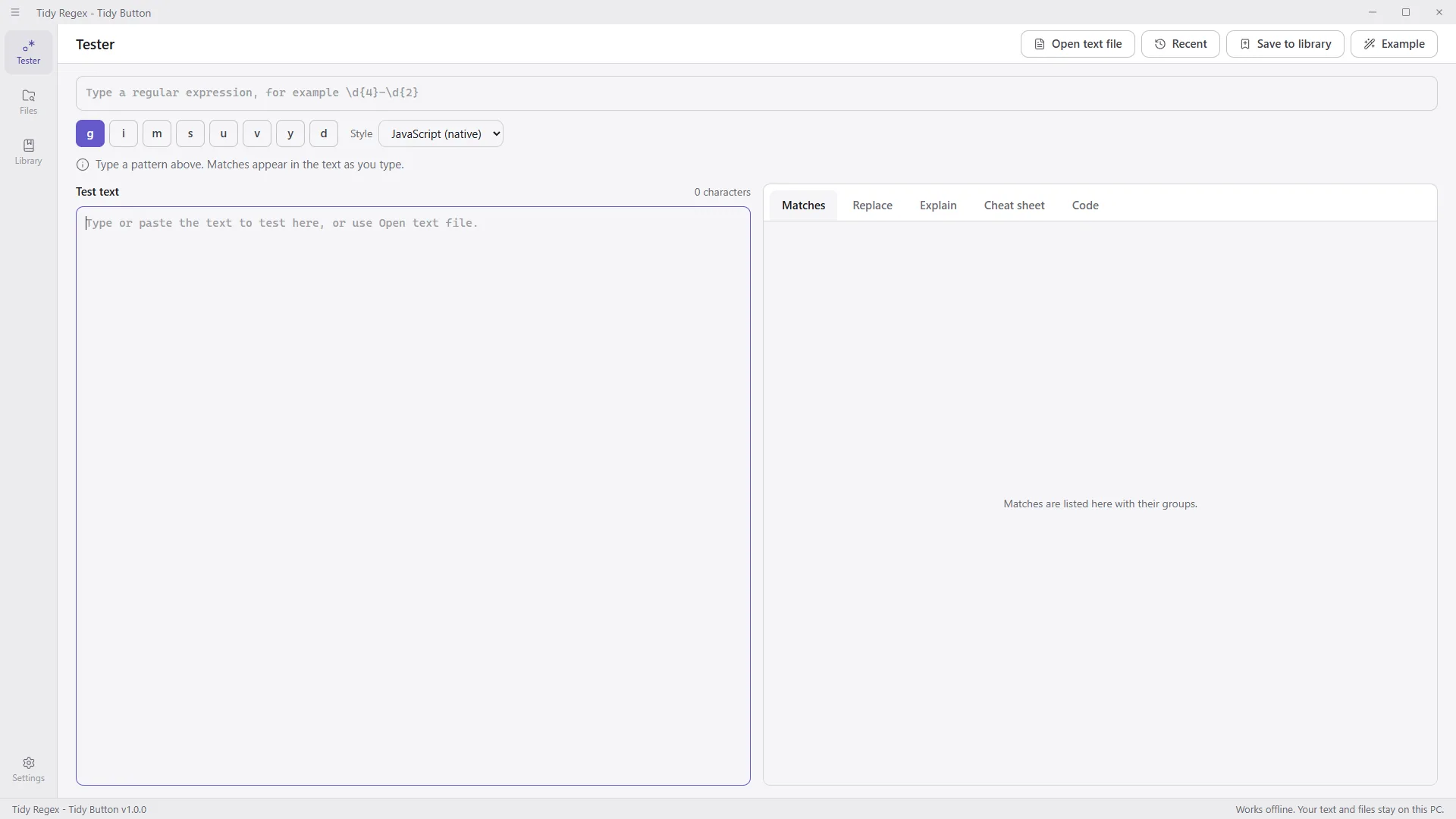
Test a pattern on some text
- Open Tester in the left menu.
- Type your pattern in the pattern box at the top. Press Example if you want a sample to start from.
- Paste your text into Test text, or press Open text file to load a file.
- Matches are highlighted in the text as you type.
- Open the Matches tab to see each match with its line and column, and its groups.
Click a match in the list to select it in the text.
Change the flags
Flags change how a pattern is read, for example whether capital letters count.
- Look at the row of flag buttons under the pattern.
- Click a flag to turn it on or off. Hover over it to read what it does.
- Switch on the g flag to find every match, not just the first.
- Switch on the i flag to treat capital and small letters the same.
- Switch on the m flag if you want ^ and $ to match at every line.
Preview a replacement
- Type a pattern that has groups, for example (\d{4})-(\d{2}).
- Open the Replace tab.
- Type your replacement in the box. Use $1 for the first group, or $& for the whole match.
- Read the Result area. The replaced parts are shaded.
- Press Copy result to copy the new text.
Named groups can be used as $<name>.
Learn what a pattern does
- Type or paste the pattern.
- Open the Explain tab. Each part of the pattern is described in plain English, in order.
- Open the Cheat sheet tab to find a token. Click a row to put it into the pattern at the cursor.
Go back to a pattern you tried before
- Press Recent at the top of the Tester screen.
- Click a pattern in the Recent patterns list.
- The pattern and its flags come back.
If something goes wrong
My pattern shows no matches. What should I check?
Check the flags first. Without the i flag, capital letters must match exactly. Then open the Explain tab to see what each part asks for.
An error message shows a column number. What does it mean?
The message tells you the column in the pattern where it goes wrong. Look there for a missing bracket or a stray symbol.
I see the message that the pattern took too long. What now?
The app stops patterns that backtrack too much so it never freezes. A repeat inside a repeat, such as (a+)+, is a common cause. Make that part more specific.
Highlighting has switched off for my big text. Is something broken?
No. For large text the app turns off highlighting to keep typing smooth. The list in the Matches tab still works, and clicking a match selects it in the text.
Good to know
- The tester follows JavaScript rules, so a pattern written for another language may behave a little differently.
Still stuck? Support is by email, and a person reads it.