How to make a printable test with an answer key
This guide shows how to write test questions, put them in a test, and print the test with an answer key that matches. Everything stays on your PC.
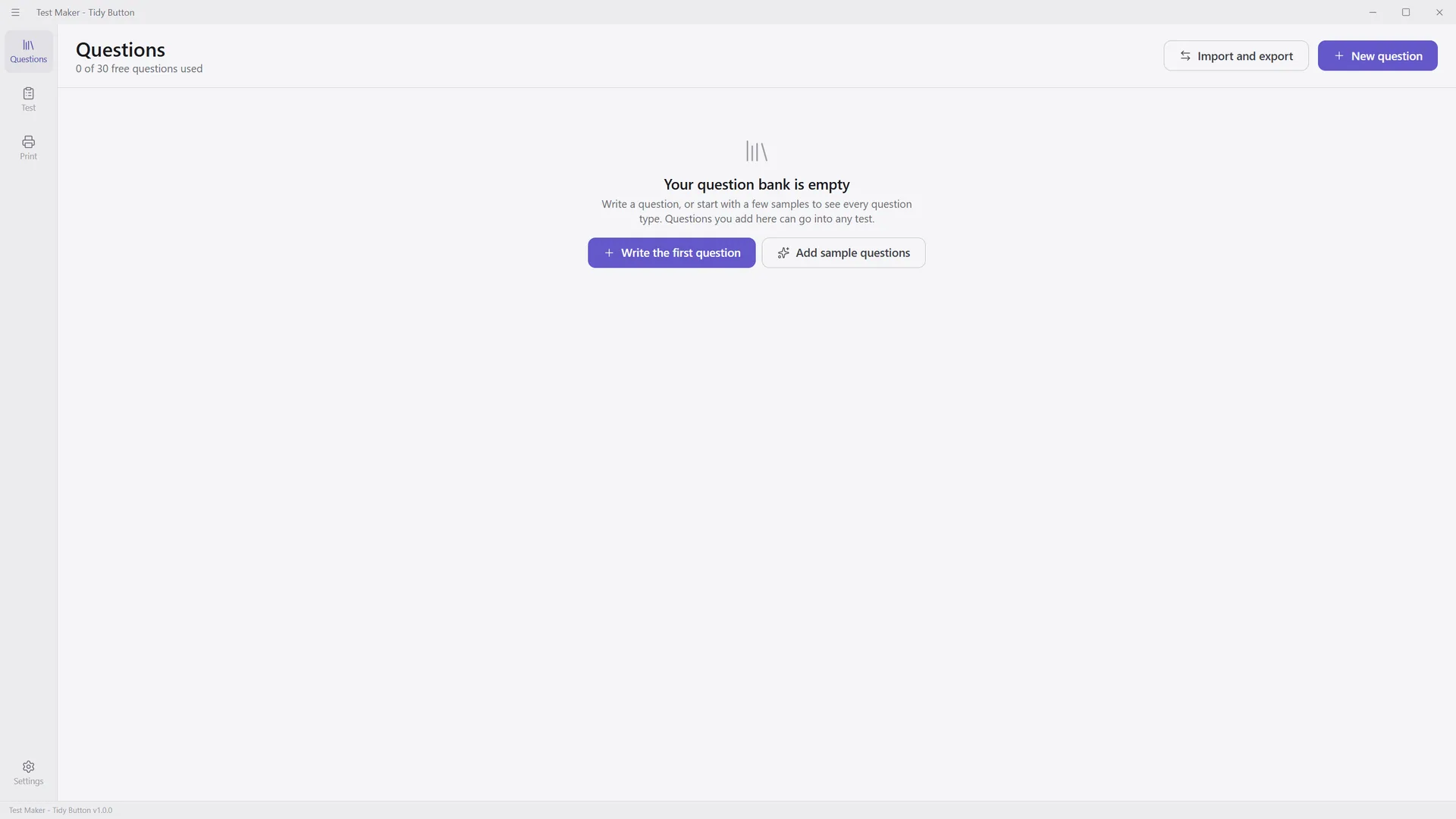
This app is not on the Microsoft Store yet. This guide is ready for the day it arrives.
Write questions in your bank
The bank holds every question you write. Any test can use them.
- Open Questions in the left menu.
- Press New question.
- Open Question type and pick one, for example Multiple choice or True or false.
- Type the wording in Question.
- Fill in the answer fields. For multiple choice, tick the correct choice and press Add a choice for more.
- Set Difficulty and Points, and type a subject in Subject or tags.
- Press Add to bank.
To see every question type first, press Add sample questions on an empty bank.
Build a test from your questions
- Open Test in the left menu.
- If you see No test yet, press Make a test.
- In the panel on the right, open Add questions.
- Tick the questions you want, then press the button whose label starts with Add and ends with to the test.
- Check the list on the left. It shows the number of questions and the points.
You can also press the Add to your test button on a question row in Questions.
Set the title, paper and name lines
- On the Test screen, open Print options.
- Type a name in Test title.
- Add a school or class if you want one, and a line of instructions.
- Open Paper size and pick the paper you print on.
- Turn Name line, Date line and Score box on or off.
Preview the test and save the PDF files
- Press Preview and print at the top of the Test screen.
- Look at the pages on the right. Press Answer key in the left panel to see the key. Press The test to go back.
- Keep Also save the answer keys turned on if you want the key as well.
- Press Save the PDF files and choose where to save them.
- When the app says it saved the files, press Show in folder to find them.
The answer key is built from the same test and the same shuffle code, so the two match.
If something goes wrong
The Add to bank button is greyed out. Why?
The question is not complete yet. Read the line at the bottom of the editor. It says what is missing, such as a correct answer or text for every choice.
How do I find one question in a long bank?
On the Questions screen, type in Search questions. You can also filter by subject, type and difficulty.
Can the questions and answer choices print in a different order?
Open Print options on the Test screen. Turn off Keep version A as written, then turn on Shuffle the questions and Shuffle the answer choices. Press Shuffle again for a different order. A choice such as All of the above stays at the bottom.
Where are my questions saved?
In your Documents folder, in a folder named Tidy Button, then Test Maker. The app also keeps backup copies there. Nothing is uploaded.
Good to know
- The question bank holds up to 30 questions.
- The app keeps one test at a time. Pressing New test replaces the current one after you confirm.
Still stuck? Support is by email, and a person reads it.