How to make QR codes and barcodes in bulk from a CSV
This guide shows how to make one code, how to make a whole list of codes from a CSV or pasted text, and how to print them on label sheets.
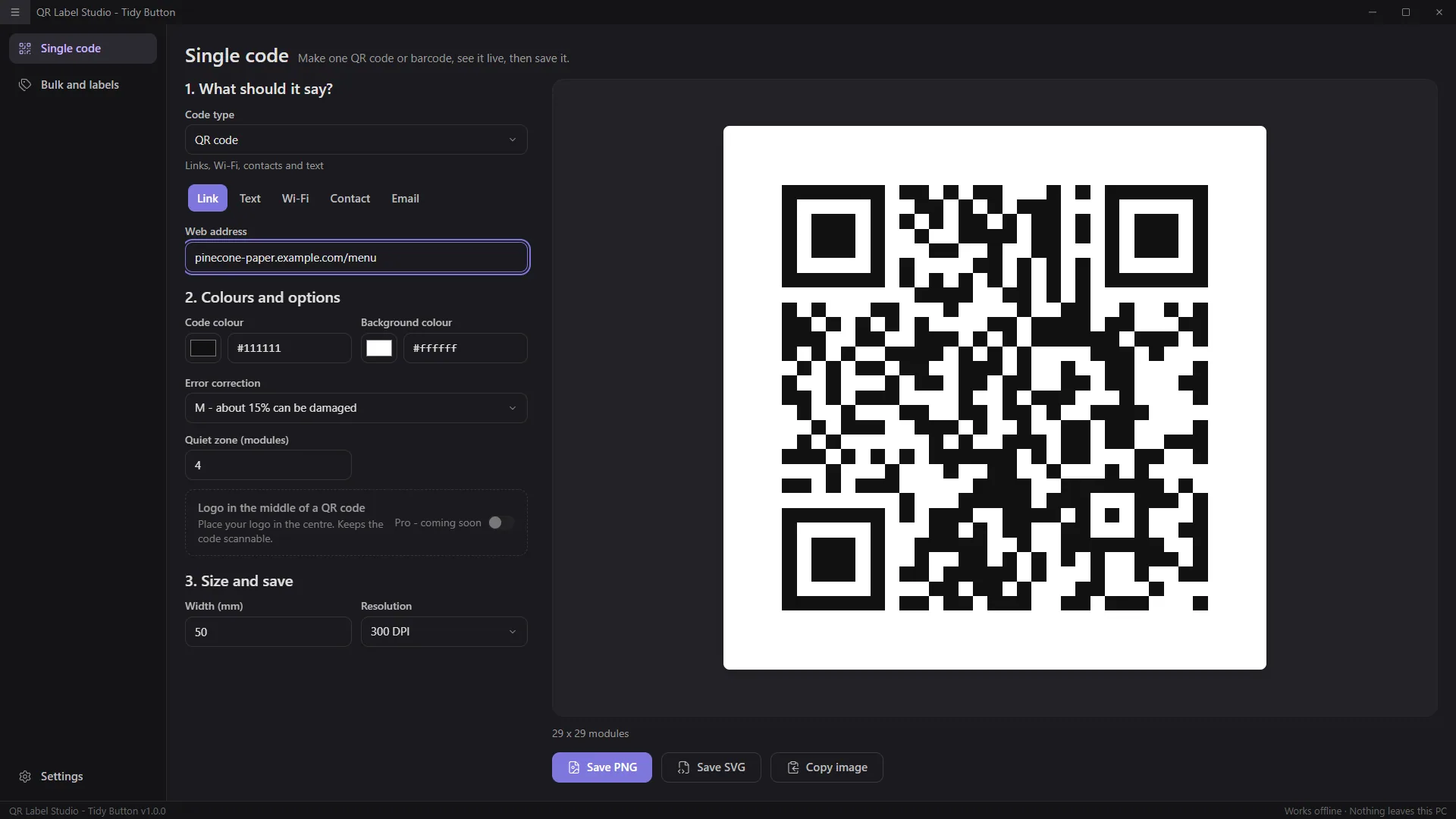
This app is not on the Microsoft Store yet. This guide is ready for the day it arrives.
Make a QR code for your Wi-Fi
- Open Single code from the left menu.
- Check that Code type shows QR code.
- Under What the QR code holds, choose Wi-Fi.
- Type the name of your network in Network name (SSID) and your password in Password. Pick the right option in Security.
- Watch the code appear on the right.
- Press Save PNG and choose where to save it.
Use Save SVG instead if you want a picture that stays sharp at any size.
Make a shop barcode and fix a wrong check digit
- Open Single code from the left menu.
- In Code type, choose EAN-13 or UPC-A.
- Type the digits into Value. You can type the first 12 digits for EAN-13 and the app adds the last one.
- If the check digit is wrong, the app tells you which one it needs and shows a button that fixes it. Press that button.
- Press Save PNG, or press Copy image to paste the barcode into a document.
Turn a list into many codes
Each row in your list becomes one code.
- Open Bulk and labels from the left menu.
- Press Open CSV or TXT file, or paste your list into the box under it. Use one value per line, or a table with columns.
- If the app reads the columns wrongly, change Separator or First row is a header?.
- Use Code from to choose the column that holds the text for each code.
- Choose a Code type and your colours.
- Look at the table. Rows that need fixing are marked and are skipped.
Press Clear to empty the list and start again.
Print the codes on label sheets
- Make your list on Bulk and labels as in the task above.
- In the print section, open Label sheet and pick the sheet that matches your paper.
- If the sheet is already partly used, change the Start at label box, or click a label in the small picture of the page.
- Tick Print a text line under each code if you want a line of text under each code. Pick the column in Label text from.
- Press Make PDF and choose where to save the file.
- Open the PDF and print it at 100% size.
Save every code as a picture
- Make your list on Bulk and labels.
- In the section for saving pictures, choose PNG pictures or SVG in Format.
- Pick a size in Width (mm) and a Resolution.
- Use File name from to choose the column that names each file.
- Press the button that starts with Choose folder and save, then pick a folder.
The app never overwrites a file. If two names match, the second one becomes name (2).
If something goes wrong
My code will not scan. What should I check?
Check the colours first. If you see a warning about faint or inverted colours, use a dark code on a light background. Also keep the Quiet zone (modules) at 2 or more, because a small quiet zone can stop scanners reading the code.
Why are some rows skipped in the table?
A row that needs fixing, for example a barcode with the wrong number of digits, is skipped. Edit the list and the table updates.
The columns look wrong after I open my file. What now?
Change Separator to match your file, such as Comma, Semicolon or Tab. Then check First row is a header? and choose the column in Code from.
Which Code type should I use for a shop barcode?
EAN-13 is the standard shop barcode and uses 13 digits. UPC-A uses 12 digits and is used in the US and Canada. Code 128 suits shipping and stock labels.
Good to know
- Always test one printed label with a scanner or phone before you print a full sheet.
Still stuck? Support is by email, and a person reads it.