How to ring up sales and close the till at the end of the day
This guide shows how to use a Windows PC as a simple shop till. You add what you sell, bill customers, print receipts, and close the day.
This app is not on the Microsoft Store yet. This guide is ready for the day it arrives.
Add the products you sell
Each product has a name and a price. A barcode lets you scan it at the till.
- Open Products in the left menu.
- Press Add product.
- Type the product name in Name and its price in Price.
- If the item has a barcode, click Barcode and scan it with your scanner, or type the number.
- To count your stock, leave Keep track of stock ticked and enter the amount in In stock.
- Press Save. Repeat for each product.
- To bring in a whole list at once, press Import CSV and choose your file.
A CSV file needs a name column and a price column. Barcode, sku, category, tax_rate and stock columns are optional.
Make a bill for a customer
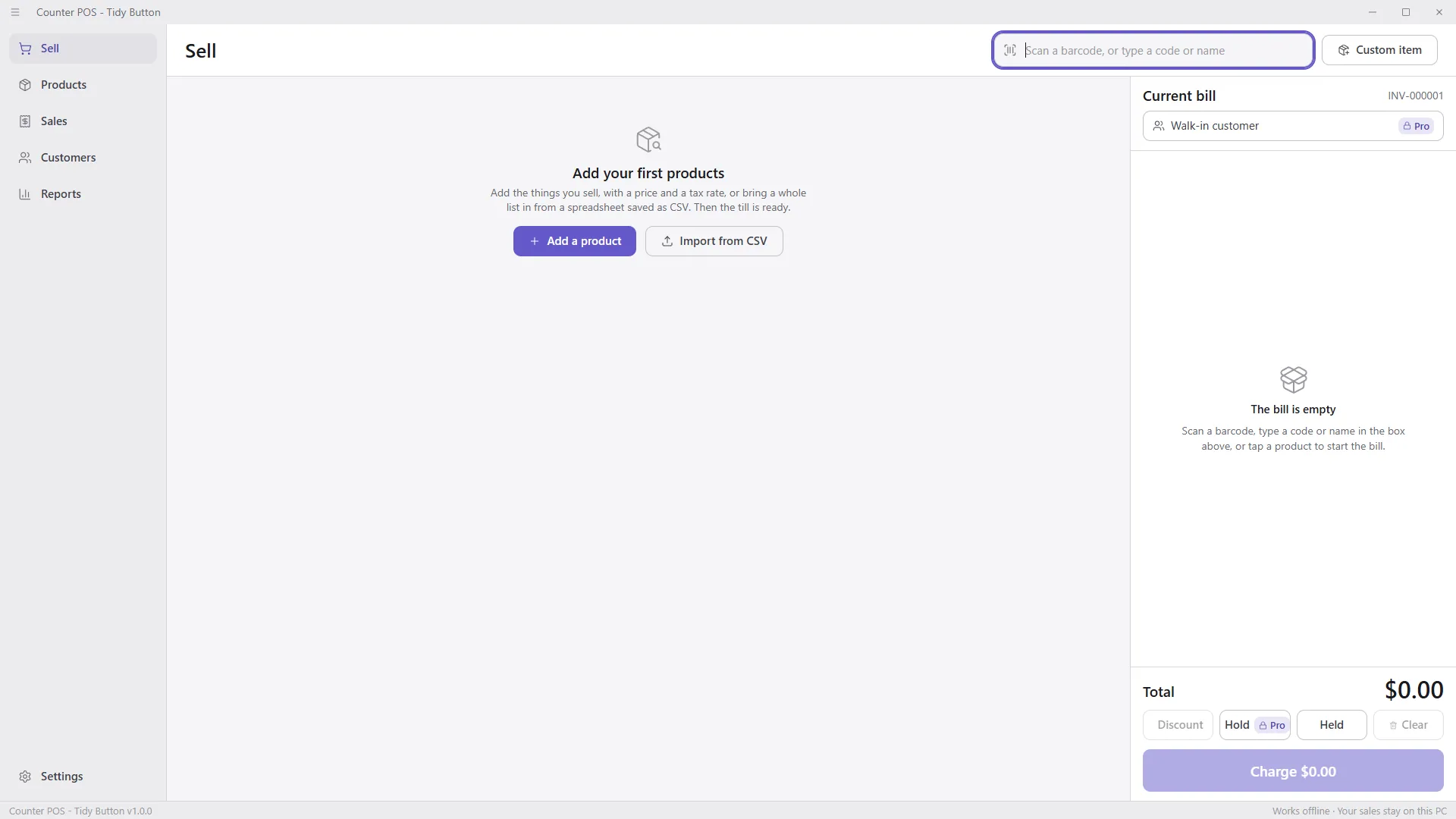
The till is the first screen. Everything you add shows on the bill on the right.
- Open Sell in the left menu.
- Scan the barcode, or click the box that says Scan a barcode, or type a code or name and type the code. Press Enter to add the item.
- You can also type part of a name. If only one product matches, Enter adds it. If several match, tap the one you want in the grid.
- To add several at once, type a number, a star and the code. For example, 3*5000001 adds three.
- Use the plus and minus buttons on a line to change its quantity.
- For a one-off charge that is not a product, press Custom item, fill in the details and press Add to bill.
- To give a discount on the whole bill, press Discount, choose Percent or Amount, then press Apply discount.
Press the small tag button on a line to give a discount on that line only. You can also tap a product tile to add it to the bill.
Take payment and print the receipt
- When the bill is ready, press the large Charge button at the bottom of the bill. The F9 key does the same.
- Tap a payment method, such as the cash method, to pay the whole bill with it.
- To split the bill, tap a second method. Change the amounts if you need to.
- For cash, type the money the customer gave in Handed over, or tap one of the suggested amounts. The change due shows at the top.
- Press Finish bill.
- Press Print receipt for a paper receipt, or A4 invoice (PDF) for a full page invoice.
- Press New sale to start the next bill.
Payment methods are only labels on the bill. The app does not connect to a card terminal.
Close the day and read the Z-report
Closing the day saves a Z-report for everything sold since the last close.
- Open Reports in the left menu and stay on Today.
- Check the bills, the takings for each payment method and the cash expected in the drawer.
- Press Close the day.
- Count the cash in the drawer and type it in Cash counted in the drawer (optional).
- Press Close the day again to save the report.
- Press Print for a paper copy, or A4 report to open it as a PDF.
- To read an earlier day later, open the Closed days view.
A closed report cannot be changed, and the next one starts from zero.
Save a backup of your shop data
- Open Settings in the left menu.
- Find the Your data section.
- Press Save a backup and choose where to keep the file, for example a USB drive.
- To go back to a saved copy, press Restore from a backup and choose the file.
The app also saves a copy once a day into a Backups folder next to your data.
If something goes wrong
I scanned a barcode and nothing was added. Why?
The product may not have that barcode saved. Open Products, press Edit beside the product and check the Barcode box. You can also type part of the name in the box on Sell and tap the product in the grid.
The tax on my bill is wrong. What should I check?
Open Settings and look at Prices include tax and Prices exclude tax, then press Save settings. Then check the Tax rate on each product. New settings only apply to new bills, because finished bills never change.
The receipt does not print on my roll printer. What can I do?
Open Settings, pick your printer in Receipt printer and choose 80 mm or 58 mm to match your paper. The printer must be installed in Windows first.
I made a mistake on a finished bill. Can I edit it?
No. A finished bill is never changed, and bill numbers are not reused. Open Sales, click the bill and press Print receipt to print it again.
Where is my shop data kept?
In one file in your Documents folder on this PC. It is not sent anywhere. Use Save a backup in Settings to keep a spare copy.
Good to know
- The app does not take card payments. A payment method is only a name on the bill, so you still use your own card machine.
- Your shop record is kept in one file on this PC.
Still stuck? Support is by email, and a person reads it.