How to set up a Pomodoro timer on Windows
This guide shows how to run focus sessions with breaks, choose your own lengths, keep a task list and check your finished sessions.
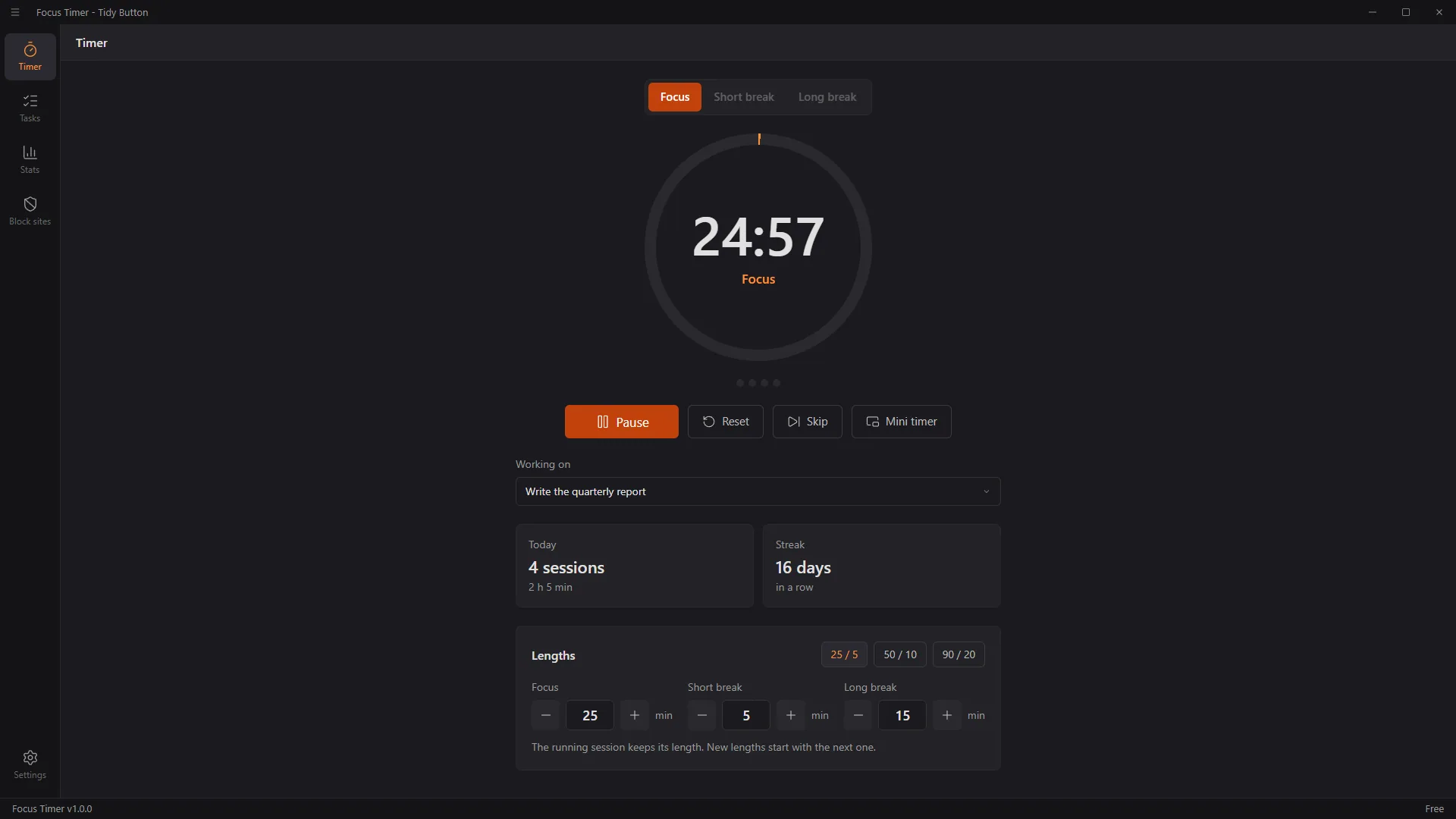
This app is not on the Microsoft Store yet. This guide is ready for the day it arrives.
Run a focus session
Use this for a block of work followed by a break.
- Open Focus Timer and look at the three tabs at the top: Focus, Short break and Long break.
- Make sure Focus is selected.
- Press Start. The clock counts down.
- Press Pause if you are interrupted, and Resume when you are back.
- When the time is up you hear a sound and see a Windows notification. The break starts by itself.
Each finished focus session is counted in Today on the same screen.
Change the focus and break lengths
- Open the Timer screen and find the Lengths box under the clock.
- Type a number of minutes in Focus, Short break or Long break, or use the plus and minus buttons.
- Or pick a preset such as 25 / 5, 50 / 10 or 90 / 20.
- Open Settings and change Sessions before a long break to choose how many focus sessions come before the long break.
A session that is already running keeps its length. The new length starts with the next one.
Count your sessions for a task
- Open Tasks, type what you want to get done and press Add task.
- Go back to Timer and choose the task in Working on.
- Start a focus session. When it finishes, the task shows one more finished session.
- Tick the box beside a task when it is done. It moves to the finished list.
Keep a small timer on top while you work
- Open the Timer screen.
- Press Mini timer. A small window with the clock opens and stays on top of other windows.
- Use its buttons to start, pause or resume, and to skip a break, without going back to the main window.
- Press Close mini timer when you no longer need it.
Check how much you focused
- Open Stats.
- Read Today, This week, Last week and Streak at the top.
- Look at the daily chart to compare the last 7 days.
If something goes wrong
I cannot switch from Focus to Short break while the timer runs. Why?
The tabs are locked while a phase is running. Press Pause first, or press Skip to move on to the next phase.
I pressed Reset and my session was not counted. Is that normal?
Yes. Reset and Skip ask first, because a focus session that is stopped early is not counted. Only a session that runs to the end is counted.
I hear no sound when a phase ends.
Open Settings and check that Play a sound when a phase ends is on and that Volume is not turned down. Press Preview the sound to hear it. Also check that your Windows volume is not muted.
I do not see a Windows notification.
Open Settings and check that Show a Windows notification is on. Windows can also hide notifications while Focus Assist or Do Not Disturb is on.
The next focus session does not start by itself after a break.
This is off by default so a break never turns into work you did not choose. Turn on Start the next focus session by itself in Settings if you want it.
Good to know
- The timer counts a session only when it runs to the end.
- The Windows notification and the sound only play while the app is running.
Still stuck? Support is by email, and a person reads it.