How to draw pixel art and make an animated GIF
This guide shows how to draw a small picture pixel by pixel, bring it to life with frames, and save it as a PNG or an animated GIF. Everything stays on this PC.
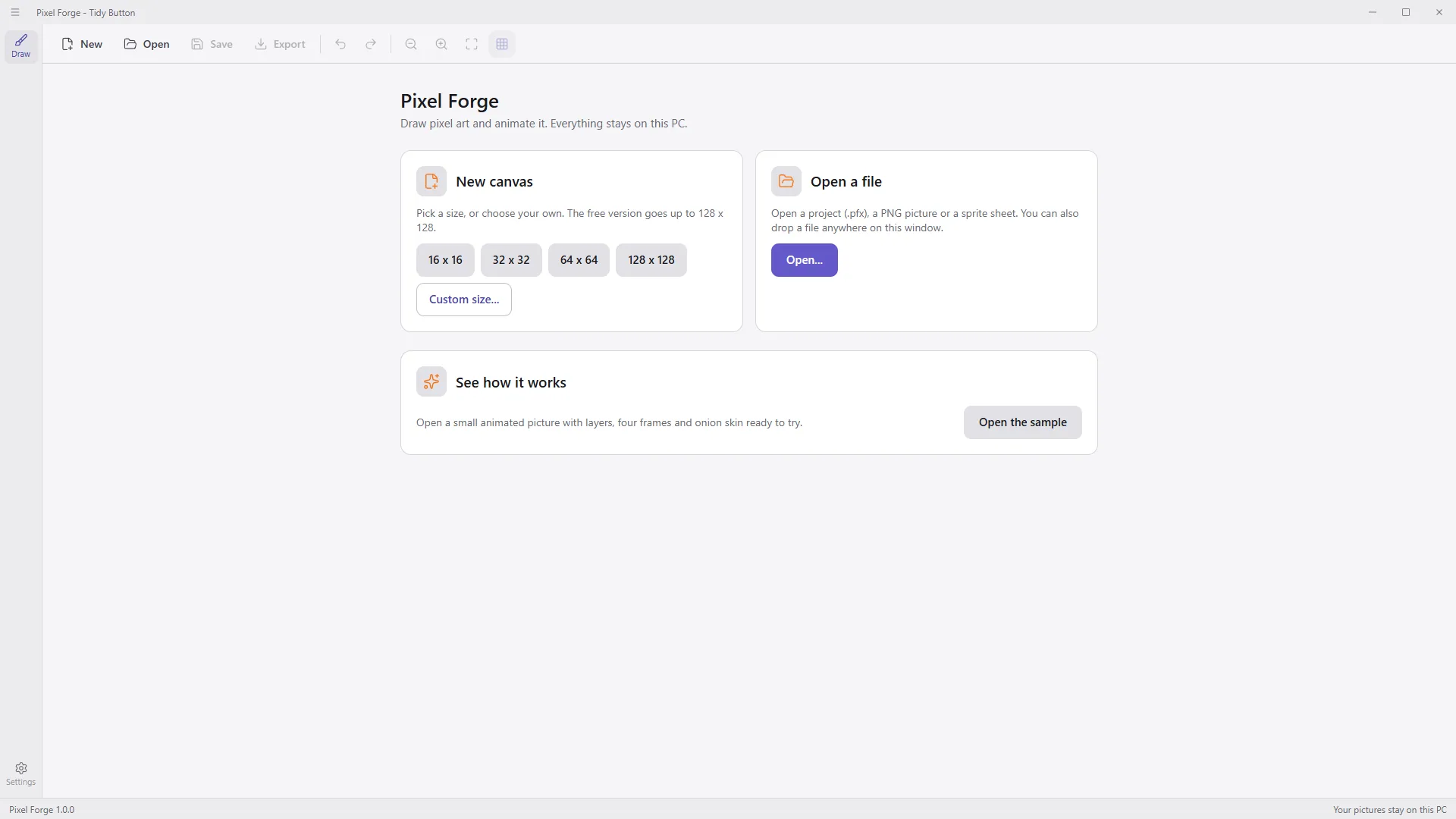
This app is not on the Microsoft Store yet. This guide is ready for the day it arrives.
Start a new canvas and draw
- On the start page, press one of the size buttons, for example 16 x 16. Press Custom size... to choose your own width and height, then press Create.
- Click Pencil in the tool column on the left.
- Click a swatch in the Palette panel to pick a colour, or type a hex value in the box beside the current colour.
- Click or drag on the canvas to draw.
- Use Eraser to clear pixels, and Fill to colour a whole area at once.
- Press Undo at the top to take back the last step.
Turn on Pixel-perfect while the pencil is selected to keep your lines clean.
Draw lines and shapes, and mirror your strokes
- Pick Line, Rectangle or Ellipse from the tool column.
- Drag on the canvas from one corner to the other.
- Turn on Filled to make a solid rectangle or ellipse.
- Press Mirror left and right or Mirror up and down to draw both sides of a symmetric picture at once.
- Use Zoom in, Zoom out and Fit to window at the top to see your work larger or smaller, and Grid to show the pixel grid.
Use layers
- In the Layers panel, press Add layer.
- Click a layer to draw on it.
- Double-click a layer name to rename it, and use the eye button to hide or show it.
- Press Move layer up or Move layer down to change which layer is on top.
- Press Duplicate layer to copy the layer, or Delete layer to remove it.
Animate your picture
- In the frames strip at the bottom, press New frame to add an empty frame, or Copy frame to start from the one you have.
- Click Onion skin to see the frames before and after as faint pictures while you draw.
- Click a frame in the strip and change the drawing.
- Press Play in the Preview panel to watch it move.
- To change the speed, turn off Use each frame's own time and move the Speed slider. If you leave it on, type a time in milliseconds in the small box under each frame instead.
Use Move frame left and Move frame right to change the order.
Save your project and export a picture or a GIF
- Press Save at the top to keep the whole project, with its layers and frames, as a .pfx file. Press Open later to carry on.
- Press Export at the top.
- Choose PNG picture for the current frame, or Animated GIF for all the frames.
- Pick a Size, from the original up to ten times larger.
- Press Export and choose where to save the file.
If something goes wrong
The Save and Export buttons are greyed out. Why?
No picture is open yet. Press New and make a canvas, or press Open to load a file.
I drew on the wrong layer. How do I fix it?
Press Undo to take the step back. Then click the right layer in the Layers panel and draw again.
I lost my work after the app closed. Can I get it back?
The start page lists Recovered work, which are copies the app saved while you worked. Press Open beside one to load it.
My GIF does not move. What is wrong?
A GIF with one frame is a still picture. Press New frame or Copy frame to add more frames, change the drawing in each one, and export again.
Good to know
- PNG picture saves the current frame only. Choose Animated GIF to save all the frames in one file.
Still stuck? Support is by email, and a person reads it.