How to check if a website or server is down from your PC
This guide shows how to watch a website or a device on your network, read the live chart, and be told when it stops answering.
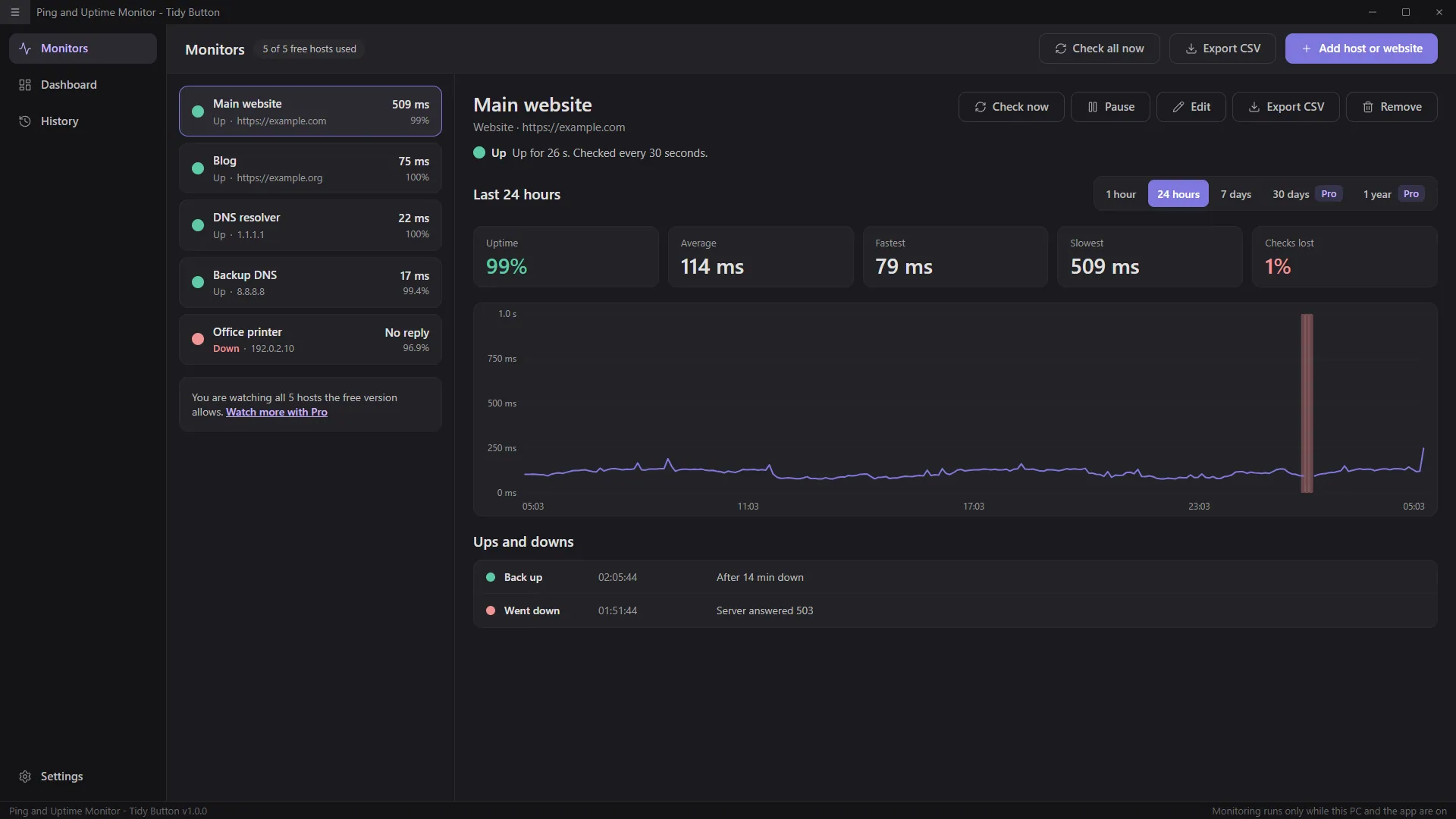
This app is not on the Microsoft Store yet. This guide is ready for the day it arrives.
Watch a website
- Open Ping and Uptime Monitor and press Add host or website.
- Choose Check a website.
- Type the full address, including https://, in Web address.
- Give it a name you will recognise in Name.
- Choose how often to check in Check every.
- Press Start watching. After the first check the website shows Up or Down.
The app counts a web page as up when it answers with a normal success code.
Ping a host or device
Use this for a router, a printer, a server or any device with an address.
- Press Add host or website.
- Choose Ping a host.
- Type the name or IP address in Host name or IP address.
- Press Start watching.
- Select the host in the list to see its live latency chart and figures for uptime, average, fastest and slowest.
Get a notice when something goes down
- Open Settings.
- Switch on Desktop notice to get a Windows notice when a host goes down.
- Switch on Sound if you also want a beep.
- Switch on Tell me when it is back to be told when the host answers again.
- Use Count a host as down after to choose how many failed checks in a row it takes. A higher number avoids alerts for a single lost reply.
See past outages and save the log
- Open History to see every time a host went down and came back.
- Use Show events of to look at one host or all of them.
- Press Export CSV to save the events as a file you can open in a spreadsheet.
- On the Monitors screen, choose 7 days above the chart to see a longer period.
If something goes wrong
A host shows Down but I know it works. What should I check?
Some devices do not answer a ping even when they are on. For a website, use Check a website with its address instead. Also check that the address is spelled correctly. Press Check now to test it again straight away.
I get an alert every time one reply is lost. How do I stop that?
Open Settings and raise the number in Count a host as down after. The host then counts as down only after that many failed checks in a row.
How do I stop watching a host for a while?
Select it and press Pause. No checks are made until you press Resume. Remove deletes it from the list after asking you first.
Does the app keep checking when I close the window?
It checks only while the app is running. Keep the window open or minimised if you want it to keep watching.
Good to know
- The checks come from your PC, so they show what your PC can reach. They are not a view from other places on the internet.
- The app watches only hosts and web addresses you add.
Still stuck? Support is by email, and a person reads it.