How to sort photos into folders by date on Windows
This guide shows how to sort a folder of photos and videos into year and month folders, see the plan first, and undo the run afterwards.
This app is not on the Microsoft Store yet. This guide is ready for the day it arrives.
Sort a folder of photos by date
- Open Photo Organizer by Date.
- Press Choose folder and pick the folder with your photos. You can also drop the folder onto the window.
- Look at Sorted files go to. Press Choose another place if you want the sorted files somewhere else.
- Press Preview what will happen and wait while the app checks your files.
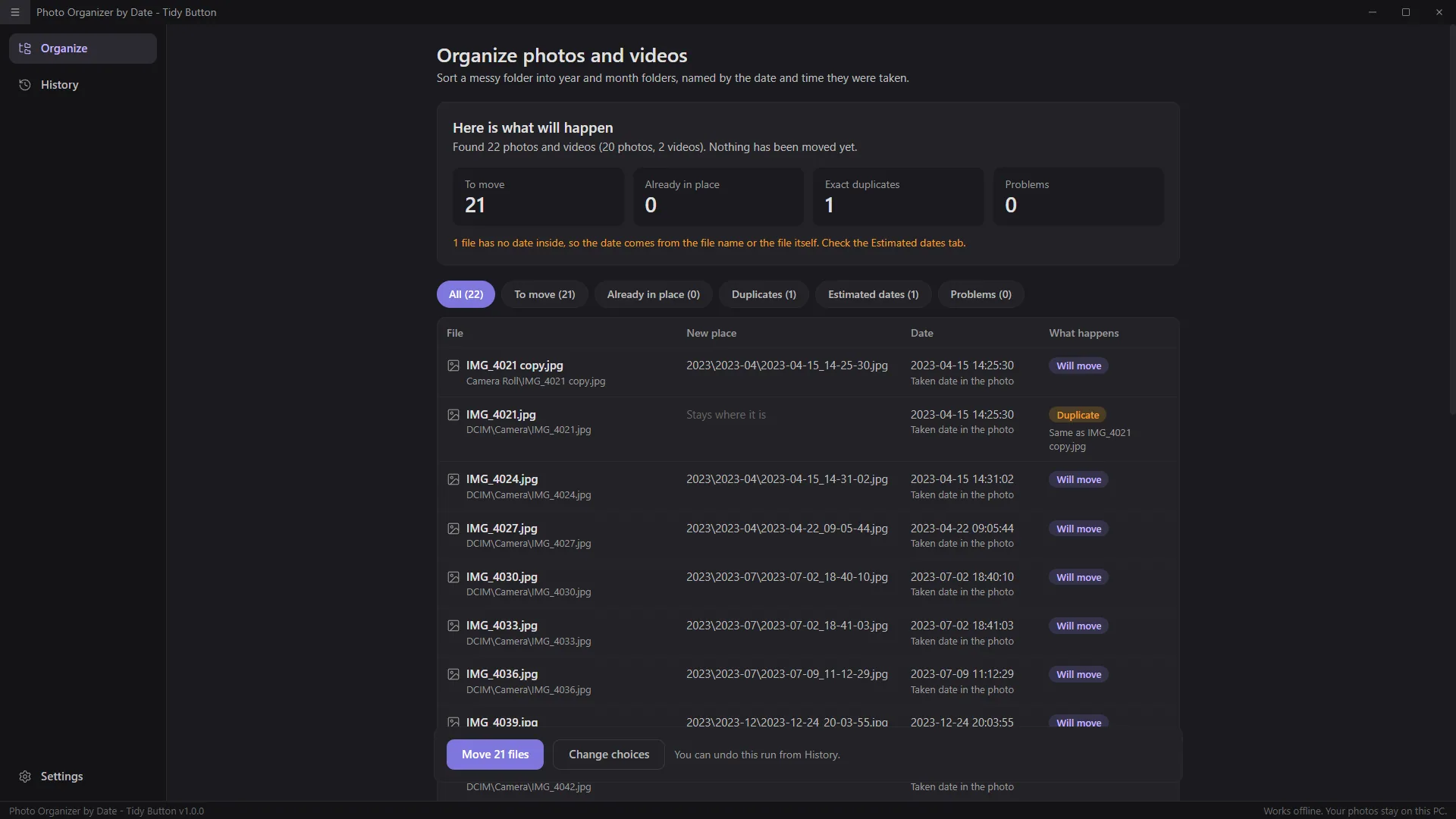
- Read the list. Each file shows its new place and the date it was taken.
- When the plan looks right, press the Move button at the bottom and confirm.
The files are moved, not copied. Nothing moves until you confirm.
Keep or change the file names
- Before you press Preview what will happen, look at File names.
- Choose date and time to name each file like 2023-04-15_14-25-30.jpg, or choose the option that keeps the original name.
- Press Preview what will happen and check the New place column.
Include or skip the folders inside
- Find the switch called Include the folders inside.
- Leave it on to sort the folders inside your chosen folder too.
- Turn it off to sort only the files at the top of the folder.
Deal with photos that have no date
- Look at Files with no date inside under the sorting choices.
- Choose what the app should do with a file that has no date stored inside it.
- After the preview, open the Estimated dates tab to see which files used a guess.
Check the estimated dates before you press the Move button.
Undo a run
- When the run finishes, press Undo this run on the result card.
- Or press History, then press Undo on the run.
- Confirm in the dialog. The files go back to where they were.
If something goes wrong
Some files are marked Duplicate. What does that mean?
The file has exactly the same content as another one. The app leaves exact copies where they are. Use the Duplicates tab to see them.
A file is in the Problems tab.
The app could not move that file. Open the tab to read the reason next to it.
The preview did not find my photos.
Check that you chose the right folder and that Include the folders inside is on if your photos are in subfolders.
Does the app upload my photos?
No. It reads dates and file contents on your PC to build the plan. Nothing is sent anywhere.
Good to know
- Moving is not copying. Keep a backup copy if the photos are precious.
Still stuck? Support is by email, and a person reads it.