How to send photos from your phone to your PC over Wi-Fi
This guide shows how to move photos and files from a phone to your PC without a cable, an account or an app on the phone.
This app is not on the Microsoft Store yet. This guide is ready for the day it arrives.
Send photos and files from your phone
The phone and the PC must be on the same Wi-Fi.
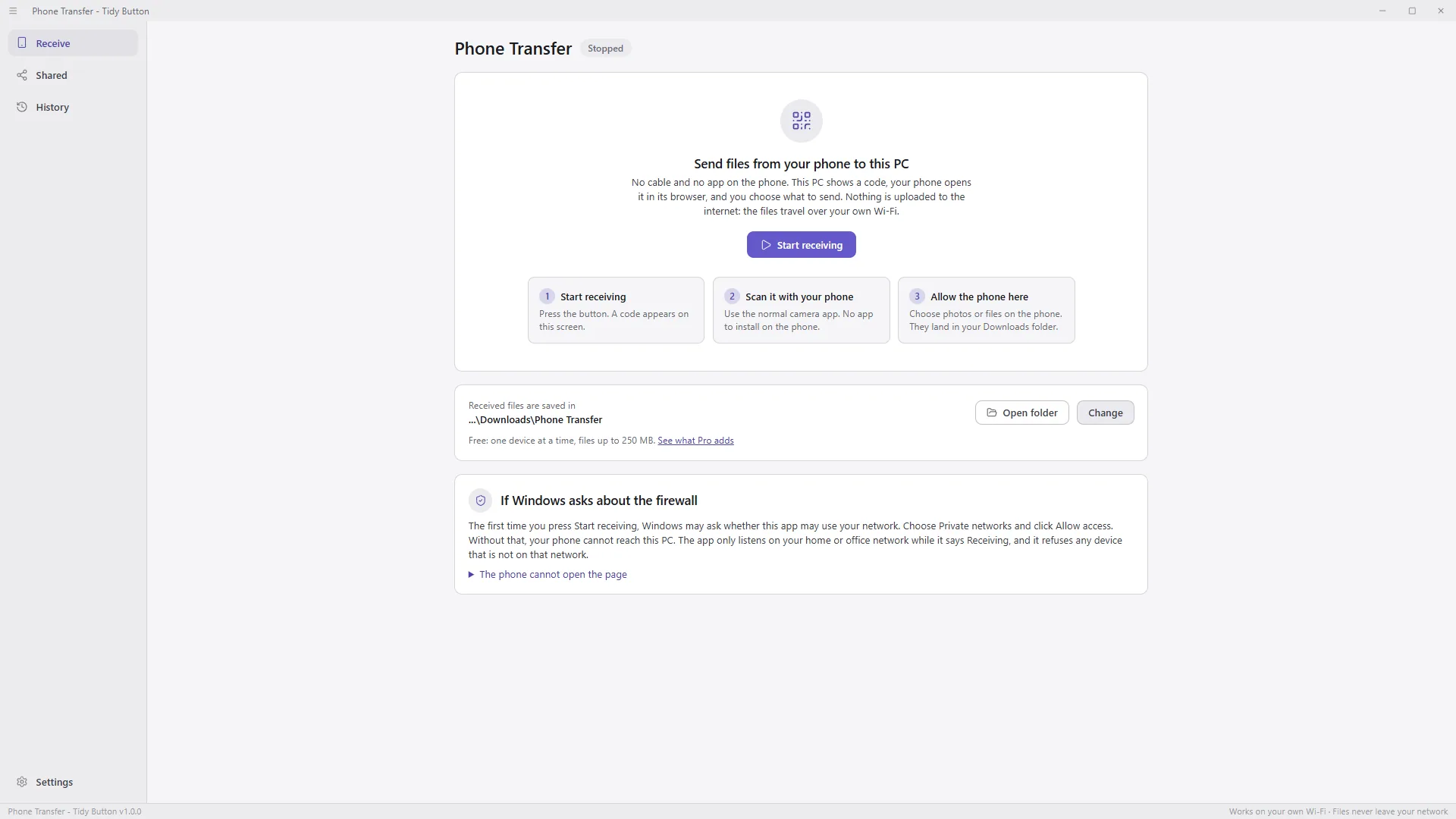
- Open Receive in the left menu.
- Press Start receiving. A code appears under Scan with your phone.
- Open the camera on your phone, point it at the code and tap the link.
- On the PC, look under Phones. When your phone appears, press Allow.
- On the phone, choose the photos or files to send. Watch the progress for each one.
- When you are done, press Stop receiving on the PC.
Nothing is accepted until you press Allow.
Find the files you received
- Open Receive. While the PC is receiving, the Files list shows what arrived since you opened the app.
- Press the folder button beside a file to show it in its folder.
- Or press Open folder under Received files are saved in to open the whole folder.
A file is never overwritten. If a name is taken, a number is added to the new one.
Choose where files are saved
- Open Settings in the left menu.
- Find Save received files in.
- Press Change folder and choose a folder you can see, such as one in Documents.
- Go back to Receive to check the folder name under Received files are saved in.
The folder cannot be inside the app's own data folder.
Use a type-in address instead of the code
- Start receiving as above.
- Press Copy address to copy the web address shown under the code, or read it from the screen.
- Type the address into the web browser on your phone.
- Press Allow on the PC when the phone appears.
End a session or start a new one
- Press New code to make a fresh address. The old address and every connected phone stop working.
- Press Stop receiving to end the session. The PC no longer accepts files.
- Press Block beside a waiting phone you do not want. Press Disconnect beside a phone that is connected to remove it.
If something goes wrong
My phone cannot open the page. What should I check?
Make sure the phone and the PC are on the same Wi-Fi. A guest network often blocks devices from seeing each other. Turn off a VPN on either device for a moment. The app also lists these steps under If Windows asks about the firewall.
Windows asked about the firewall. What do I choose?
The first time you press Start receiving, Windows may ask whether the app may use your network. Choose Private networks and click Allow access.
My PC has more than one network. Which one is used?
Open Settings. If the PC has more than one network, Network to share on appears. Choose the network your phone is connected to. It applies the next time you start receiving.
Where do my files go?
They are saved in a normal folder on your PC, shown under Received files are saved in. By default this is in your Downloads folder.
Do my photos go through the internet?
No. The files travel over your own Wi-Fi from the phone to the PC.
Good to know
- The phone and the PC must be on the same network. The app refuses any device that is not on the network it shares on.
Still stuck? Support is by email, and a person reads it.