We will link the Store listing here the day it is live. Until then there is nothing to download.
Real app, with sample files and a mock phone.
Nothing uploaded
No account, no ads, no tracking
No phone app
Free
See it
Seven views. One code, sent.
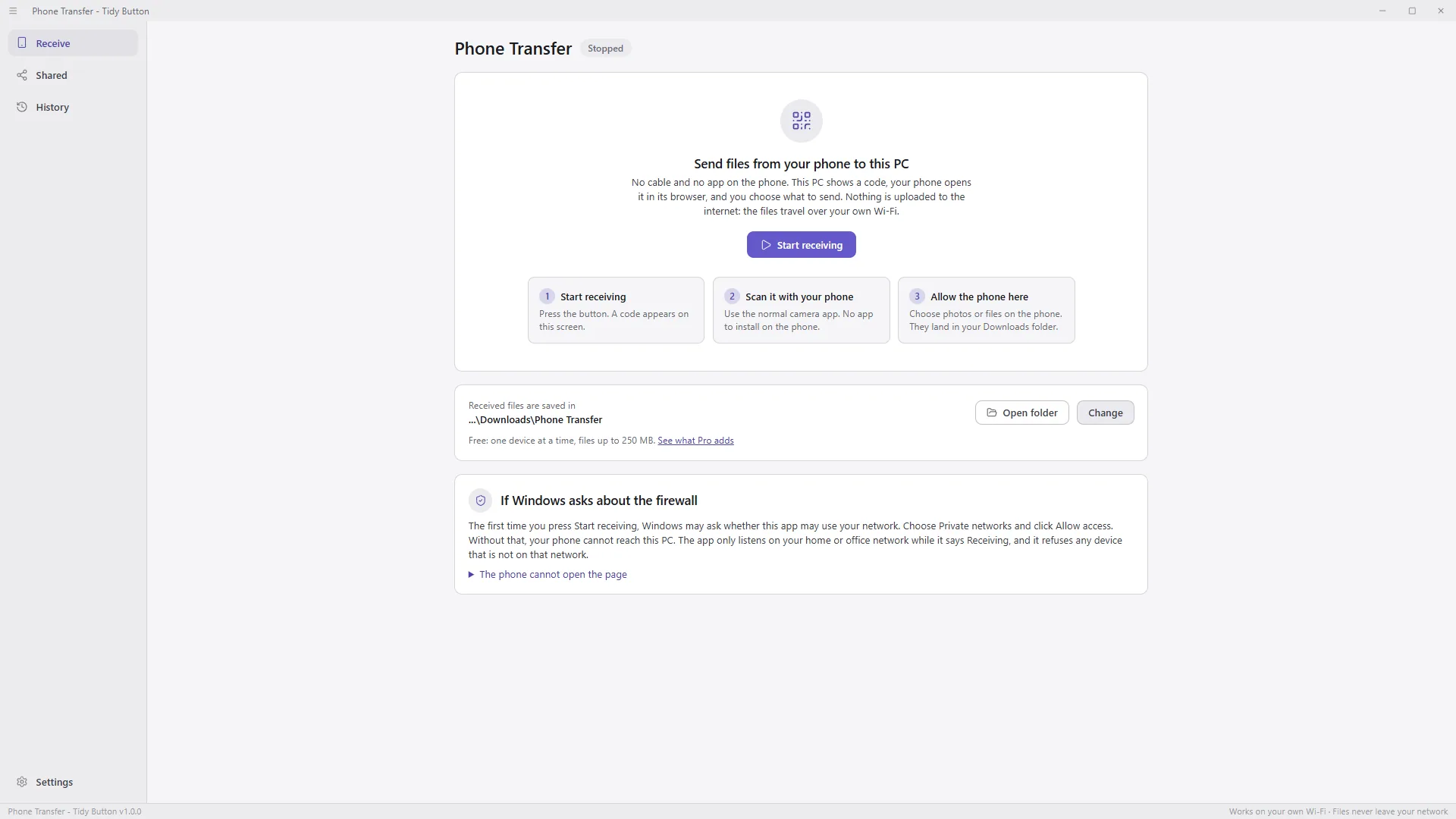
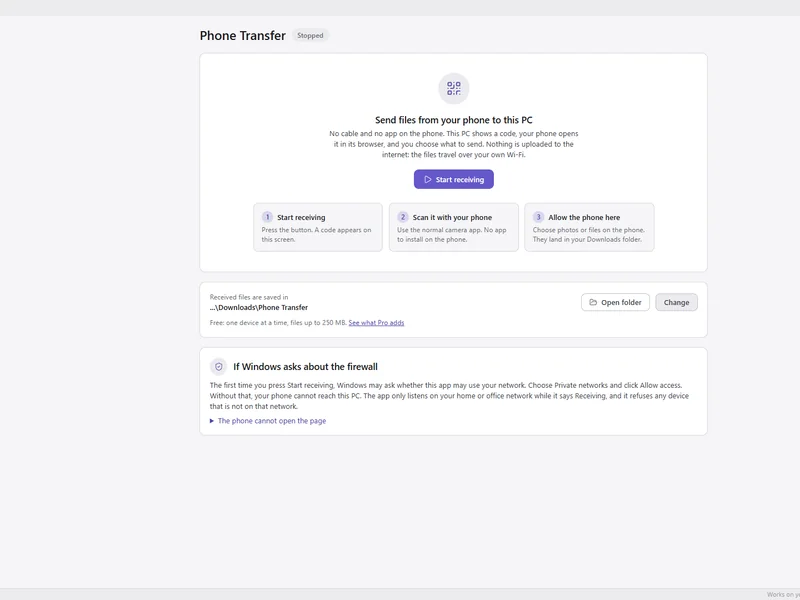
Ready
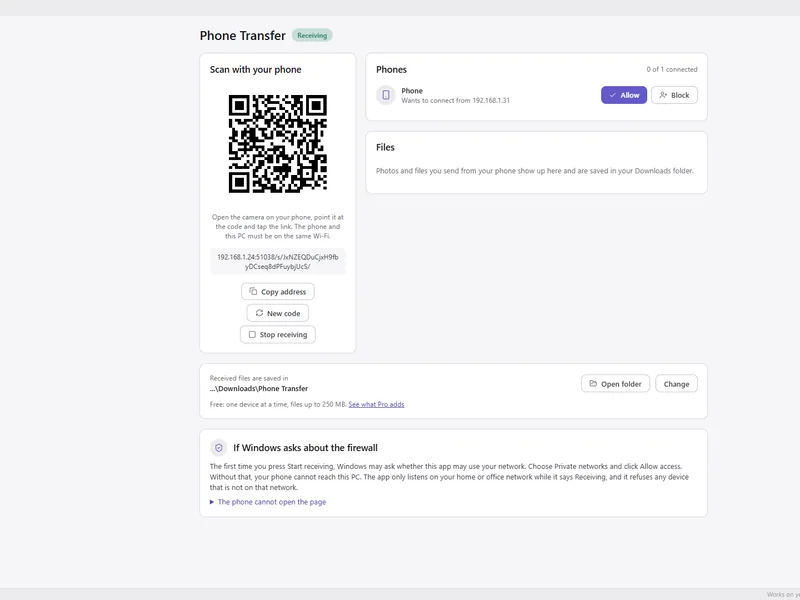
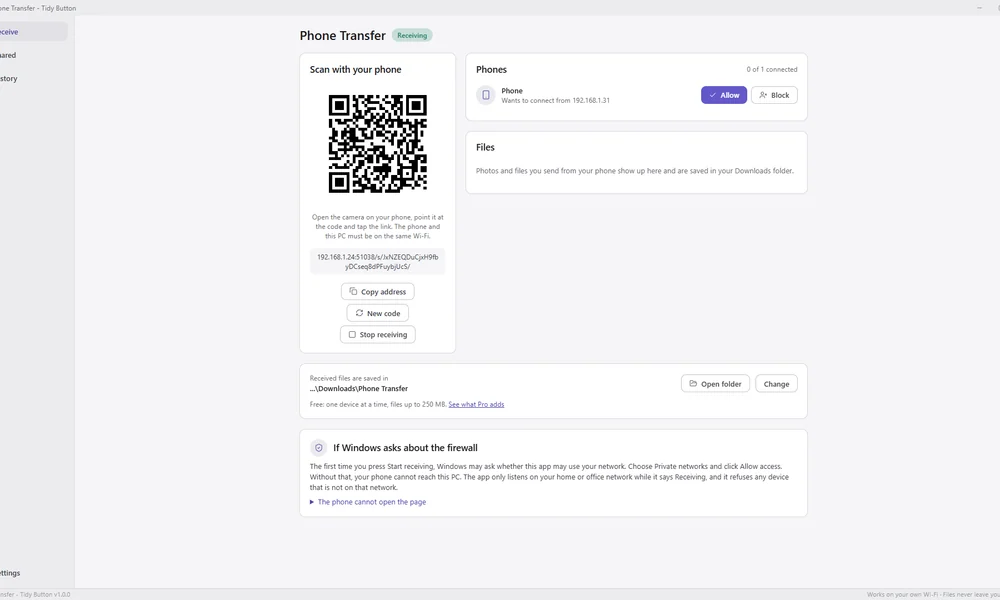
Press Start receiving, scan the code with your phone and send photos to this PC
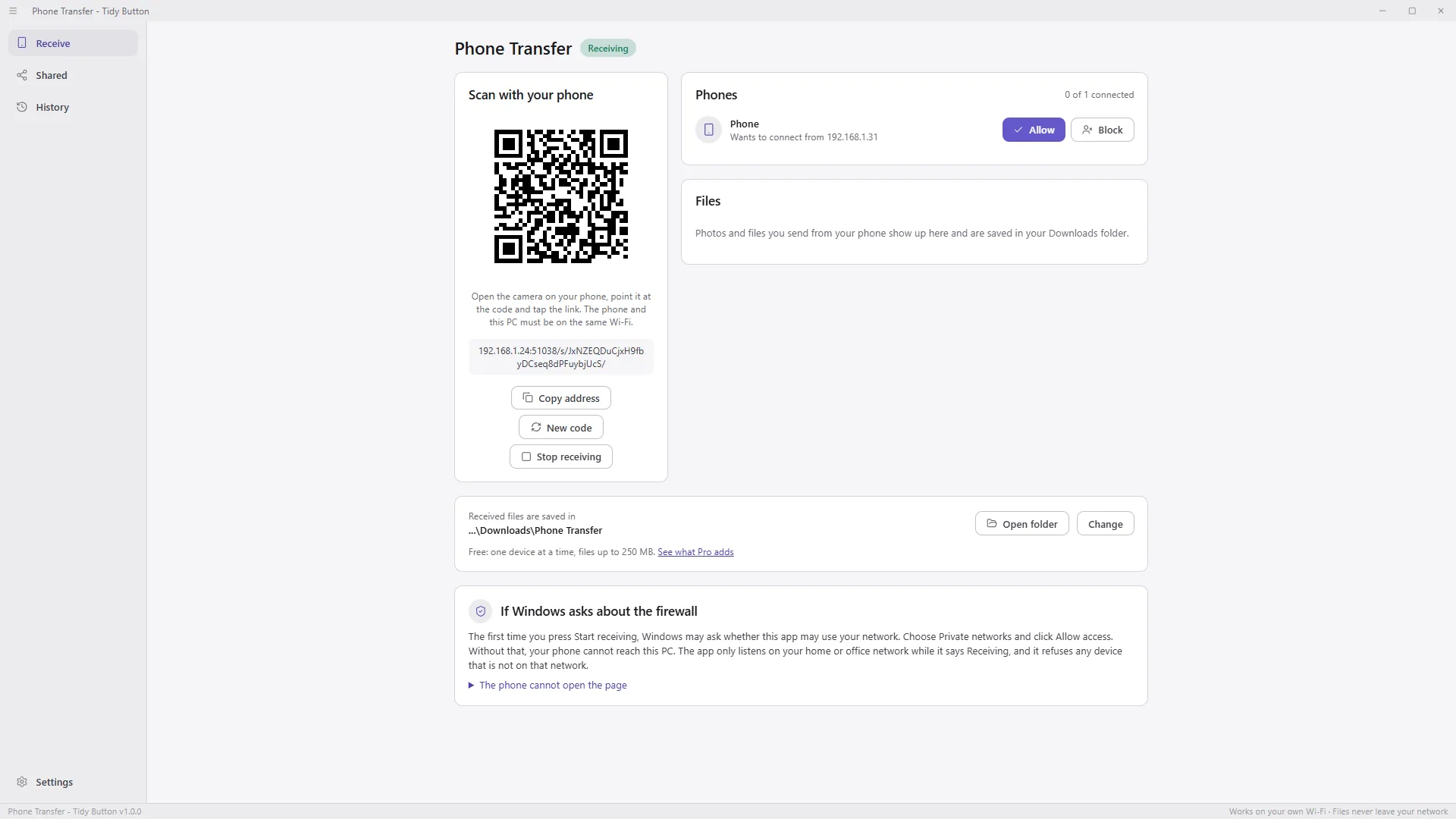
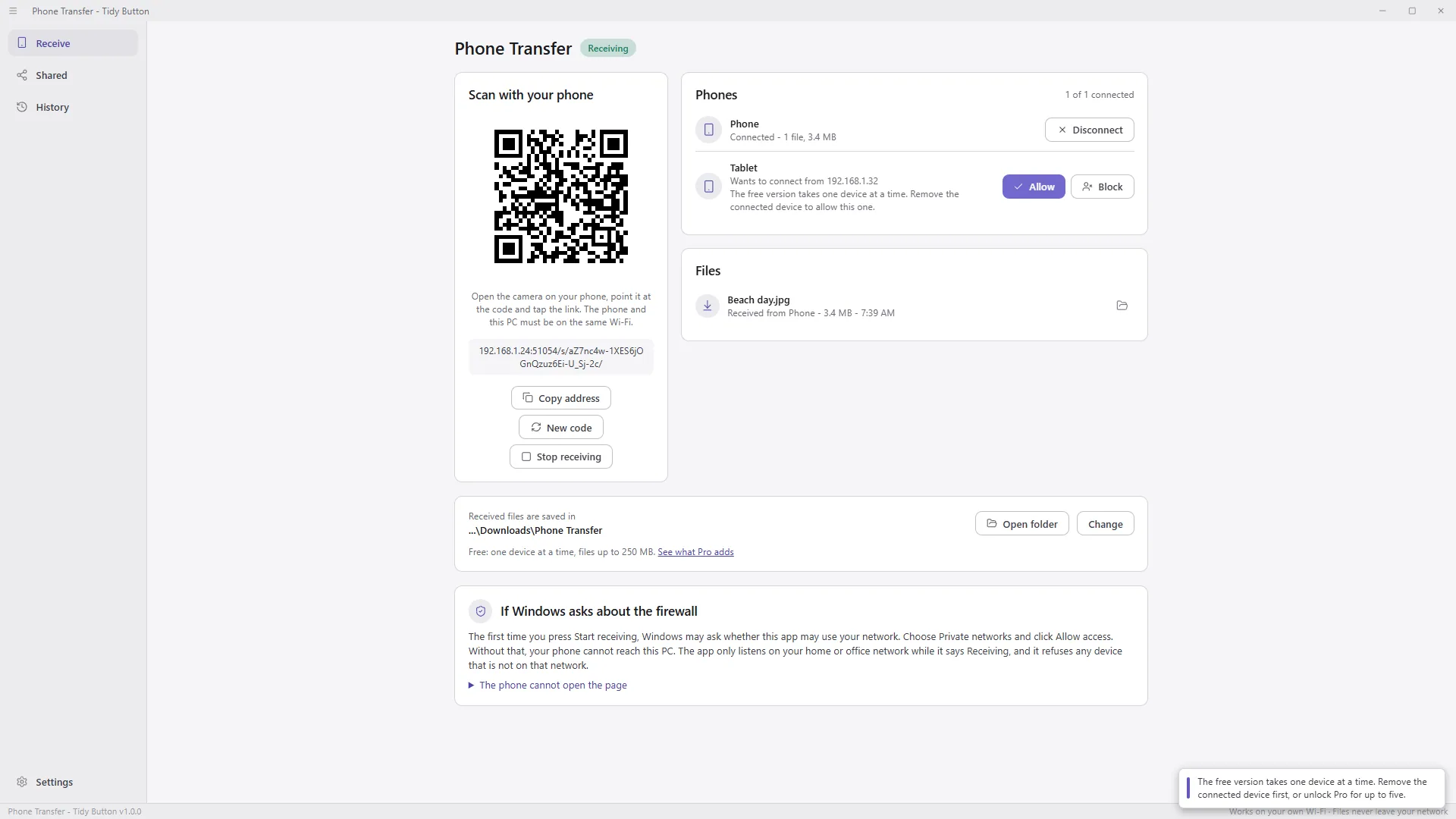
Allow
Each new phone appears with Allow and Block, and nothing is accepted before you allow it
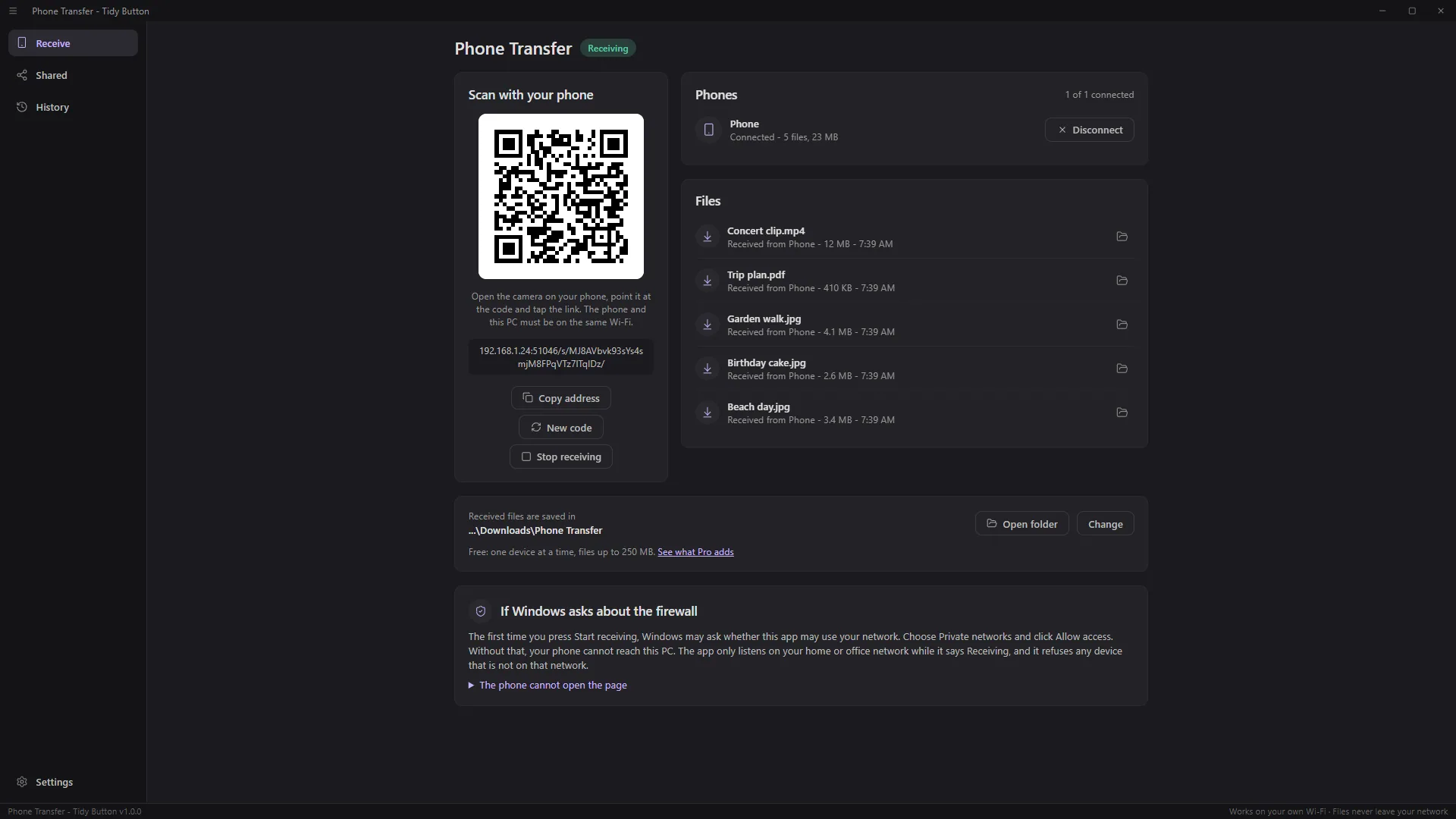
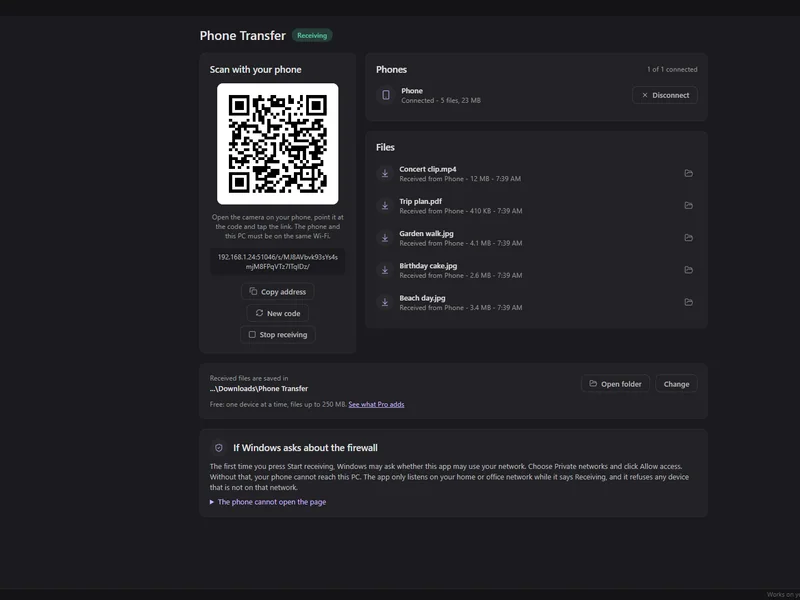
Received
Photos and files arrive in a normal folder on your PC and are listed with their size
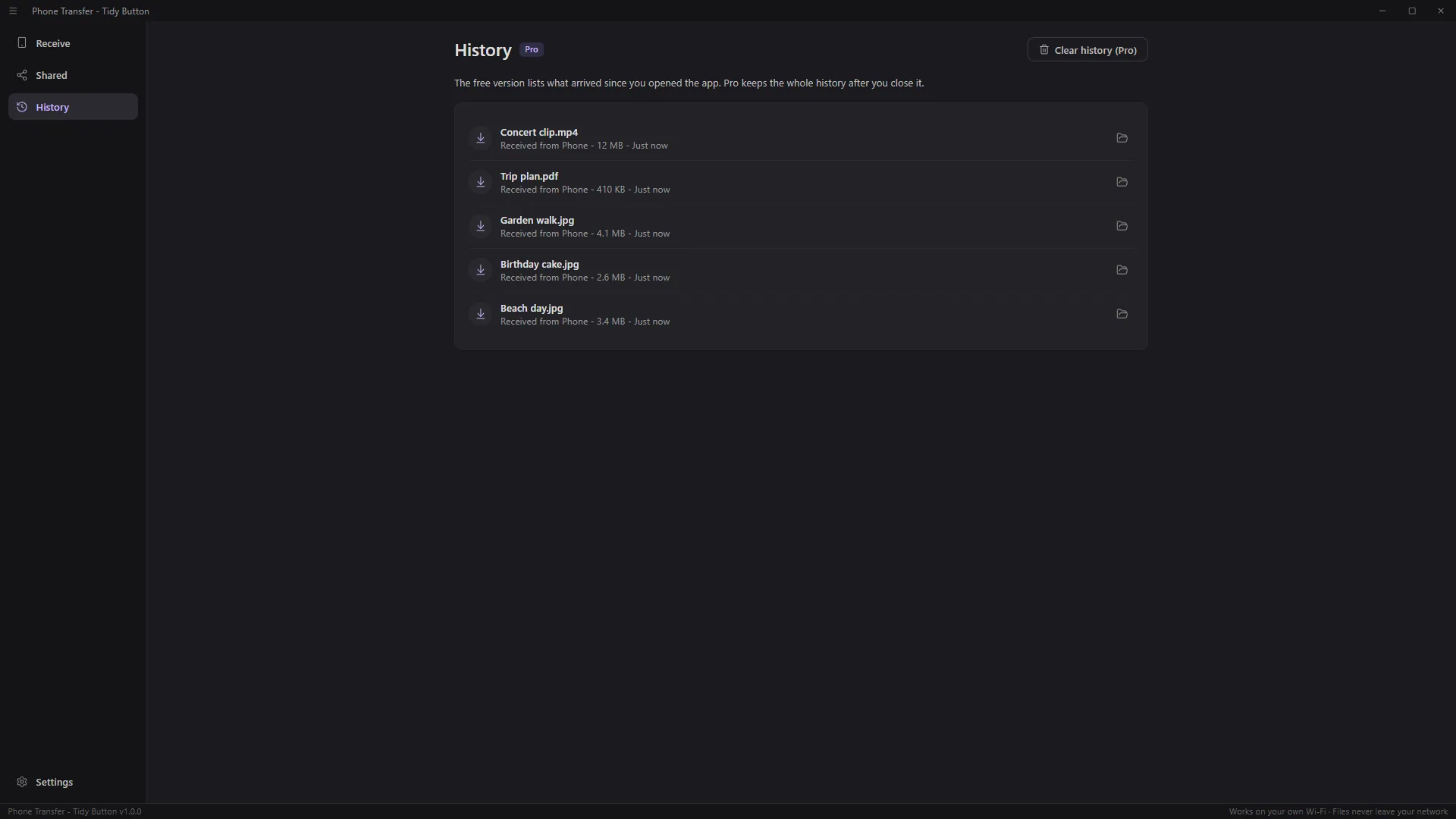
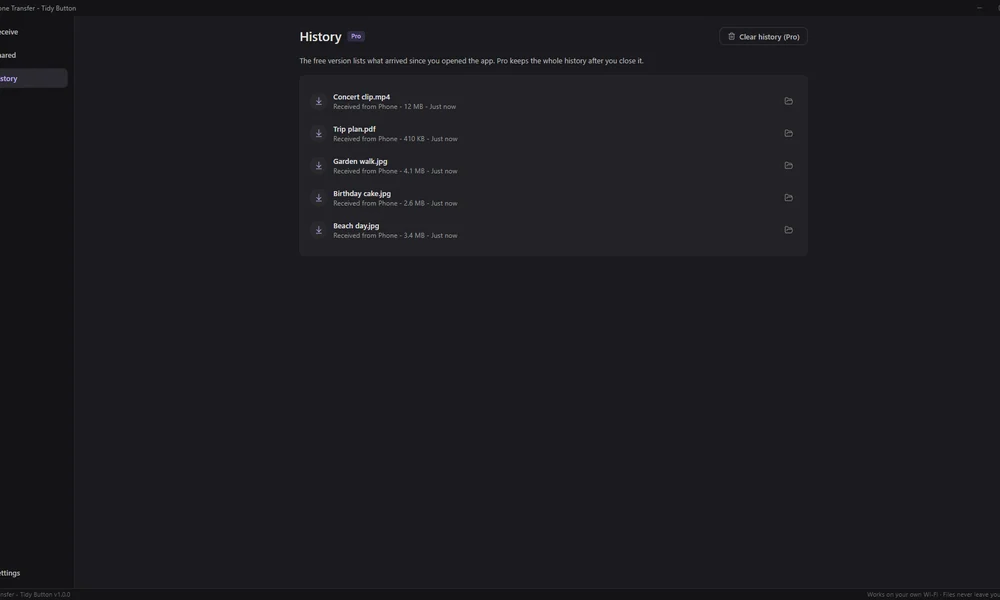
History
Everything that arrived since you opened the app is listed, and Pro keeps it after you close the app
Free limit
Downloading from the PC is a Pro feature, and the dialog says so only when you touch it
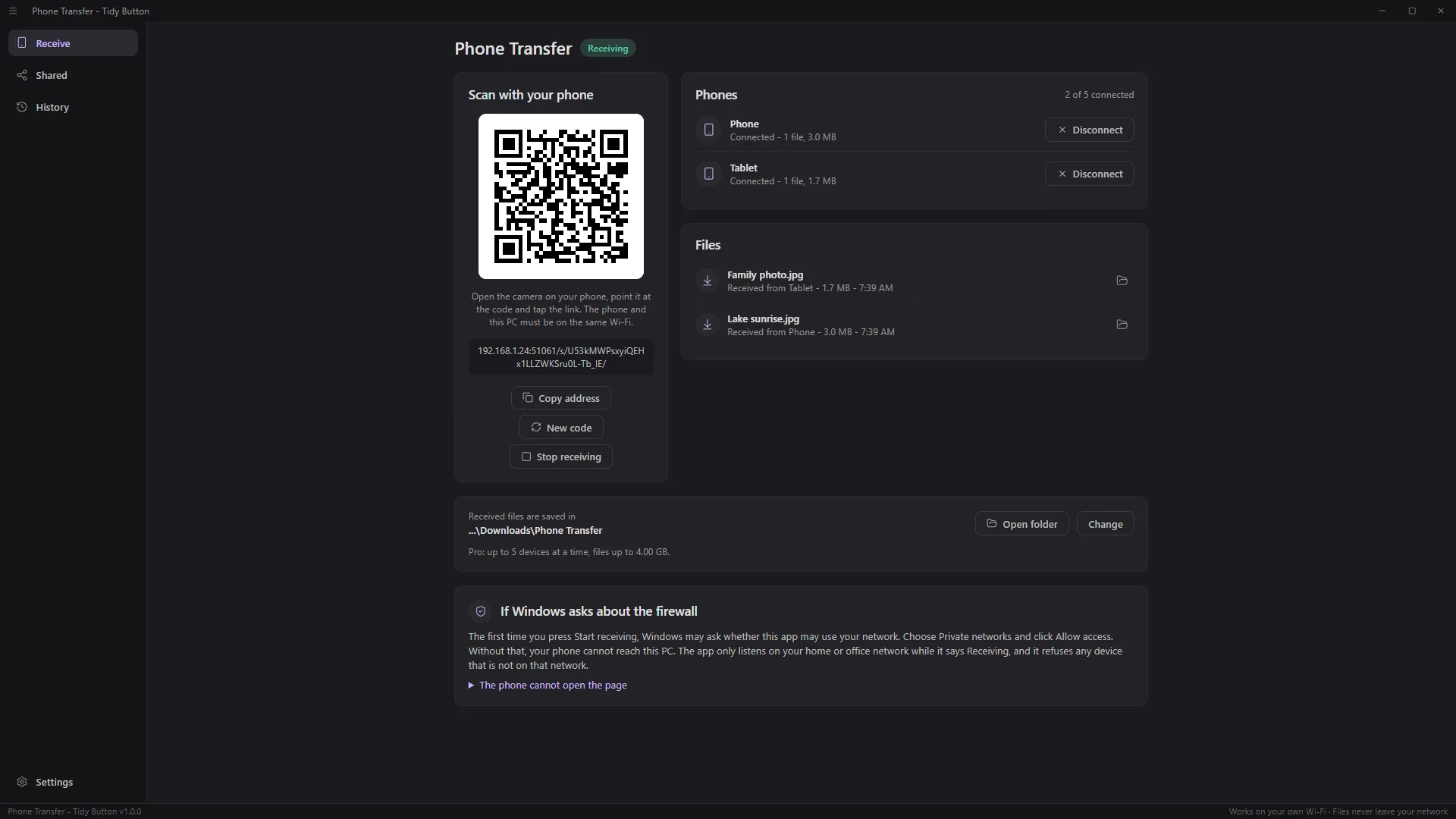
Several devices
With Pro, up to 5 phones and tablets can send at the same time
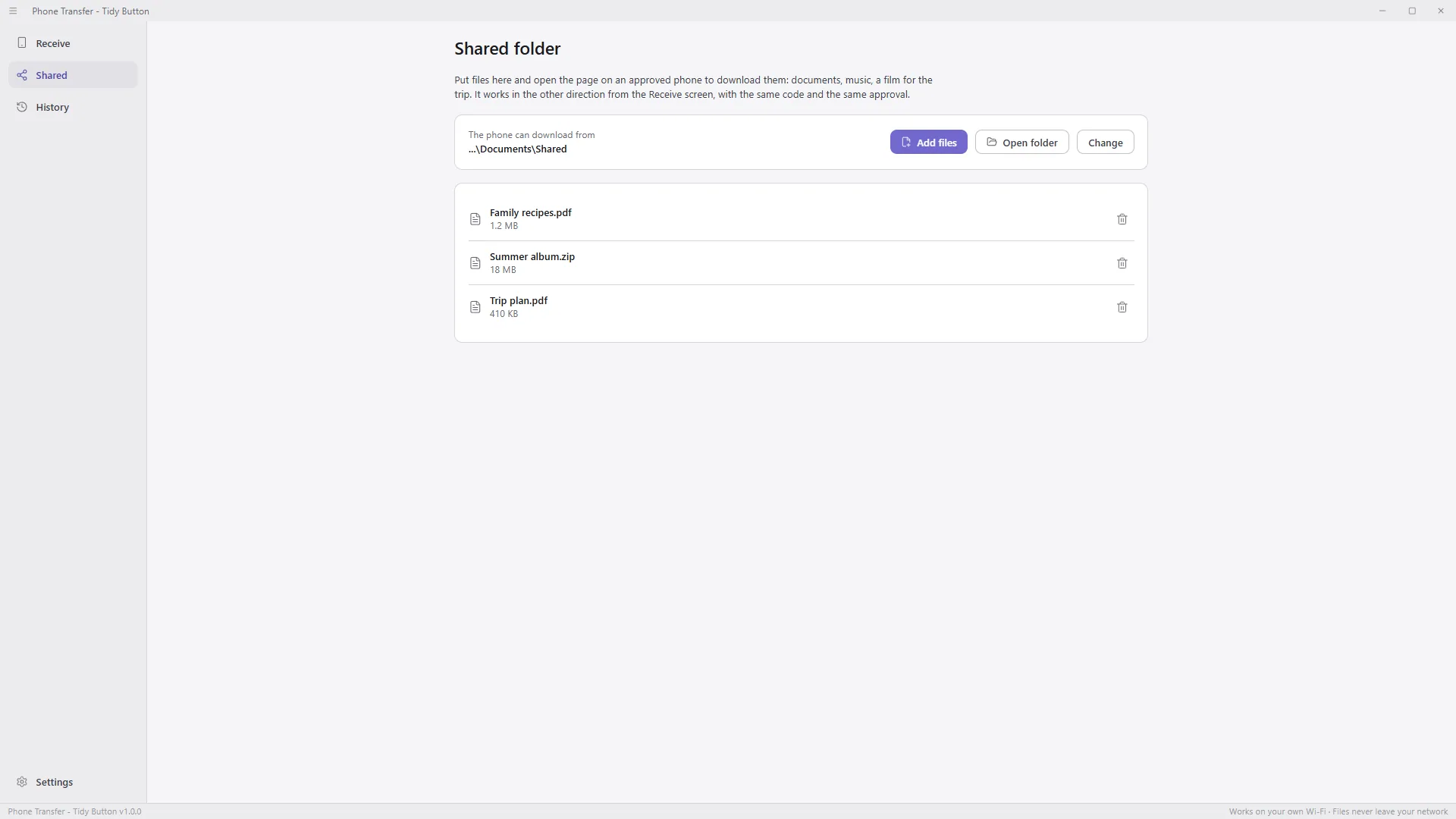
Shared folder
With Pro, put files in a shared folder and pick them up on any approved phone
Screens show sample files, not real photos. The app has light and dark themes.
How it works
Three steps. No manual.
01
Start receiving
Press Start receiving. A QR code and an address appear on the PC.
02
Scan and allow
Scan the code with the phone's camera, then press Allow on the PC when the phone appears.
03
Choose and send
Pick photos or files on the phone. They land in your Downloads folder.
What it does
What it does.
Phone Transfer shows a code on your PC. Your phone scans it, opens a page in its own browser and sends the photos and files you choose. Nothing is installed on the phone. Everything stays on your own network. Each new phone must be allowed on the PC first, and the files are saved in a normal folder you can see.
Scan and send
Scan the QR code with the phone's camera, or copy the address, then choose photos or files and watch the progress of each one.
You allow every phone
A new phone appears on the PC with Allow and Block buttons. Nothing is accepted before you press Allow.
A new code every session
The address holds a random code. New code or Stop ends the session at once.
Your own network only
The PC listens on your home or office network address, and only while the window says Receiving.
Files in a folder you can see
Saved in Downloads\Phone Transfer or any folder you choose. Names are made safe and nothing is overwritten.
Disk space checked
A file that would leave less than 200 MB free on the drive is refused, with a clear message.
Help with the firewall
A plain note explains the first Windows firewall question and what to do if the phone cannot open the page.
Pro: more than one phone
Up to 5 phones and tablets at once, with the size limit set to 1, 4 or 16 GB or removed.
Pro: download from the PC
Put files in a shared folder and pick them up on an approved phone, with a kept history and optional dated folders.
The small print, in plain English
Safe by design.
Nothing is accepted from a phone until you press Allow.
A clear list of what arrived, and from which phone.
Nothing is uploaded to the internet. Files travel over your own Wi-Fi.
No phone app, no account, no ads, no tracking.
Nothing is accepted from a phone until you press Allow.
Nothing is ever overwritten. A number is added to a name that is taken.
The free version takes one phone at a time and files up to 250 MB.
What it does
Your network, your rules.
You decide which phone is allowed and where the files go.
Allow or block each new phone.
Approval
You decide
Every new phone must be allowed on the PC before it can send.
Code
Never reused
A random code in the address changes every session. New code or Stop ends it at once.
Network
Not the internet
Listens only on your home or office network address, and only while the window says Receiving.
Folder
Your choice
Files go into a folder you can see, such as Downloads\Phone Transfer.
Names
Nothing replaced
Names are made safe and a number is added to a name that is taken, so nothing is overwritten.
Disk
Space is checked
A file that would leave less than 200 MB free on the drive is refused.
The first time you start receiving, Windows may ask about the firewall. Choose Private networks and Allow access.
Good for
Handy when you have no cable.
Getting holiday photos off a phone without a cable
Moving a long video or a PDF to the PC
Sending files from a friend's phone without sharing an account
Picking up a file from the PC on your phone
Questions
Plain answers.
Is anything uploaded to the internet?
No. Files go from your phone to your PC over your own Wi-Fi. The app has no cloud copy and the only internet use is the optional Pro licence check.
Do I need an app on the phone?
No. The phone opens a page in its own web browser. It works with iPhone, Android and other phones and tablets.
Does it need an account?
No. There is no account, no ads and no tracking.
The phone cannot open the page. What now?
Check that the phone and the PC are on the same Wi-Fi, and that you chose Private networks when Windows asked about the firewall. The app shows these steps on screen.
Can anyone on my network send files?
No. The address contains a random code, and every new phone must be allowed on the PC before it can send.
Is there a limit in the free version?
The free version takes one phone at a time and files up to 250 MB. Pro, a one-time unlock, adds up to 5 phones, a size limit you choose, downloads from a shared PC folder, a kept history and dated folders.