How to merge PDF files into one on Windows
This guide shows how to join several PDF files into one, keep only the pages you need, tidy the pages of a file and make a heavy PDF smaller. Every result is saved as a new file.
This app is not on the Microsoft Store yet. This guide is ready for the day it arrives.
Merge several PDFs into one file
Use this to join scans, receipts or chapters into a single document.
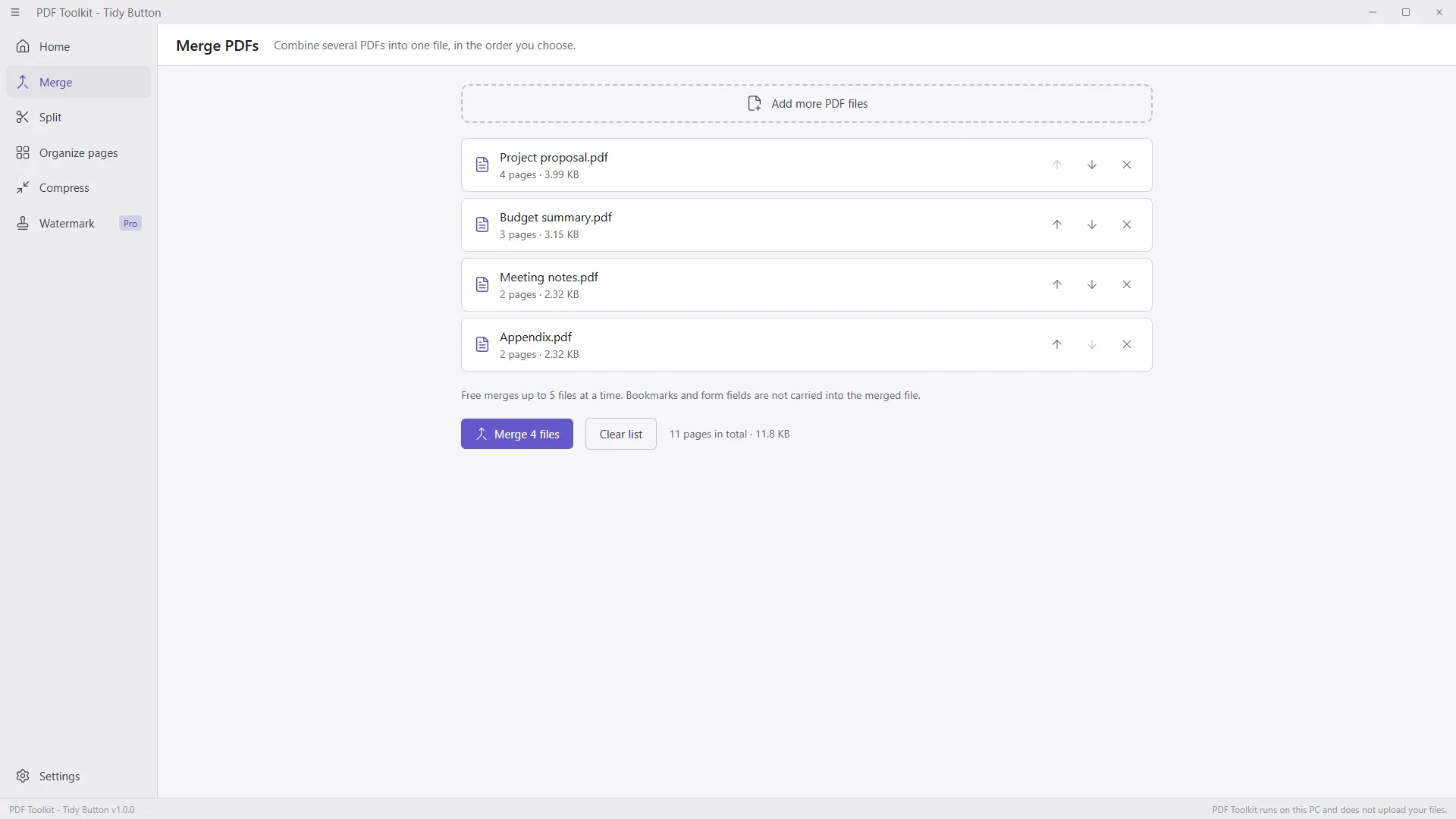
- Open PDF Toolkit and press Merge in the list on the left.
- Press the drop area that says Drop PDF files here, or choose them, or drag your PDF files onto the window.
- Each file is listed with its page count. Use the up and down arrow buttons on a row to set the order.
- Press the Merge button below the list, which shows how many files it will join.
- Choose where to save the new file and name it.
- When the green panel says the file is saved, press Open to look at it or Show in folder to find it.
The list always shows the files in the order they will be joined. Press Clear list to start again.
Keep only some pages of a PDF
Use this to send just the pages someone needs from a long file.
- Press Split in the list on the left and choose your PDF.
- Choose Pick pages into one file.
- Type the pages in Pages to extract, for example 1, 4-6, 9.
- Read the line under the box. It says what the new file will contain.
- Press Split and choose a folder and pick where to save the new file.
The pages come out in the order you type them.
Cut a PDF into several files
- Press Split in the list on the left and choose your PDF.
- Choose Every page on its own for one file per page, or A set number of pages per file and type a number in Pages per file.
- To make your own parts, choose Custom ranges, one file each and type ranges in Page ranges, one file each, for example 1-3, 4-9, 10-12.
- Check the line under the options. It tells you how many files this makes.
- Press Split and choose a folder and pick where to save the new files.
Turn, reorder or delete pages
Use this for a page that was scanned sideways or sits in the wrong place.
- Press Organize pages in the list on the left and choose your PDF.
- Each page appears as a tile. Use the buttons on a tile to turn the page left or right, move it earlier or later, or delete it. You can also drag a tile to a new place.
- To change every page at once, use Turn all left, Turn all right or Reverse order.
- Press Start over if you want to undo all your changes.
- Press Save as a new PDF and choose where to save it.
The line above the tiles lists what you have changed so far.
Make a PDF smaller for email
- Press Compress in the list on the left and choose your PDF.
- Under How small, choose Balanced for email and screen reading, or Light to keep pictures nearly as sharp.
- Press Compress and choose a folder for the smaller copy.
- The result shows the size before and after, and how much smaller the copy is.
Photos and scans shrink the most. Your original file is not changed.
If something goes wrong
A file in the list is marked in red. What does that mean?
The app could not use it, and the row says why, for example that it is protected with a password or restrictions, could not be read or is not a PDF. Press the X on that row to remove it and carry on with the others.
The Merge button says Add at least 2 files. Why?
Merging needs two or more PDFs in the list. Press the drop area to add another file.
Compress said nothing new was saved. Why?
A PDF that is mostly text may not get much smaller. When that happens the app does not write a new file, and your original stays as it is.
Are my bookmarks and form fields kept when I merge?
No. Bookmarks and form fields are not carried into the merged file. The pages themselves are.
Does the app change my original PDF?
No. Every tool saves a new file. Your original is left as it was.
Good to know
- It cannot open a PDF that is protected with a password or restrictions.
- A file larger than 250 MB is too large for the tools to handle.
Still stuck? Support is by email, and a person reads it.