How to redact names and numbers in a PDF on Windows
This guide shows how to cover text in a PDF and save a new copy. The covered pages are rebuilt as pictures, the original file is never changed, and nothing is uploaded.
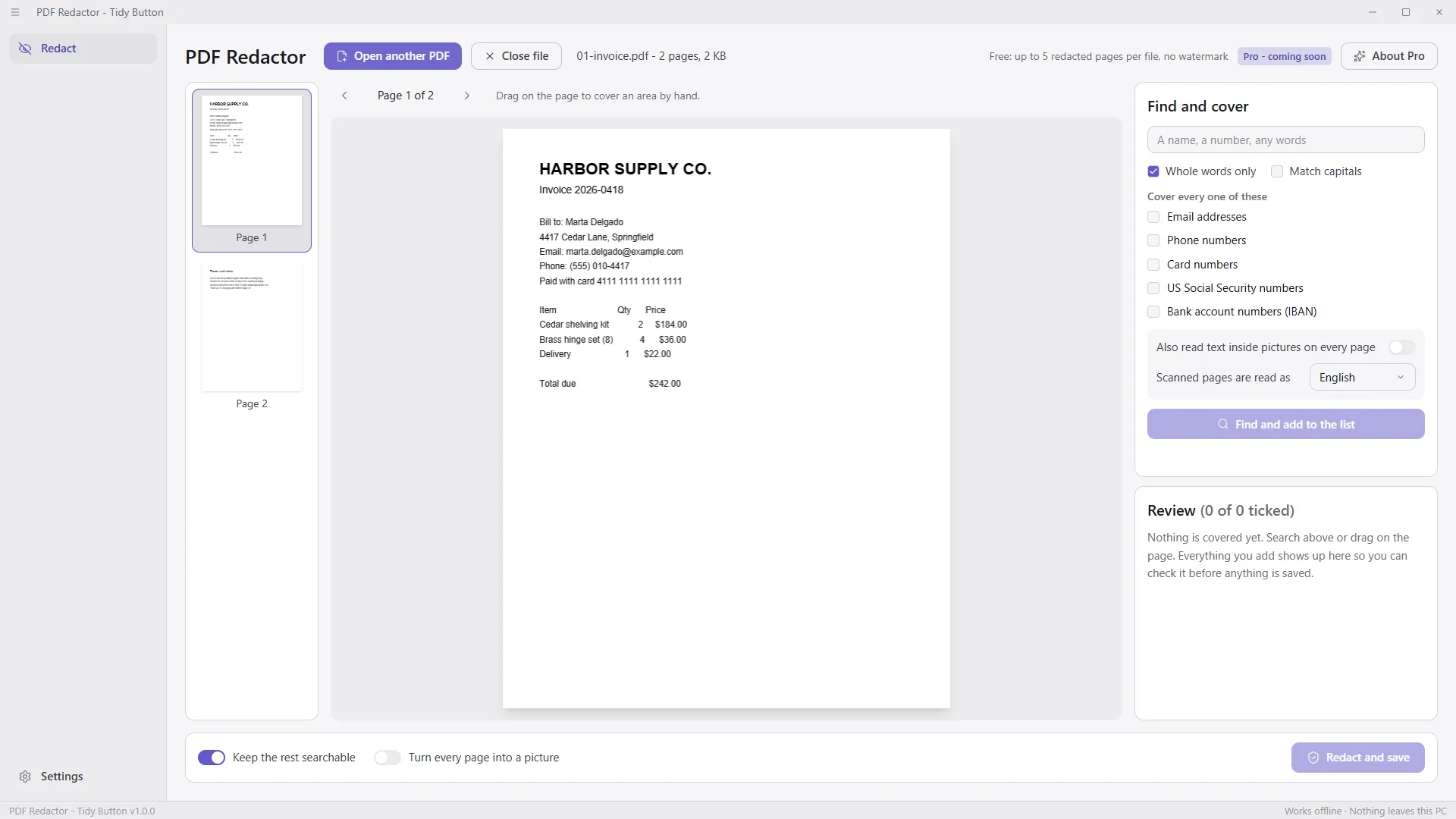
This app is not on the Microsoft Store yet. This guide is ready for the day it arrives.
Cover a name or number everywhere it appears
- Open PDF Redactor and press Open a PDF, then choose your file. You can also drop the file onto the window.
- In the Find and cover panel, type the word or number in the box named Words or numbers to cover.
- Leave Whole words only ticked to skip matches inside longer words. Tick Match capitals if capital letters matter.
- Press Find and add to the list. Each match is added to the Review list and shown as a box on the page.
- Click an item in the list to jump to it. Untick an item you do not want to cover, or press its bin button to remove it.
- Press Redact and save at the bottom and choose where to save the new file.
The new file is named like your file with - redacted added. The original is not changed.
Cover emails, phone numbers and card numbers in one go
- Open your PDF with Open a PDF.
- Under Cover every one of these, tick the kinds of data you want to cover, such as email addresses, phone numbers, card numbers, US Social Security numbers or bank account numbers (IBAN).
- Press Find and add to the list.
- Read the Review list. Use Untick all and then tick only the items you want, or use Tick all.
- Press Redact and save.
Cover an area by hand
- Open your PDF with Open a PDF.
- Use the previous page and next page buttons above the page, or the page thumbnails on the left, to find the page.
- Drag on the page to draw a box over the area, such as a signature or a photo.
- Check the new item in the Review list.
- Press Redact and save.
Page Up and Page Down also change pages.
Cover text in a scanned PDF
- Open the scanned PDF with Open a PDF.
- Under Scanned pages are read as, choose the language of the text.
- If the PDF mixes real text with pictures, switch on Also read text inside pictures on every page.
- Type your words and press Find and add to the list. Press Stop if the search takes too long.
- Check the Review list, then press Redact and save.
Reading is done on this PC. It works in English, Spanish, French, German, Italian and Portuguese.
Read the check after saving
- When saving ends, a window titled Saved and checked opens.
- Read the headline and each check below it. Each one says Passed, Failed or Not checked.
- Press Open the PDF to look at the new copy, or Show in folder to find it.
- If a check failed, press Move this copy to the Recycle Bin. Then switch on Turn every page into a picture and save again.
- Press Done to close the window. Show the check result at the bottom opens it again.
Look through the saved copy yourself before you share it.
If something goes wrong
The Redact and save button is greyed out. Why?
It needs at least one ticked item in the Review list. It is also off while a search or a save is running.
My search says nothing new was found.
Try turning off Whole words only or Match capitals. If the page is a scan, check the language under Scanned pages are read as.
The app cannot open my PDF.
A password-protected file must have its password removed first. The message at the bottom of the window gives the reason.
Does the app change my original PDF?
No. It saves a new file and leaves the original as it was.
Good to know
- Check the list and the saved file before you share it. The app does not certify legal compliance.
- This guide covers how to use the app. It gives no legal advice.
Still stuck? Support is by email, and a person reads it.