How to fill in a PDF form and sign it on your PC
This guide shows how to fill in a PDF form on your computer, sign it, and save or print the result. Your original file is never changed.
This app is not on the Microsoft Store yet. This guide is ready for the day it arrives.
Fill in a form that has fields
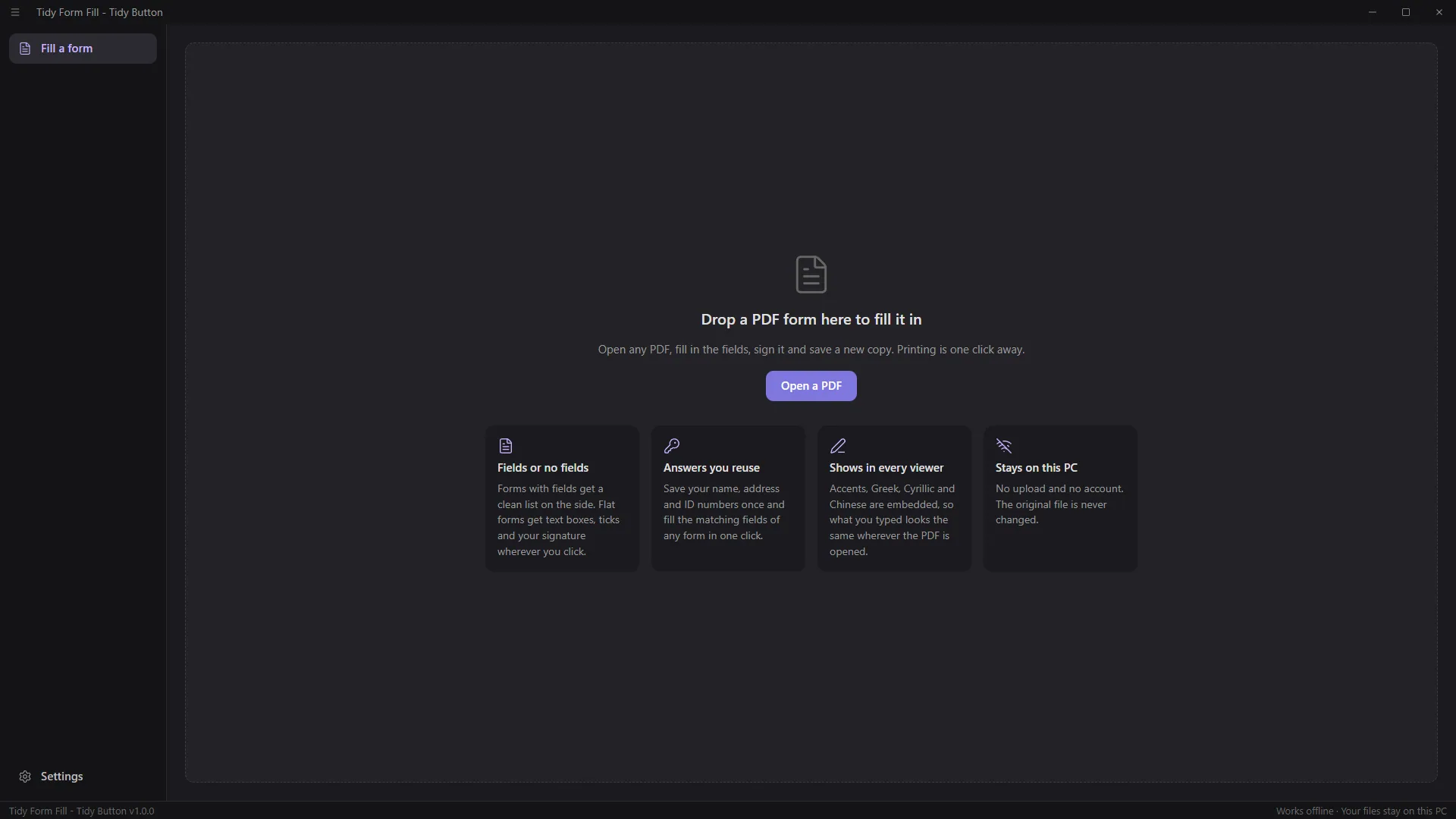
- Press Open a PDF and choose your form. You can also drop the file on the window.
- Look at the Fields list on the right. Type your answers there, or click a field on the page.
- Use Find a field to jump to a field by name.
- Use the previous and next page buttons and the zoom buttons in the toolbar to move around the form.
- Press Save a copy and choose where to save.
The new file is named like Form - filled.pdf. The original stays as it was.
Write on a form that has no fields
Some PDFs are only a picture of a form. You can still add text and ticks anywhere.
- Open the PDF. The side panel says This PDF has no fillable fields.
- Pick Type on page in the toolbar and click where the text should go. Then type.
- After you place something, the toolbar goes back to Fill fields. Pick Add tick and click a box to mark it.
- Use the small buttons above an item to move it, make it smaller or larger, or remove it.
- Press Save a copy.
Add your signature
- Pick Add signature in the toolbar.
- In the box Your signature, press Draw it and draw with the mouse or a pen. Or press Use a picture and then Choose a picture.
- The box Remember my signature on this PC is ticked at first. Untick it if you do not want the signature kept.
- Press Use this signature.
- Click on the page where the signature should go.
- Press Change signature if you want a different one.
A photo of your signature on white paper works best. The paper is made see-through.
Reuse your answers on other forms
- Press Saved answers in the toolbar.
- Press Create my profile.
- Fill in your name, email, phone and address. Press Add an answer for anything else, such as a passport number.
- Press Save profile.
- On any form, open Saved answers and press Fill this form.
Answers are matched to the field names on the form. Check every field after filling, because a field the app cannot match stays empty.
Print the filled form
- Fill in the form.
- Press Print in the toolbar.
- Choose your printer in the Windows print box and print.
If something goes wrong
Is my PDF uploaded anywhere?
No. The file is read on your PC and the app works without an internet connection.
A field will not let me type. Why?
The form has locked it. The field list shows the note This field is locked by the form.
Will the original file be changed?
No. Save a copy always writes a new file. The Saved box says The original file was not changed.
I clicked Open another PDF and got a warning. Why?
What you typed has not been saved yet. Press Save a copy first, or confirm to open the other file and lose your changes.
Good to know
- Fields that the form locks cannot be edited.
Still stuck? Support is by email, and a person reads it.