How to check your PC specs and share them safely
This guide shows how to read what is inside your PC and how to share a report without giving away private details. The app only reads your hardware and sends nothing anywhere.
This app is not on the Microsoft Store yet. This guide is ready for the day it arrives.
Find out what is inside your PC
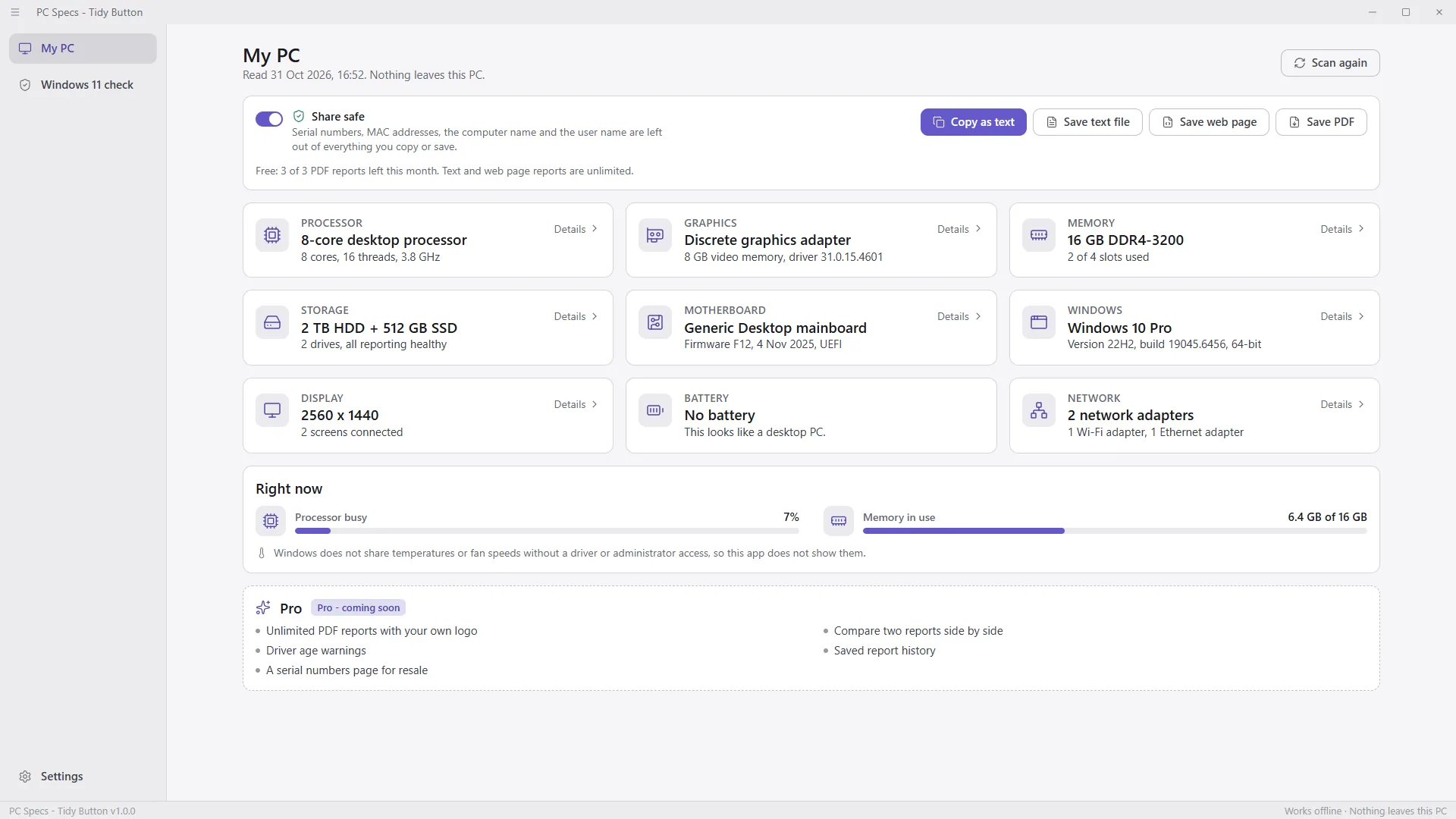
- Open PC Specs. The My PC screen reads your hardware, which takes a few seconds.
- Look at the cards. Each one gives the short answer for one part, such as the processor, graphics, memory or storage.
- Press Details on a card to open the full list for that part.
- Press Hide to close it again.
- Press Scan again at the top if you changed something and want a fresh reading.
The memory card lists each stick and how many slots are used, which helps when you plan to add memory.
Copy your specs into a message or support ticket
- Open My PC and wait for the cards to fill in.
- Leave Share safe switched on. Serial numbers, MAC addresses, the computer name and the user name are then left out.
- Press Copy as text.
- Paste the report into your chat, listing or support ticket.
Switch Share safe off only when you need serial numbers, for example for a warranty claim. It then applies to what you copy or save.
Save a report as a file
- Decide whether Share safe should be on or off.
- Press Save text file, Save web page or Save PDF.
- Choose a name and a folder in the Save window.
- Press the Show link that appears under the buttons to open the folder with your report.
Check whether your PC is ready for Windows 11
- Open Windows 11 check from the menu on the left.
- Read the result at the top.
- Go through the list. Each line says Passes, Does not pass or Can't check, with a short explanation.
- Press Check again after you change a setting.
The check does not need administrator access and changes nothing on your PC.
See how busy your PC is right now
- Open My PC and scroll to the Right now section.
- Read Processor busy and Memory in use.
- Press Scan again to refresh the numbers.
The app does not show temperatures or fan speeds. Windows does not give them to an ordinary app.
If something goes wrong
Why is a line marked Can't check?
The app says Can't check when something cannot be read instead of guessing. The supported-processor line in the Windows 11 check always reads this way, so look that one up yourself.
The report does not show my serial number.
That is Share safe at work. Switch it off for one report when you need serial numbers, then switch it back on.
Can I make Share safe the default?
Open Settings and turn on Start every report in Share safe mode.
The screen says it could not read my PC.
Press Try again. If it keeps failing, close the app and open it again.
Good to know
- The app does not check for a DirectX 12 graphics card or a screen larger than 9 inches in the Windows 11 check.
Still stuck? Support is by email, and a person reads it.