How to make a passport photo at home on a Windows PC
This guide shows how to turn a photo you already have into a passport or visa photo of the right size, then save it or print copies. The app only crops and adjusts. Always check your country's rules on the official website.
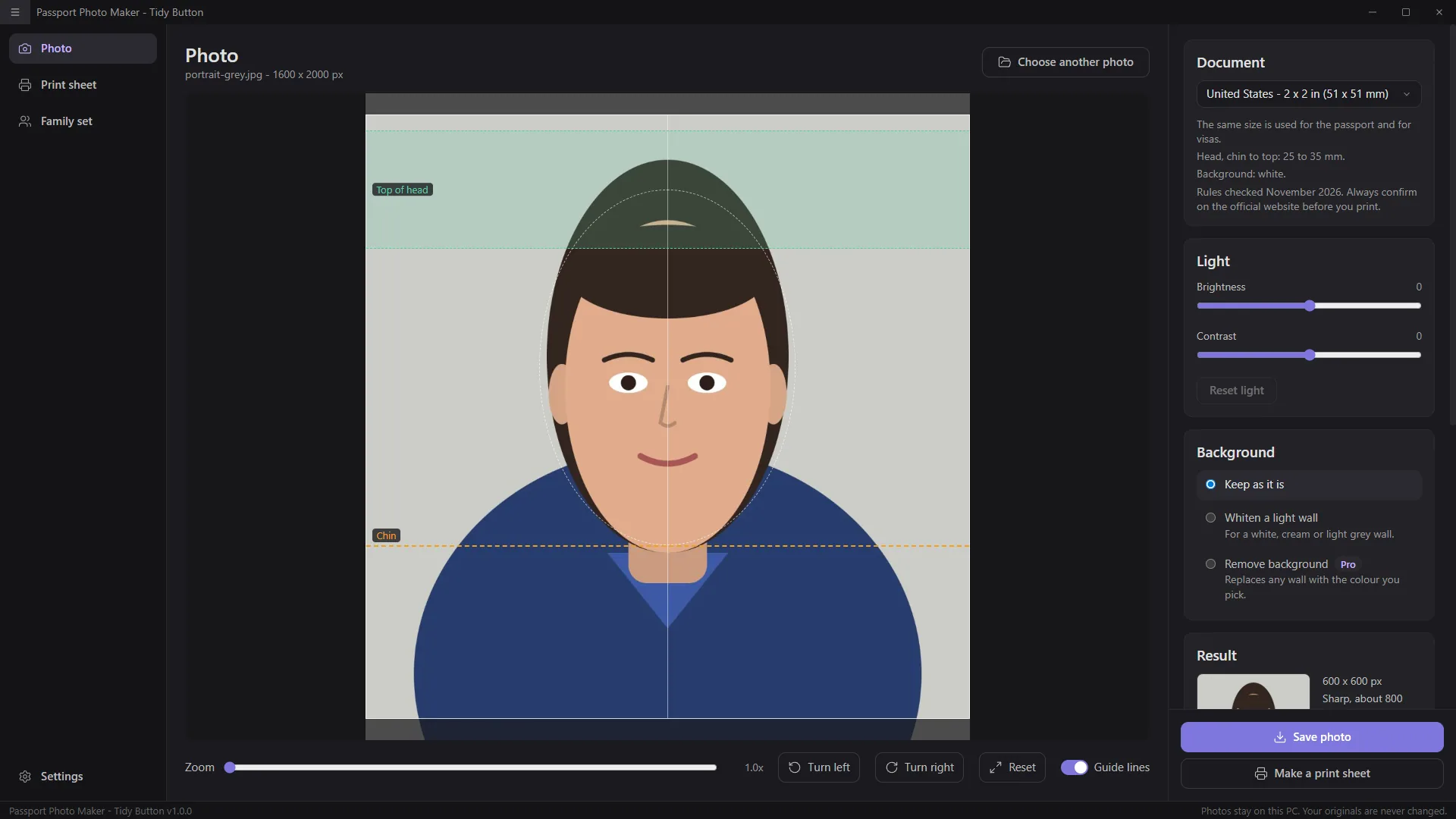
This app is not on the Microsoft Store yet. This guide is ready for the day it arrives.
Crop a photo to the right size
- Open Passport Photo Maker and press Choose photo. You can also drop a photo onto the window.
- Open Document size and pick your document, for example United States or United Kingdom.
- Read the head-size rule shown under the list.
- Drag the photo and move the Zoom slider until the top of the head sits inside the shaded band and the chin sits on the dashed line.
- Use Turn left or Turn right if the photo is sideways.
Switch Guide lines off to see the plain photo, and on again to bring them back.
Make the photo lighter or the wall white
- Move Brightness and Contrast until the photo looks natural. Press Reset light to undo them.
- Under Background, choose Whiten a light wall if the wall behind you is white, cream or light grey.
- Choose Keep as it is to leave the wall alone.
A dark or coloured wall cannot be whitened with this option. Retake the photo in front of a plain light wall.
Save the photo
- Look at the Result box. It shows the pixel size and how sharp the photo will be.
- Open File type and choose JPG or PNG.
- Open Print resolution and choose 300 dpi or 600 dpi.
- Press Save photo and choose where to save the file.
Your original photo is never changed. The saved photo is a new file.
Print a sheet of copies
- Press Print sheet in the bar on the left.
- Open Paper and choose a paper size.
- Open Copies to choose how many photos to print, or leave it on the full sheet.
- Press Save print sheet and choose where to save it.
- Press Open to print to open the sheet and print it.
If something goes wrong
My phone photo is sideways.
The app stands most phone photos upright by itself. If it did not, press Turn left or Turn right.
The Result says the photo is not sharp.
The photo has too few pixels for a sharp print at this size. Choose a larger photo or the original from your camera.
Will the photo be accepted?
The app cannot promise that. It shows the rules it was built from. Confirm them on the official website before you print.
Are my photos uploaded?
No. Photos are read and saved on your PC only.
Good to know
- The app does not take a photo. It crops and adjusts one you already have.
- It cannot fix a dark or coloured wall.
Still stuck? Support is by email, and a person reads it.