How to make Windows read a PDF or Word file aloud
This guide shows how to have a document read aloud, follow along on screen, and save the audio as a file. It all works on your PC without an internet connection.
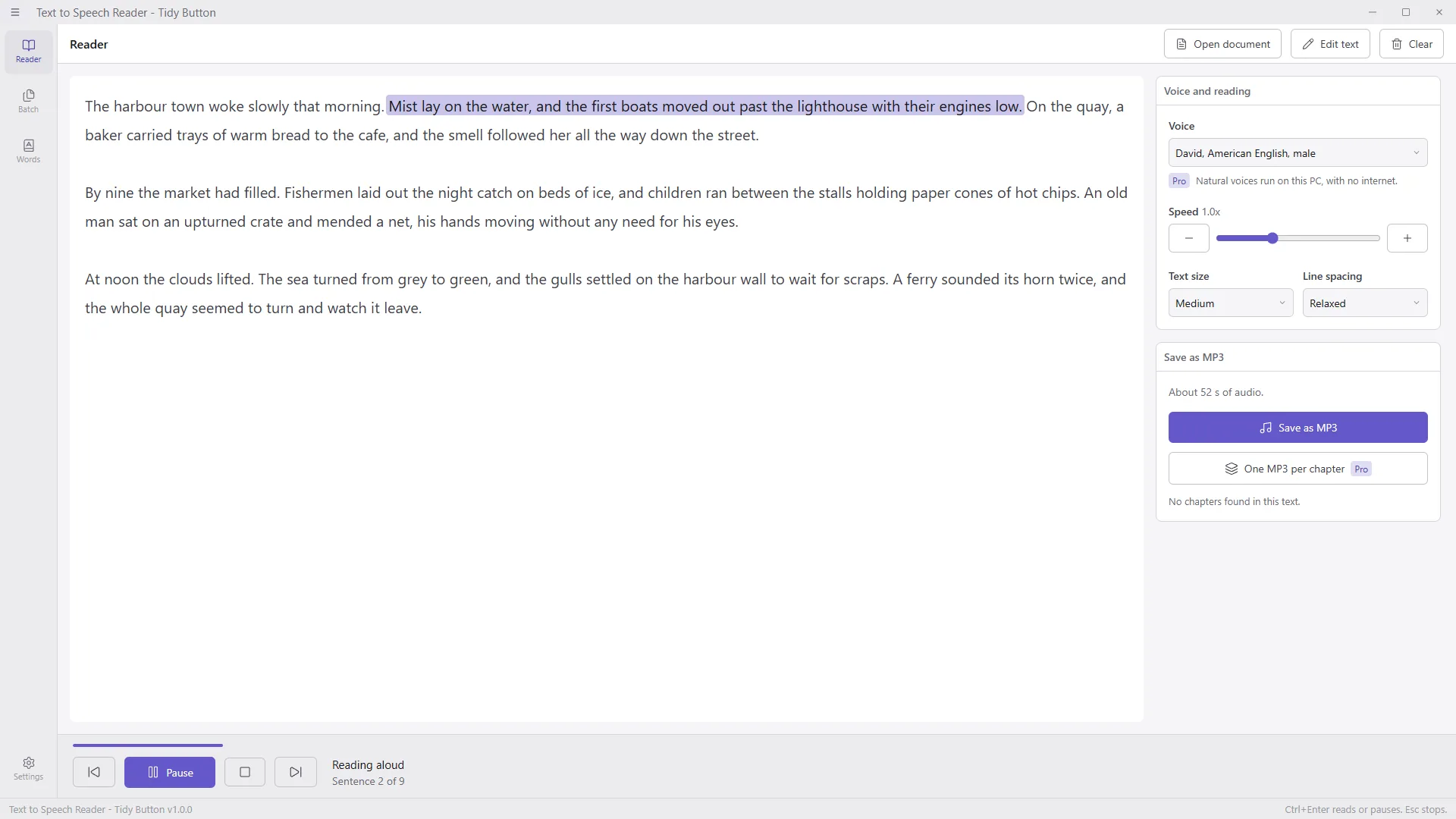
This app is not on the Microsoft Store yet. This guide is ready for the day it arrives.
Read a document aloud
- Open Text to Speech Reader. You start on the Reader screen.
- Press Open document and choose a PDF, Word (.docx) or text file. Or paste text straight into the page.
- Choose a voice in Voice.
- Press Read. The sentence being read is highlighted.
- Press Pause to pause and Stop to stop.
Ctrl+Enter pauses and resumes. Esc stops.
Change the speed and the look of the text
- Move the Speed slider, or press Slower or Faster.
- Choose a size in Text size.
- Choose how much space between lines in Line spacing.
Start reading from a chosen sentence
- While the text is shown in the reading view, click the sentence you want to start from.
- Reading starts there.
- Press Previous sentence or Next sentence, or use Ctrl and the left or right arrow, to move one sentence at a time.
Save the reading as an MP3 file
- Load your text or document.
- Look at the line under Save as MP3. It tells you how long the audio will be.
- Press Save as MP3.
- Choose a folder and a file name. The MP3 plays in any audio player.
Edit the text again
- While the reading view is shown, press Edit text to go back to the text box.
- Change the text, then press Read again.
- Press Clear to start with an empty page.
If something goes wrong
Nothing is spoken. What should I check?
Check that your PC volume is up and the right speakers are selected in Windows. Then pick another entry in Voice and press Read again.
The PDF opens but there is no text.
A PDF that is only a picture of a page has no text for the app to read. It reads PDFs that contain real text.
Does it need the internet?
No. The voices run on your PC, and your text and documents are not sent anywhere.
The voice is too fast or too slow.
Move the Speed slider while it reads, or use Slower and Faster.
Good to know
- The app reads the text of a document. It does not describe pictures or read scanned pages that have no text.
- The voices available depend on the voices installed in Windows on your PC.
Coming to the Microsoft StoreAbout Text to Speech Reader
Still stuck? Support is by email, and a person reads it.