How to look up a word without an internet connection
This guide shows how to find what a word means and what other words are close to it, with no internet connection. Everything is on this PC.
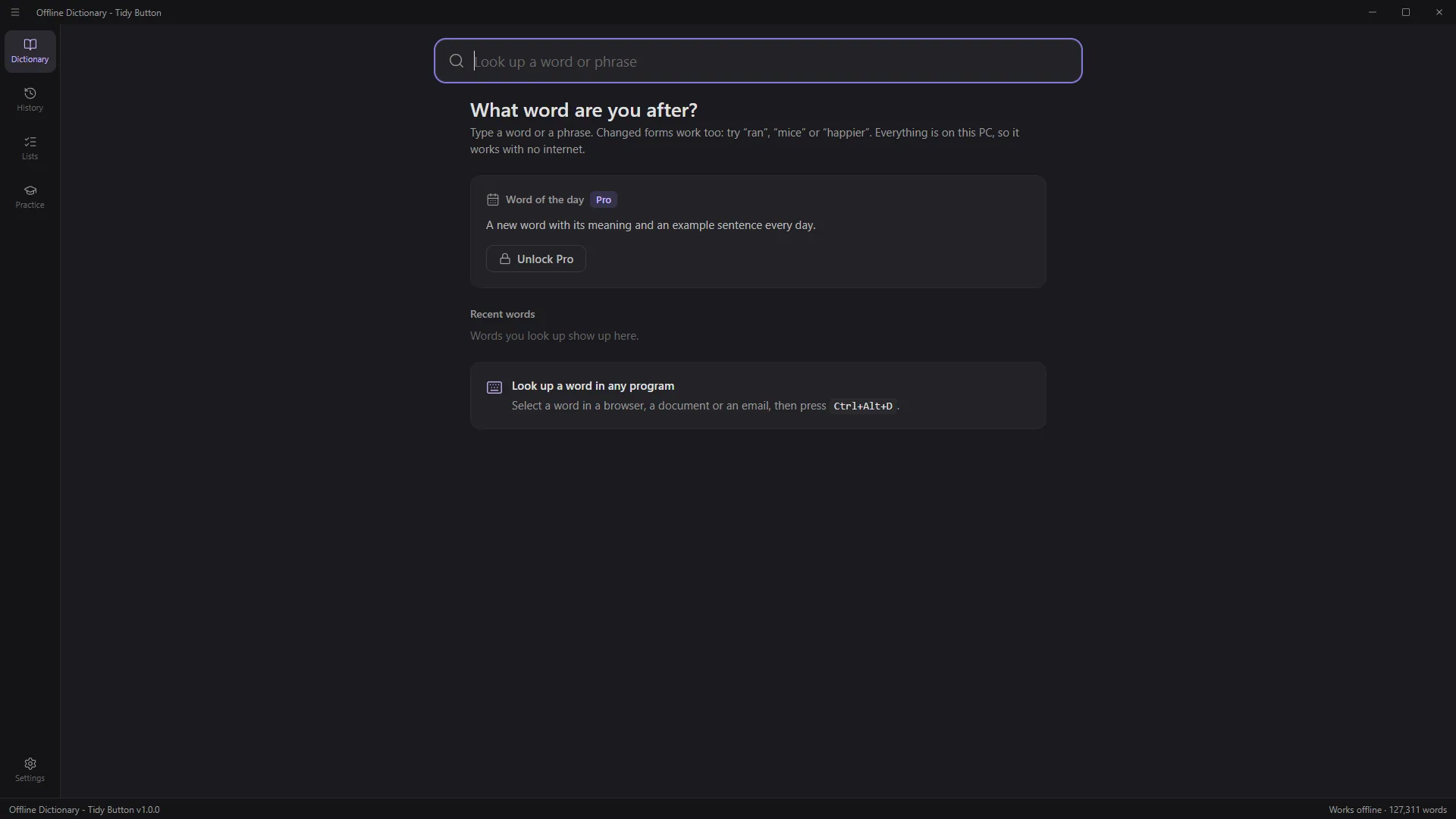
This app is not on the Microsoft Store yet. This guide is ready for the day it arrives.
Look up a word or a phrase
- Open Dictionary in the left menu.
- Click the search box that says Look up a word or phrase. On the Dictionary screen you can also press Ctrl+K to jump to it.
- Start typing. Suggestions appear as you type.
- Press Enter, or click a suggestion.
- Read the meanings on the Meanings tab. They are grouped by part of speech, with examples.
Changed forms such as ran, mice or happier open the word they come from, and the page says it is a form of that word.
Find synonyms and opposites
- Look up a word as shown above.
- Click the Thesaurus tab below the word.
- Read the Synonyms and Opposites. Press Show all if only the first few are listed.
- Click any word in the list to look it up.
- Look under By meaning to see synonyms for each separate meaning of the word.
Click Meanings to go back to the definitions.
Hear how a word is said
- Look up the word.
- Click the speaker button beside the word.
- To change the voice or the speed, open Settings and find Pronunciation. The first list picks the voice. The second list picks Slow, Normal or Fast.
The app uses the voices already installed in Windows. If none is installed, the speaker button is off.
Look up a word in another program
- Select a word in a browser, a document or an email.
- Press the hotkey shown at the bottom of the Dictionary start page. The default is Ctrl+Alt+D.
- To switch the hotkey off or pick different keys, open Settings. Use the switch beside Look up selected text in any program and the Keys list.
The app presses Ctrl+C in the other program, reads what was copied, and then puts your clipboard back as it was.
Find a word you looked up before
- Open History in the left menu.
- Click a word in the list to open it again. The list shows the last 200 words, newest first.
- Press the small X beside a word to remove it from the list.
- Press Clear history to empty the whole list, then confirm.
If something goes wrong
The word I typed was not found. What can I do?
Check the spelling, or try the base form of the word. The page lists words under Did you mean. Click one to open it. If you typed more than one word, Look up each word shows every word as a button you can click.
The hotkey does not look anything up. Why?
Programs running as administrator may not allow it. If nothing is selected, the text you last copied is used. You can also pick different keys in Settings.
The speaker button is greyed out. Why?
No offline voice is installed in Windows. The button works once Windows has an offline voice.
Do I need an internet connection?
No. Everything is stored on this PC, so the dictionary works with no internet.
Still stuck? Support is by email, and a person reads it.