How to turn a song into a music video on a Windows PC
This guide shows how to open your audio, choose how it looks and export the video.
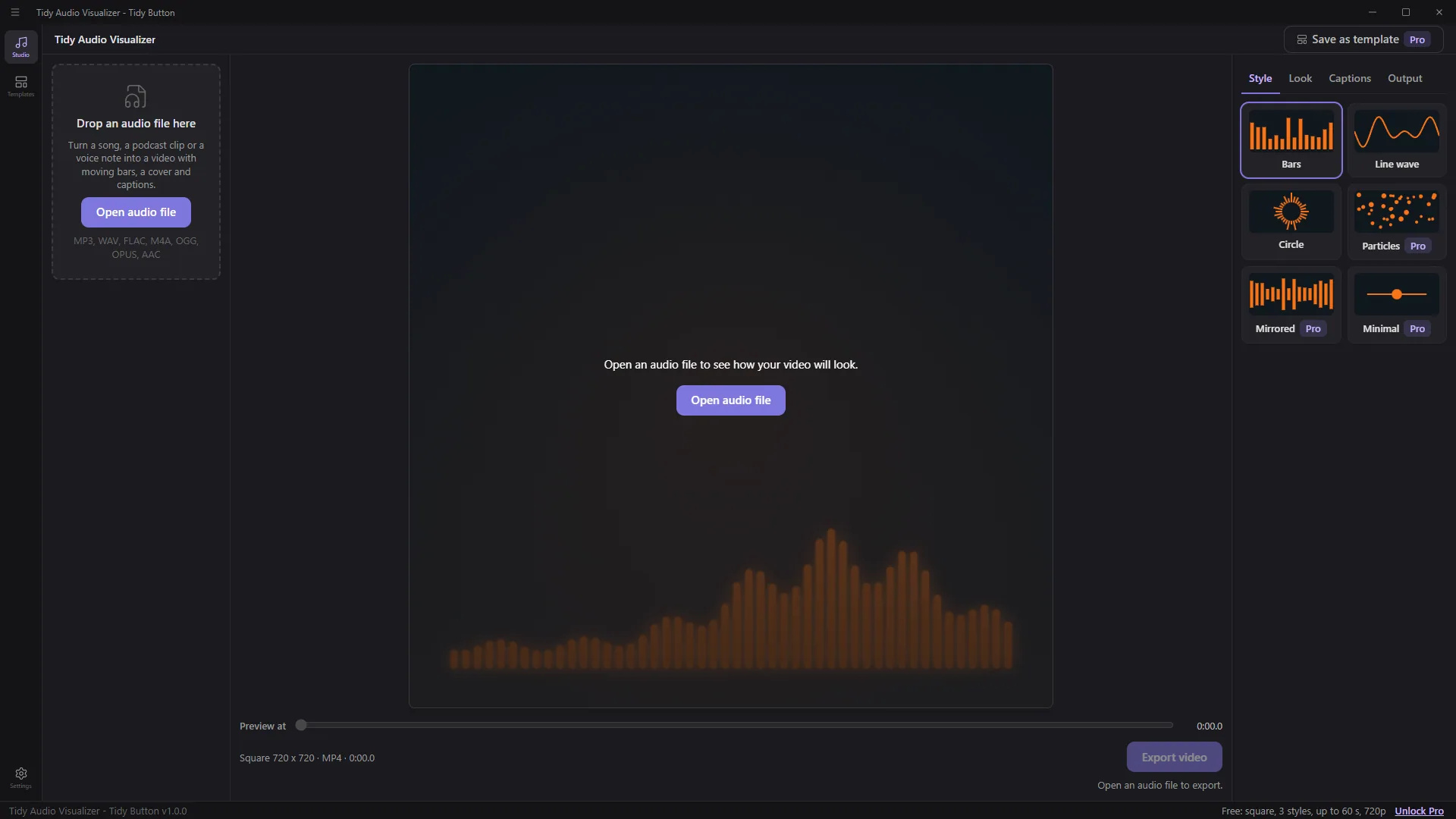
This app is not on the Microsoft Store yet. This guide is ready for the day it arrives.
Open your audio
- Open Tidy Audio Visualizer.
- Press Open audio file and choose a song, podcast clip or voice note.
- Drag the preview slider to see how the video will look at any moment.
- Set Start and End to choose the part that becomes the video.
- Set Fade in and Fade out if you want them.
Choose the look
- Open the Style tab and pick a style.
- Open the Look tab and choose the accent, background and text colours.
- Press Choose image to add a cover image, and use the dim slider.
- Type a title and an artist.
Export the video
- Open the Output tab.
- Choose the size, the quality and MP4 or WebM.
- Check the folder under Save videos in, or press Change.
- Press Export video and wait for the progress bar.
- When it says your video is ready, press Show in folder.
If something goes wrong
How long can a free video be?
The free version makes square 720p videos of up to 60 seconds with three styles. A longer file can be trimmed to fit.
Is my audio uploaded?
No. Your audio is read on your PC and never leaves it, and your audio file is never changed.
Is there a watermark?
No. The free version has no watermark.
Can I cancel an export?
Yes. Press Cancel while the progress bar is running.
Coming to the Microsoft StoreAbout Tidy Audio Visualizer
Still stuck? Support is by email, and a person reads it.