How to connect to an MQTT broker and see its messages
This guide shows how to connect to an MQTT broker you run or are allowed to use, watch the messages that arrive, and publish one yourself.
This app is not on the Microsoft Store yet. This guide is ready for the day it arrives.
Add a broker and connect
- Open MQTT Client and go to Brokers.
- Press Add broker.
- Type a Name, the Address of the broker and the Port. A broker on your own PC is usually localhost on port 1883.
- Choose the Connection type and the MQTT version that your broker uses.
- Fill in User name and Password if the broker needs them.
- Press Save, then press Connect on the broker's card.
The app opens the Explorer once it is connected. Passwords are stored encrypted by Windows.
Subscribe and browse the topics
- Open Explorer and make sure the right broker is chosen.
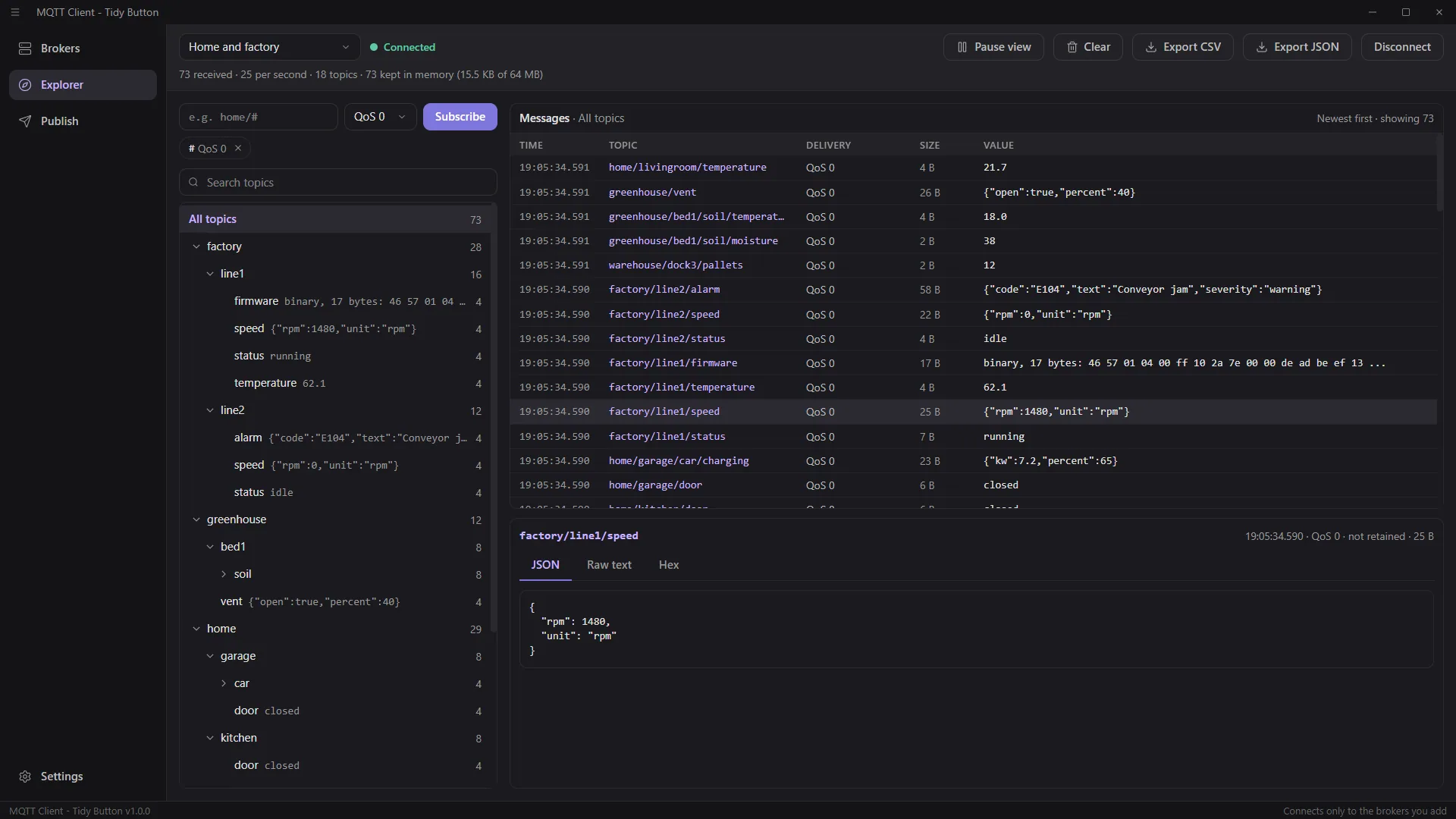
- Type a topic in the box. Type # to listen to everything the broker allows, or a filter such as home/# for part of it.
- Choose a QoS level next to the box, then press Subscribe.
- Watch the topic tree fill in on the left. Each branch shows a message count and the last value.
- Click a branch to show only the messages under it.
- Click a message in the list to read its full value in the panel below.
To stop listening, press the small cross beside a subscription.
Publish a message
- Open Publish and choose the Broker. It must be connected.
- Type a Topic, for example test/hello.
- Choose the Payload type: Text, JSON or Hex bytes.
- Type the Payload.
- Choose the Delivery level, and turn on Retain if the broker should keep the message for new subscribers.
- Press Publish.
For JSON, press Tidy the JSON to format it before you send it.
Connect with TLS and your own certificates
- Open Brokers and press Edit on the broker.
- In Connection type, choose a TLS or secure WebSocket type.
- Open the Security tab.
- Choose your CA certificate, Client certificate and Client key files if the broker needs them.
- Enter the Key passphrase if the key file is encrypted.
- Press Save and connect again.
Certificates are checked by default. Only turn on Trust any certificate for a test broker on your own network.
Pause the view and save messages
- In Explorer, press Pause view to stop the list moving while you read. Messages keep arriving.
- Press Resume view to catch up.
- Press Export CSV or Export JSON to save the messages.
- Press Clear to empty the messages kept in memory.
If something goes wrong
The broker card says Could not connect. What should I check?
Read the message on the card, which gives the reason. Check the Address, the Port, the Connection type and your user name and password.
I connected but see no topics. Why?
Nothing is shown until you subscribe. Open Explorer and subscribe to # or a topic filter.
The Publish button is greyed out.
The broker is not connected. Connect to it on the Brokers screen first.
Why can I not set message properties?
Message properties need MQTT 5. Press Edit on the broker, and set MQTT version to MQTT 5 if your broker supports it.
Good to know
- The app connects only to the brokers you add.
- On a very busy topic, older messages are dropped to stay inside the memory limit. The counts in the tree stay exact.
Still stuck? Support is by email, and a person reads it.