How to check a monitor for dead and stuck pixels
This guide shows how to look over a monitor or laptop screen for dead pixels, stuck pixels and uneven patches, and how to keep a list of what you find.
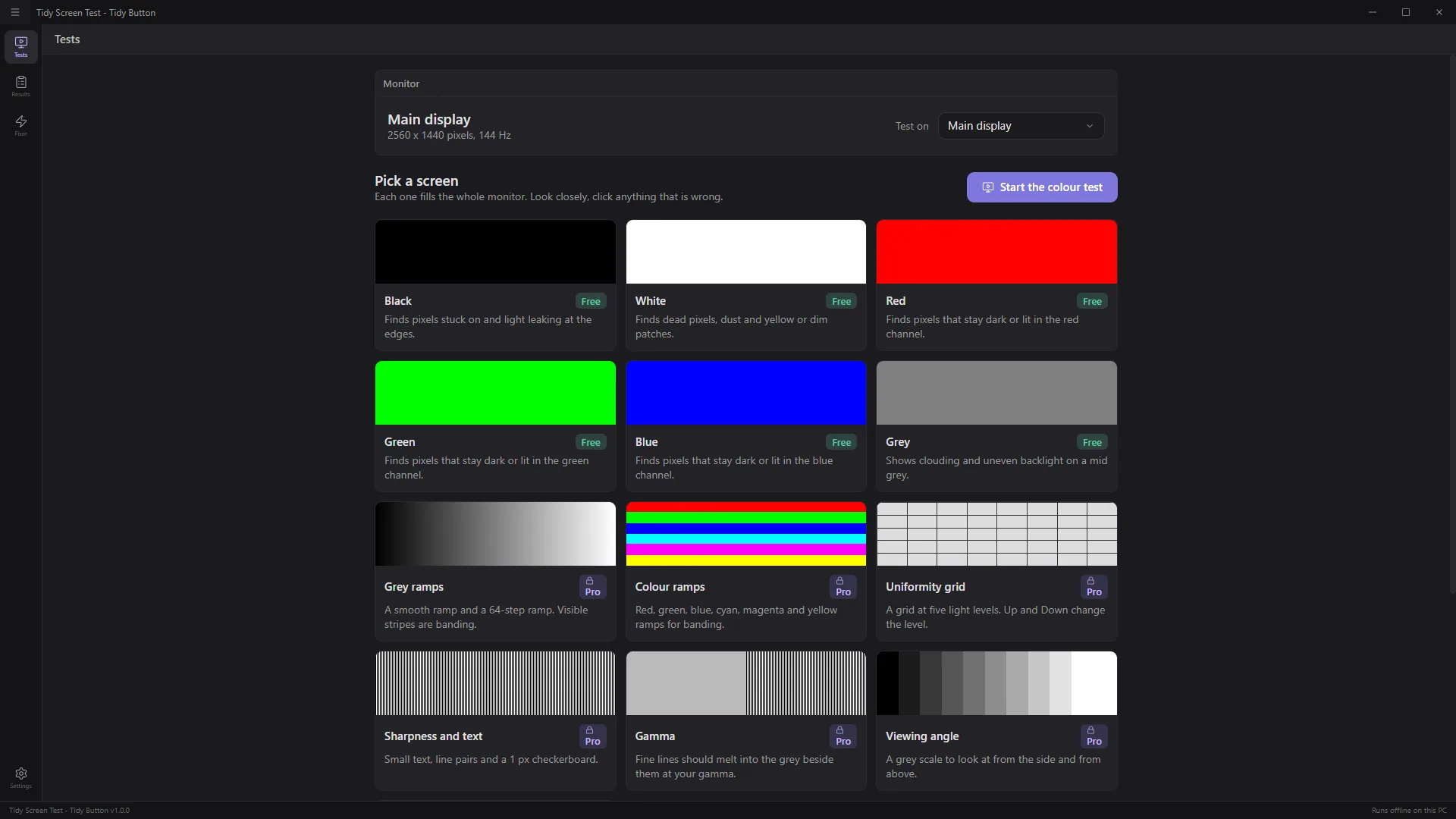
This app is not on the Microsoft Store yet. This guide is ready for the day it arrives.
Run the colour test
Do this in a dim room and look at the screen closely.
- Open Tests in the left menu.
- Press Start the colour test. The whole monitor fills with black.
- Look for any dot that is lit up on black.
- Press the Right arrow key to move to the next colour. White, red, green, blue and grey follow.
- Press the Left arrow key to go back a colour.
- Press Esc when you are done to leave the test.
You can also click one colour tile, such as White, to start on that colour.
Mark a pixel you found
- While a colour fills the screen, click the pixel that looks wrong. A ring appears around it.
- Press the U key to undo the last ring if you clicked the wrong place.
- Press the H key to hide the rings, and press it again to show them.
- Check the same spot on the next colour, because some faults only show on one colour.
The app remembers where each mark is, which colour you were on and which monitor it was. The list shows how many marks are dead, stuck or other.
Read and copy your list of marks
- Open Results in the left menu.
- Look at What you found for the number of marks and how many are dead or stuck.
- Read Marked pixels to see each one with its position on the screen.
- Press Copy as text to copy the list so you can paste it into a message or note.
Marks are saved in your Documents folder, so they are still there the next time you open the app.
Remove a mark or start again
- Open Results in the left menu.
- Press Remove beside a mark to take away just that one.
- To empty the whole list, press Clear all marks.
- Confirm in the question that appears.
If something goes wrong
I do not know how to leave the full-screen test. What do I press?
Press Esc. You can also go back to the app window and press Stop at the top of the Tests screen while a test is running.
I have two monitors. Which one gets tested?
The test runs on the monitor the app window is on. The Monitor section of the Tests screen shows its name and size. To test another monitor, drag the app window onto that monitor, then start the test again.
I clicked in the wrong place. Can I take the mark back?
Press the U key during the test to undo the last mark. Later, open Results and press Remove beside the mark.
How does the app decide if a mark is dead or stuck?
It goes by the colour you were looking at when you clicked. A mark made on white or grey counts as dead, which means dark on a light screen. A mark made on black, red, green or blue counts as stuck, which means lit when it should be dark.
Good to know
- The app helps you find and record faults. It cannot repair a pixel.
Still stuck? Support is by email, and a person reads it.