How to change the brightness of a second monitor in Windows
This guide shows how to change the brightness of every monitor on your desk from one window, and what to do when a monitor does not respond.
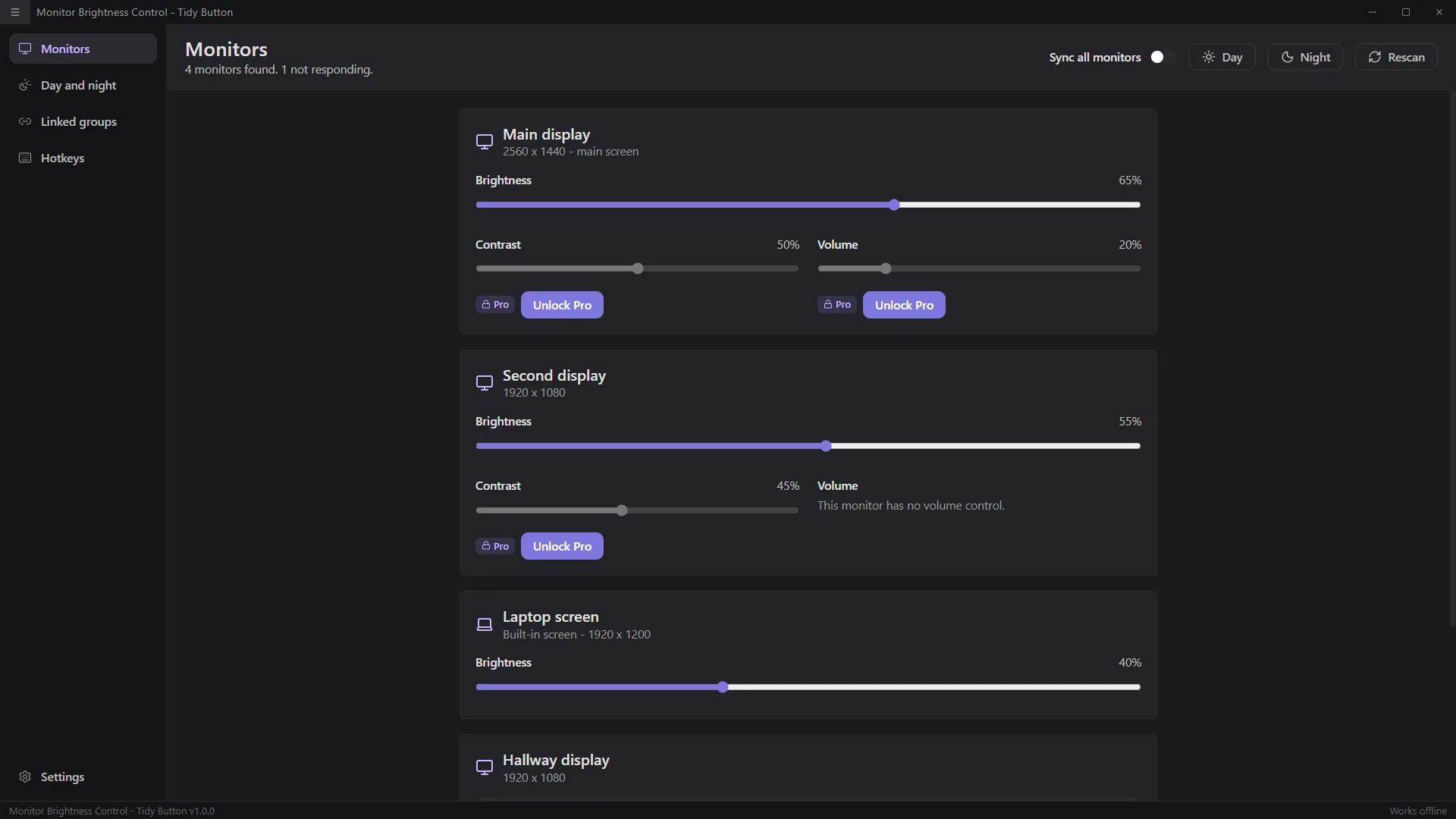
This app is not on the Microsoft Store yet. This guide is ready for the day it arrives.
Change the brightness of one monitor
- Open Monitor Brightness Control and stay on Monitors.
- Find the card for the monitor you want. Each card shows the monitor name and size.
- Move the Brightness slider. The monitor changes straight away.
- Close the app when you are done. The monitor keeps the level you set.
Brightness never goes below 5%, so a screen cannot be left completely dark.
Move all monitors together
- On Monitors, turn on Sync all monitors at the top.
- Move any Brightness slider. Every monitor follows it.
- Turn the switch off again to set each monitor on its own.
Save a Day and a Night level
- Set each monitor to the brightness you want for daytime.
- Open Day and night.
- In the Day card, press Save current levels.
- Set the monitors for the evening, then press Save current levels in the Night card.
- From then on, press Apply in a card, or press Day or Night on the Monitors screen, to switch every monitor at once.
Change brightness with the keyboard
- Open Hotkeys.
- Press Ctrl, Alt and PageUp to make every monitor brighter, and Ctrl, Alt and PageDown to make them dimmer. This works in any program.
- To use other keys, press Change beside a hotkey and press the new combination.
- Press Reset to the defaults to go back to the original keys.
If another program already uses a combination, pick a different one.
Fix a monitor that does not respond
- Look for a card marked Not responding on the Monitors screen.
- Turn on DDC/CI in that monitor's on-screen menu.
- Plug the monitor straight into the PC, not through a dock or adapter.
- Press Rescan at the top of the screen.
- If it still does not answer, press Copy details for support on its card and send the text to the support address.
If something goes wrong
My laptop screen has no slider.
Built-in laptop screens are controlled through Windows and need a screen that Windows can dim. Press Rescan to check again.
A monitor is listed but the slider does nothing.
The monitor may have DDC/CI switched off. Turn it on in the monitor's own menu, then press Rescan.
Does the brightness stay after I close the app?
Yes. The level is set on the monitor itself, so it stays after the app closes.
The hotkey does nothing.
The app must be running. Another program may use the same keys, so press Change on the Hotkeys screen and choose a different combination.
Good to know
- Some docks, adapters and KVM switches do not pass the monitor commands through.
- A monitor with DDC/CI switched off cannot be controlled until you turn it on.
Still stuck? Support is by email, and a person reads it.