How to read Modbus registers from a device on Windows
This guide shows how to connect to a Modbus device, read its registers, watch them change, write one value safely and save the setup for next time.
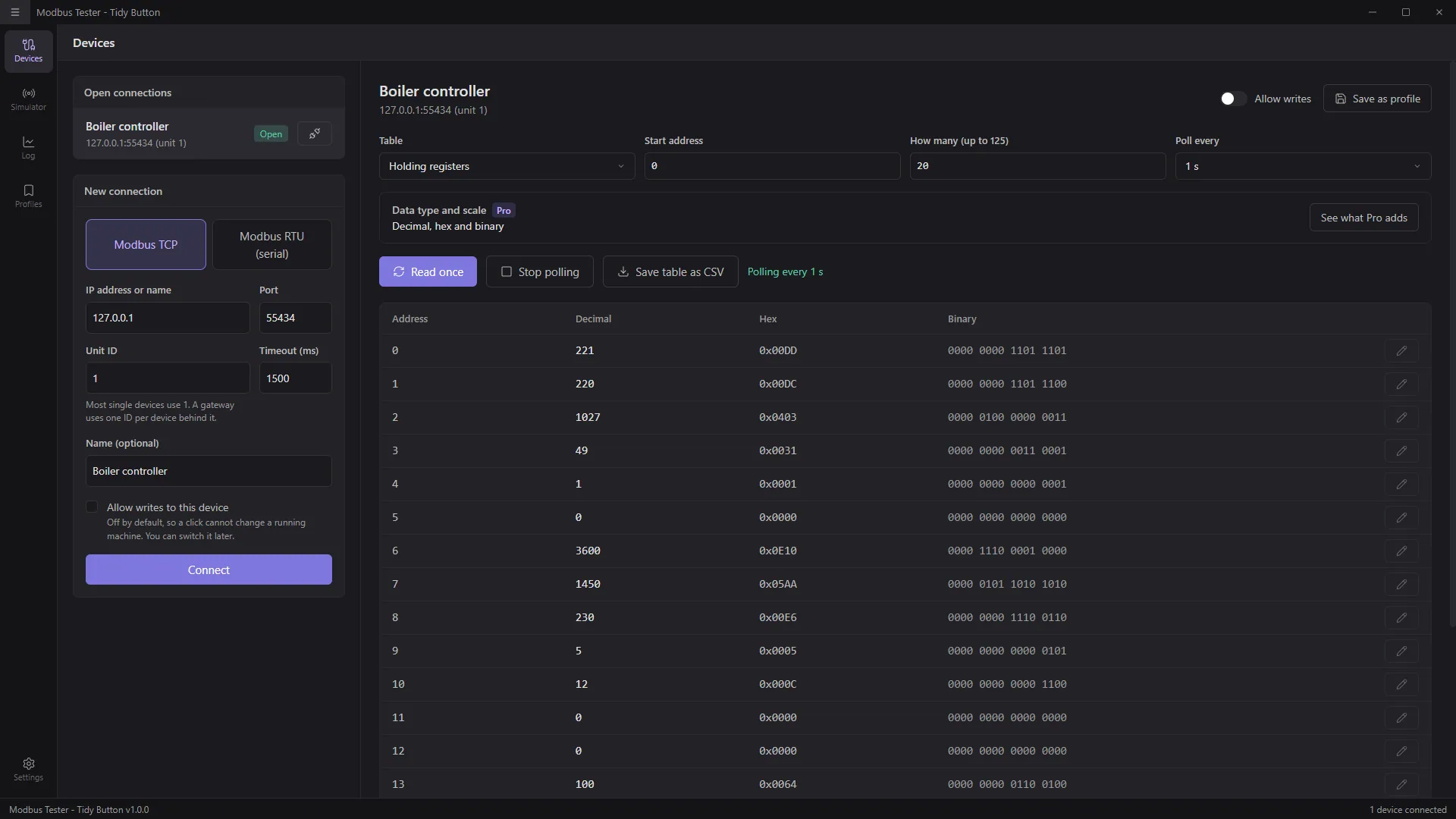
This app is not on the Microsoft Store yet. This guide is ready for the day it arrives.
Read registers from a Modbus TCP device
You need the device's IP address and port. Port 502 is common.
- Open Modbus Tester and stay on the Devices screen.
- Choose Modbus TCP.
- Type the device address in IP address or name and the port in Port.
- Leave Unit ID at 1 unless your device or gateway uses another number.
- Press Connect.
- Choose Holding registers in Table, then set Start address and How many.
- Press Read once. Each register shows in decimal, hex and binary.
Choose Coils, discrete inputs or input registers in the Table menu to read those instead.
Connect to a serial Modbus RTU device
- Choose Modbus RTU (serial).
- Pick your adapter in Serial port. Press the refresh button beside it if it is missing.
- Set Baud rate, Parity, Data bits and Stop bits to match the device.
- Type the device number in Unit ID (1-247).
- Press Connect, then press Read once.
Watch values change while you work
- Connect and press Read once to check the table.
- Choose how often to read in Poll every.
- Press Start polling. The line Polling every shows that it is running.
- Watch the table update as the device changes.
- Press Stop polling when you are done.
- Press Save table as CSV to keep what is on screen.
Write one value to a device
Writing changes the device. Only do it when it is safe.
- Connect to the device and read the table you want to change.
- Turn on Allow writes above the table.
- Press the pencil button next to the register or coil.
- Read the warning, check the current value, and type the number in New value.
- Press Write to device. The table reads back to show the result.
Writes are off for every new connection until you switch them on.
Save a device so you can open it again
- Connect to the device and set the table, start address and count you use.
- Press Save as profile.
- Type a name in Profile name and press Save.
- Later, open the Profiles screen and press Connect next to the name.
If something goes wrong
The connection fails or says the device did not answer. What should I check?
Check the IP address and port, that the PC and the device are on the same network, and that no firewall blocks the port. Then check the Unit ID. A gateway uses one number for each device behind it.
The pencil buttons are greyed out. Why?
Writes are off for each new connection. Turn on Allow writes above the table, and the buttons become available.
The numbers look wrong. What can I do?
Check that you chose the right Table, Start address and count. Some manuals count addresses from 1 while the device counts from 0, so try one address lower or higher.
My serial adapter is not in the list.
Plug in the adapter, then press the refresh button beside Serial port. You can also type the port name, such as COM3.
Good to know
- The app shows the raw values the device reports. It cannot tell you what a register means, so keep the device's manual at hand.
Still stuck? Support is by email, and a person reads it.