How to remove extra audio and subtitle tracks from an MKV file
This guide shows how to tidy the tracks inside a video file. Your original is never changed. The edits are saved as a new file, and the picture and sound are copied as they are.
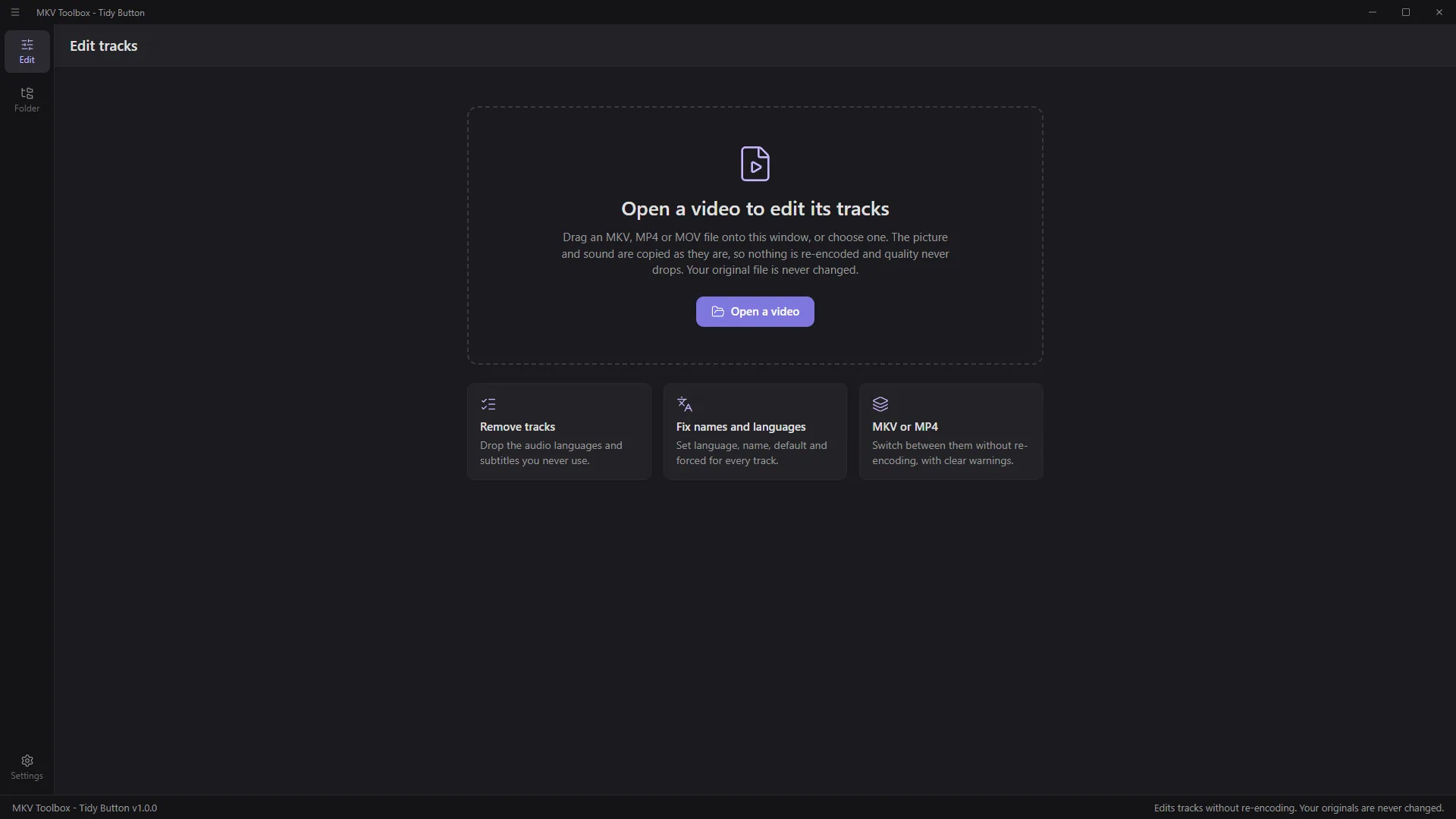
This app is not on the Microsoft Store yet. This guide is ready for the day it arrives.
Remove audio and subtitle tracks you do not need
- Open Edit in the left menu.
- Press Open a video, or drop an MKV, MP4 or MOV file on the window.
- Wait while the app reads the file. Every track is listed with its type, format and language.
- Untick the box on each audio or subtitle track you want to leave out.
- If a Before you save box appears, read it.
- Press Save new file and choose where to put it.
- Press Show in folder to find the new file.
If you change your mind before saving, press Undo all changes.
Fix a wrong language or track name
A wrong label can make a player choose the wrong track.
- Open your video in Edit.
- On the track you want to fix, open its language list and pick the right language.
- Type a short name in the box that says Track name (optional).
- Tick Default on the audio or subtitle track you want a player to choose first.
- On a subtitle track, tick Forced if it should show even when subtitles are off.
- Press Save new file.
Add a subtitle file to a video
- Open your video in Edit.
- Press Add subtitle or audio file and choose a file such as an SRT, ASS, SSA, VTT or SUP file.
- Check the language the app guessed from the file name, and change it if it is wrong.
- Press Save new file.
The added track appears in the list. Press the small remove button on it if you picked the wrong file.
Switch a video between MKV and MP4
- Open your video in Edit.
- Under File type, choose MKV or MP4.
- If a Before you save box appears, read it. It says what is converted and what the new file type cannot hold.
- Press Save new file.
The picture and sound are copied, not re-encoded, when you switch the type. A track that the new type cannot hold is left out.
If something goes wrong
Is my original video changed?
No. The result is always a new file, and the app checks the new file before it shows it as saved.
A track is greyed out and cannot be kept. Why?
Some tracks cannot go into the file type you chose. MP4 holds fewer kinds of tracks than MKV. Choose MKV under File type or leave that track out.
The app says No changes yet. What does that mean?
You have not changed anything yet. Untick a track, change a language, or choose a different File type, then save.
The app asks for a time inside the video when I add a chapter. What does that mean?
The chapter start time must fall inside the length of the video. Type a time such as 00:05:30 or 5:30 in the start time box of the new chapter, then press Add chapter.
Good to know
- The app does not change the picture or the sound. It cannot make a video smaller by compressing it.
Still stuck? Support is by email, and a person reads it.