Remove the extra audio and subtitles, fix languages and names, add subtitles and switch between MKV and MP4. Nothing is re-encoded. No upload, no account.
We will link the Store listing here the day it is live. Until then there is nothing to download.
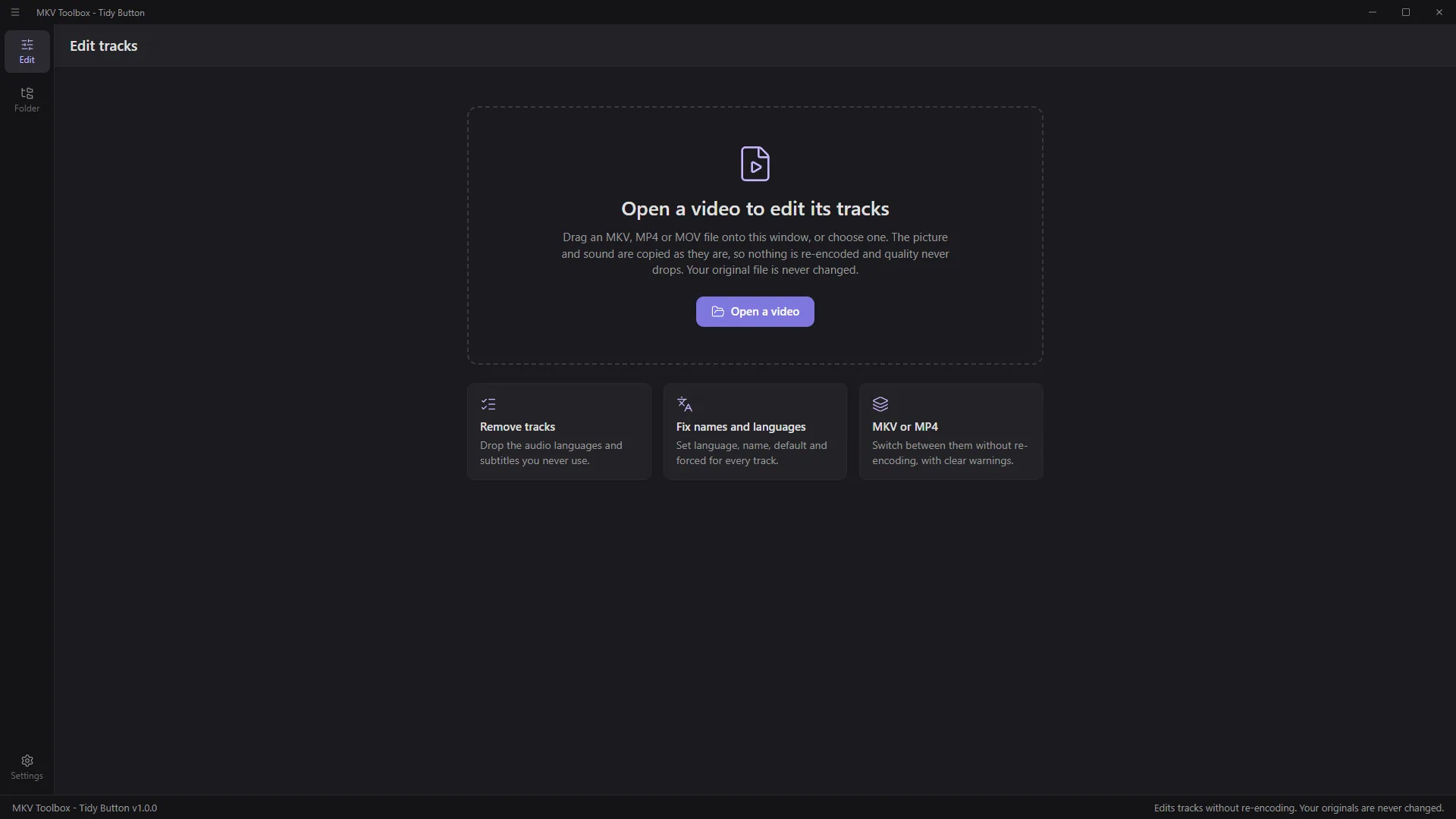
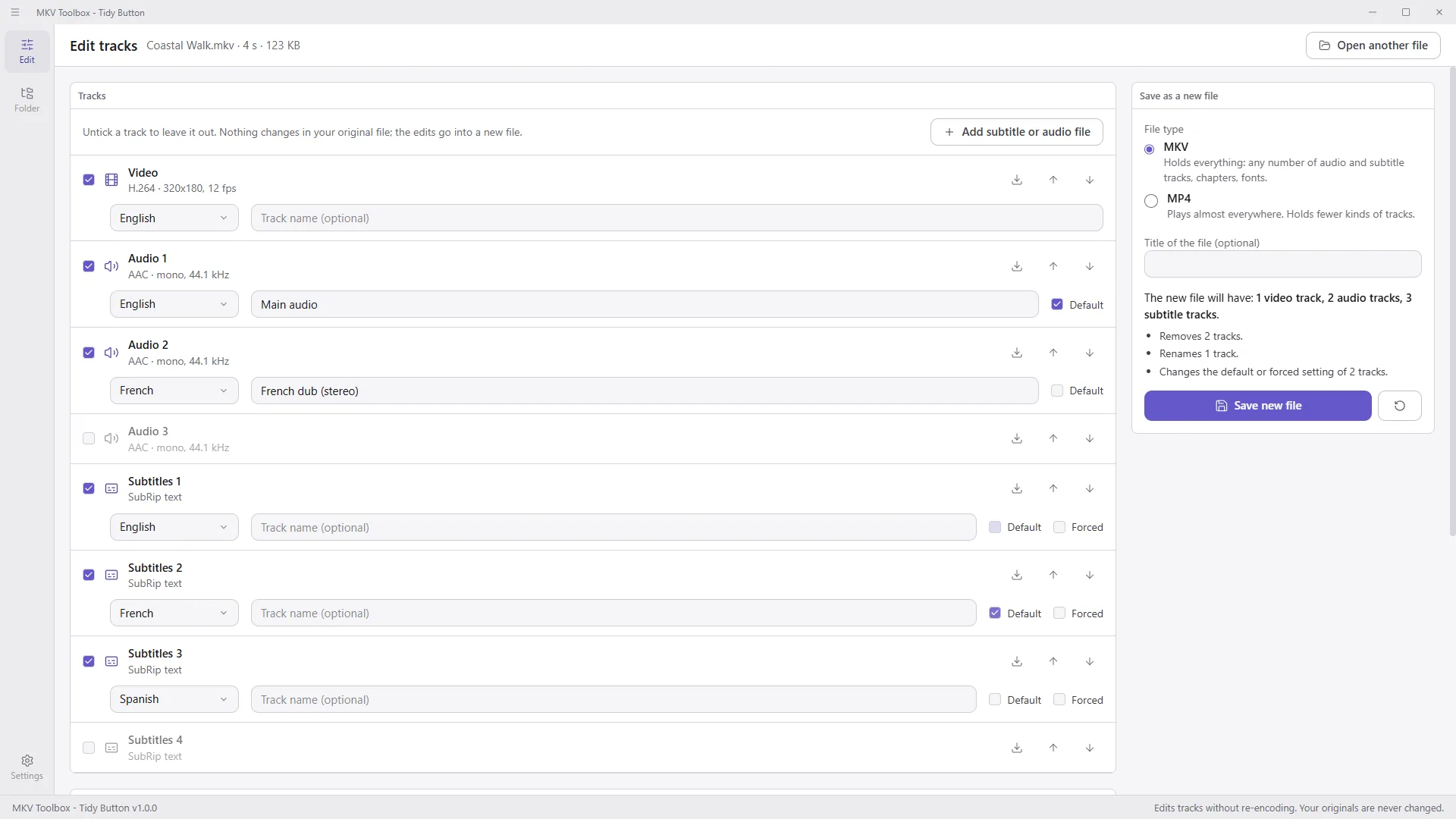
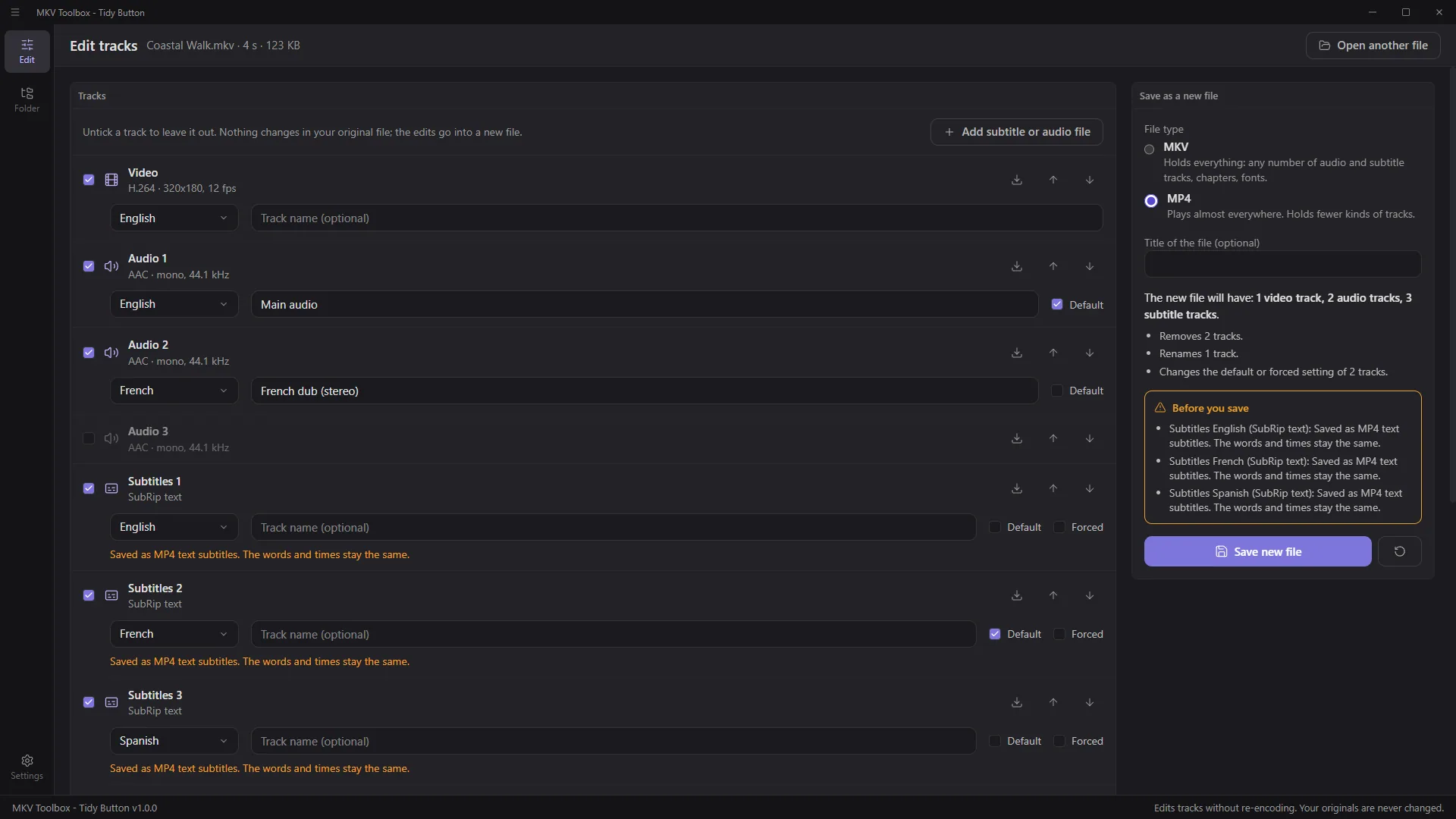
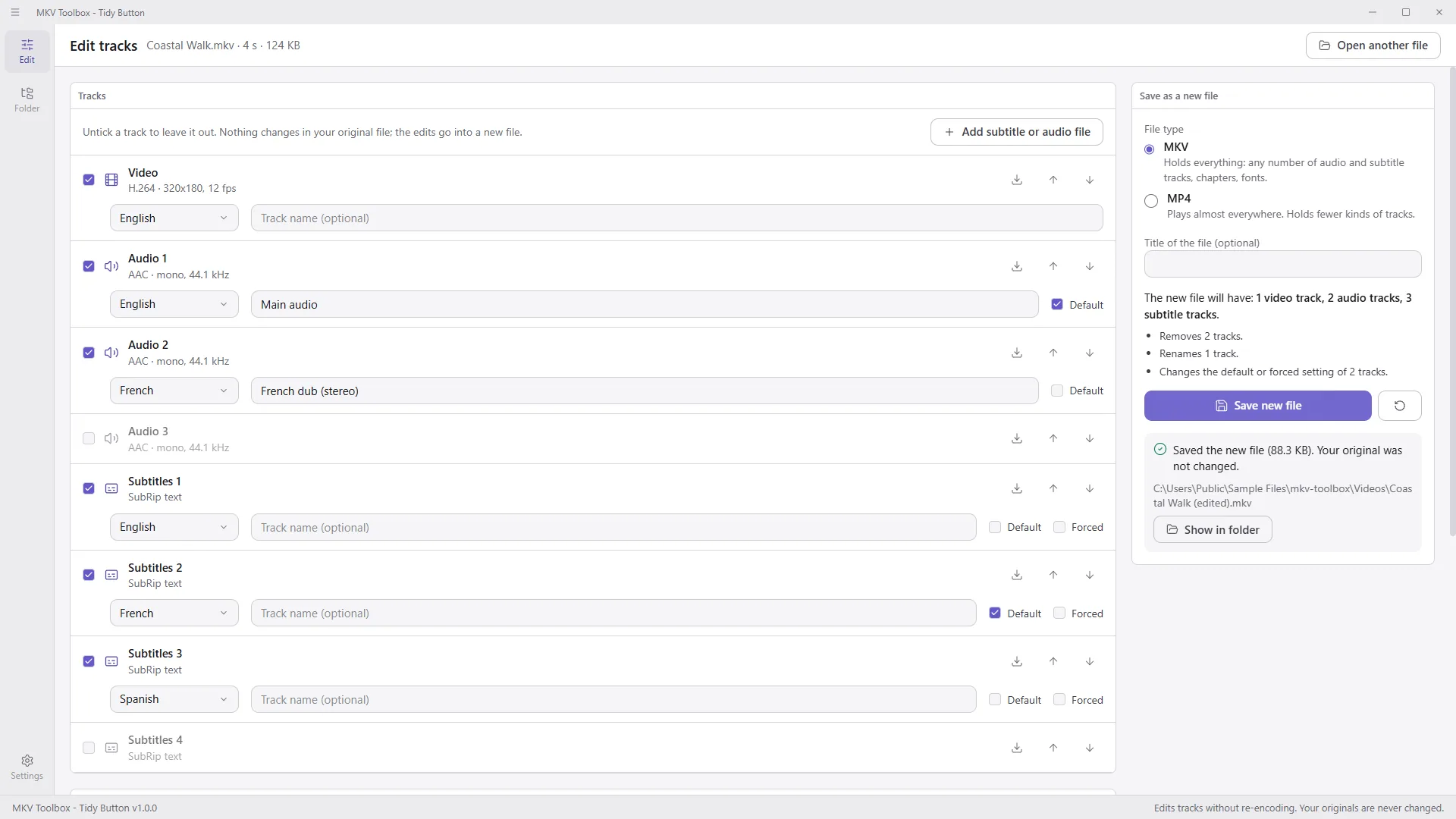
Real app, with a small sample video open.
Works offline
No account, no ads, no tracking
Nothing re-encoded
Free
See it
Eight views. One file, tidied.
Start
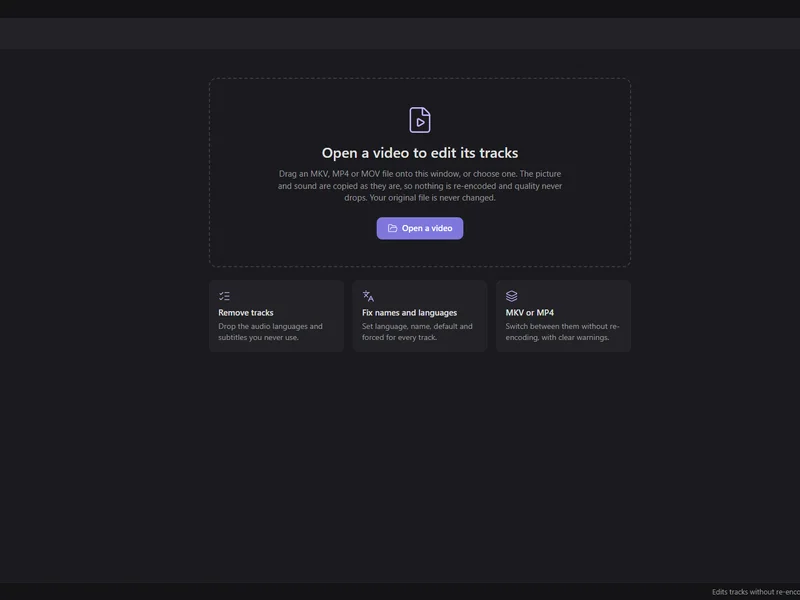
Open a video, or drop one on the window. Nothing is re-encoded and your original is never changed
Tracks
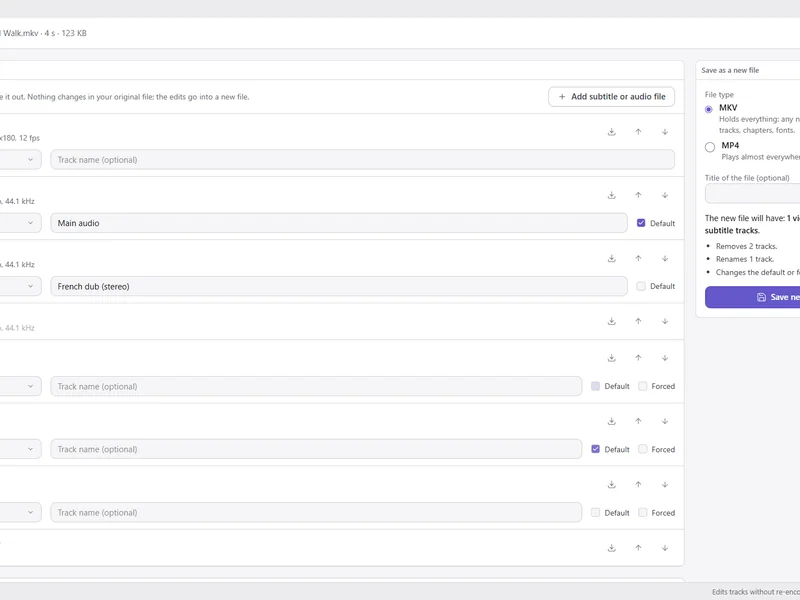
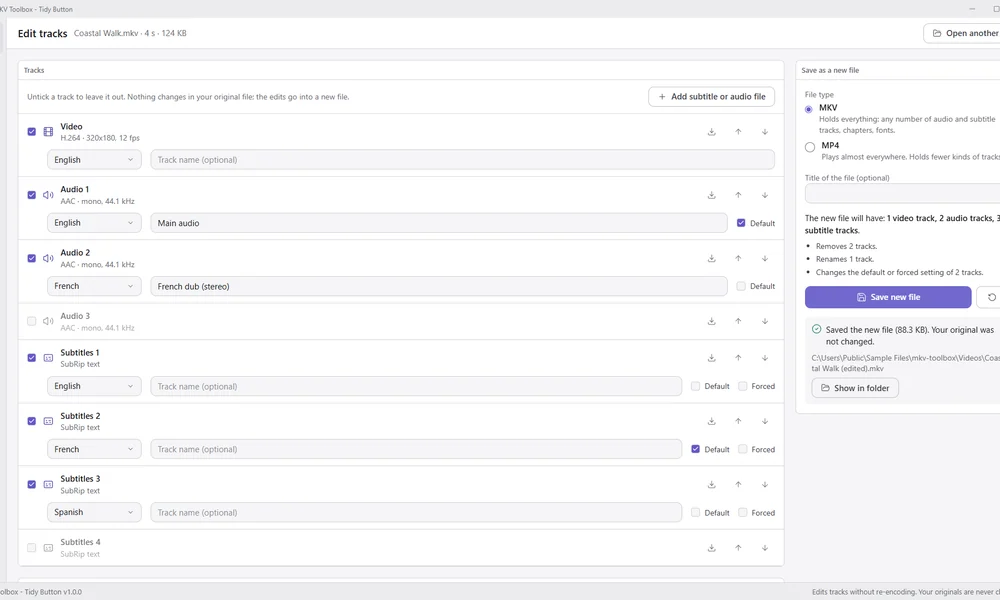
Every track in one list: untick what you do not want, fix languages and names, and read what the new file will have
MP4
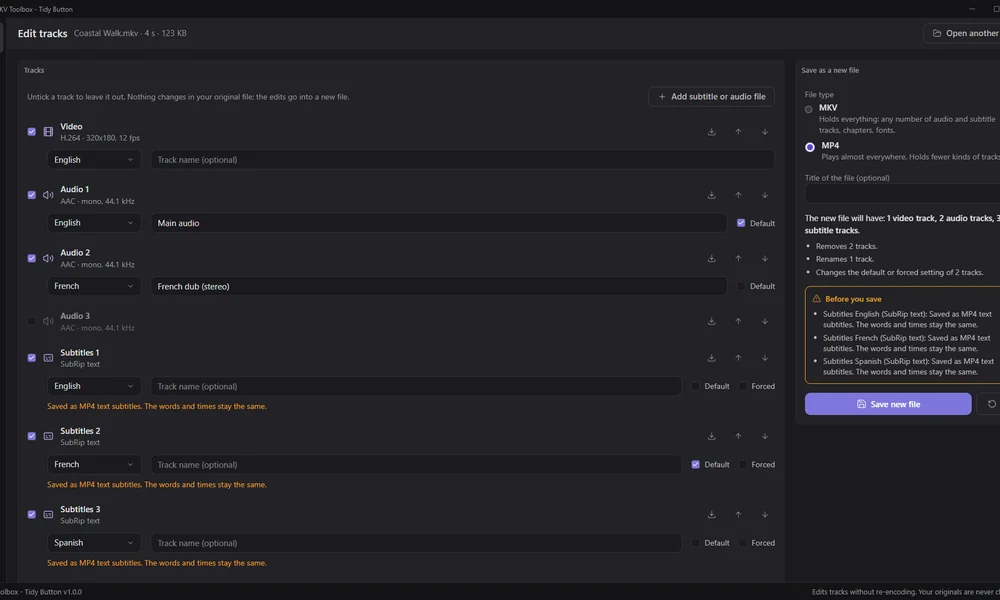
Switch between MKV and MP4 and read in plain words what is converted and what cannot go across
Saved
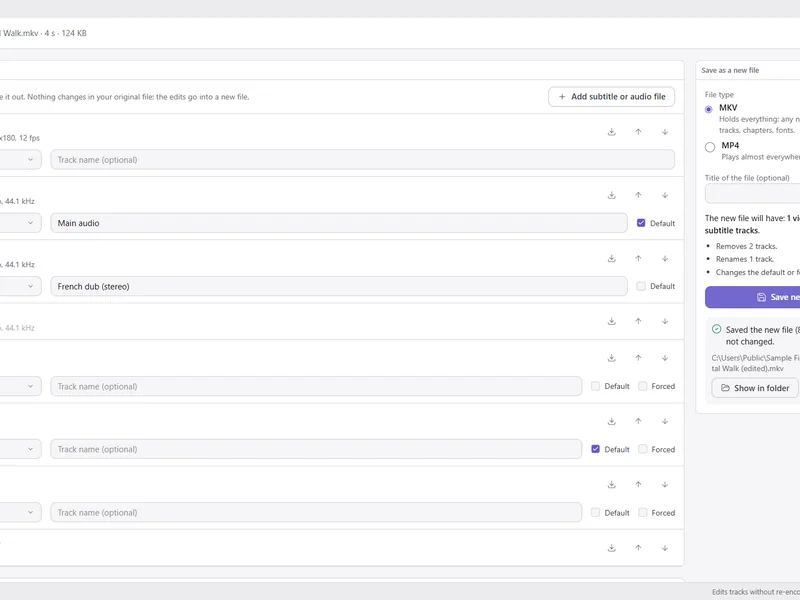
The result is always a new file, checked before it appears. Your original is not changed
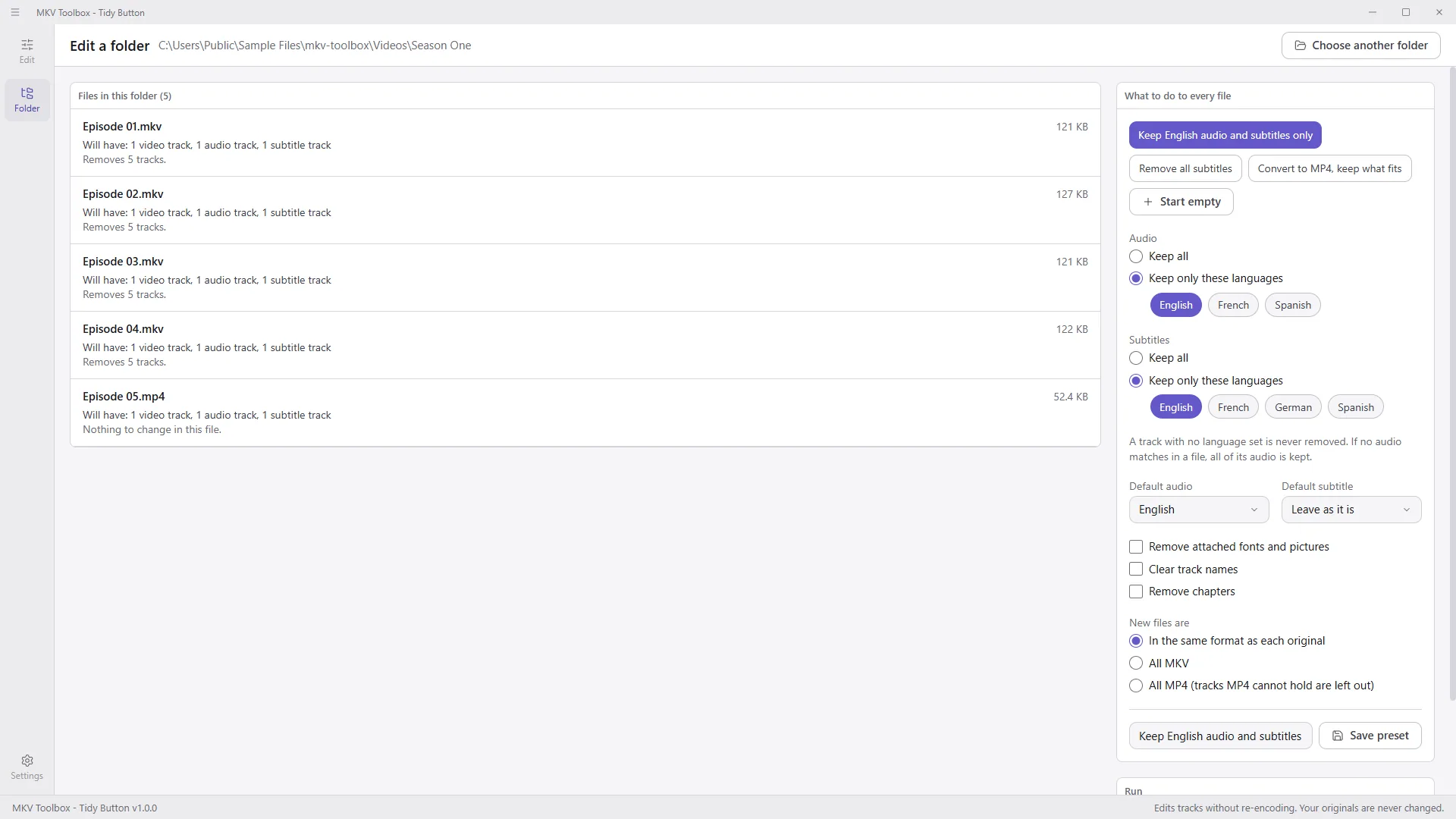
Folder
Preview a rule set on every file in a folder before anything is written
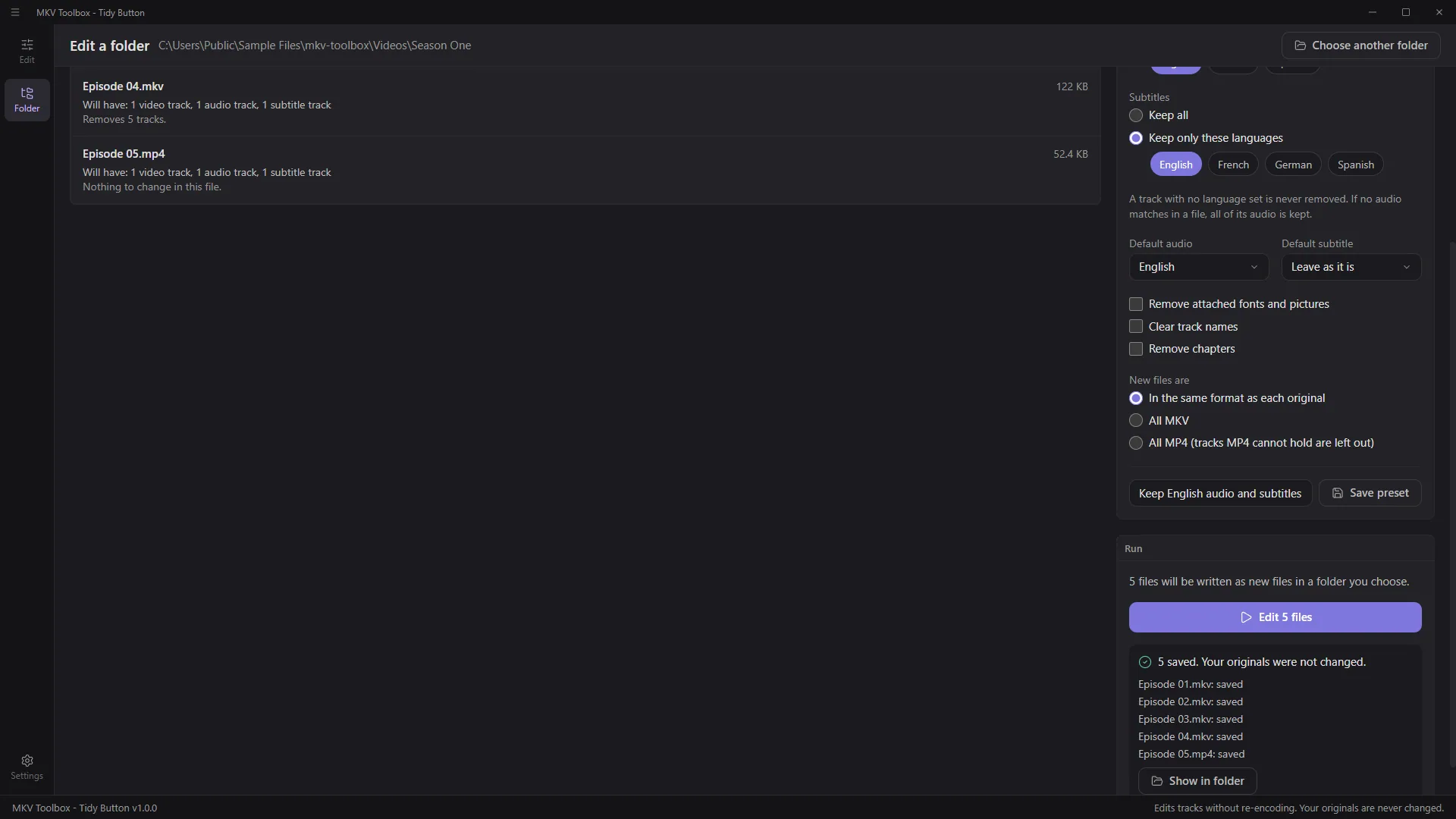
Folder done
Pro runs the rule set over the whole folder, with a summary of every file
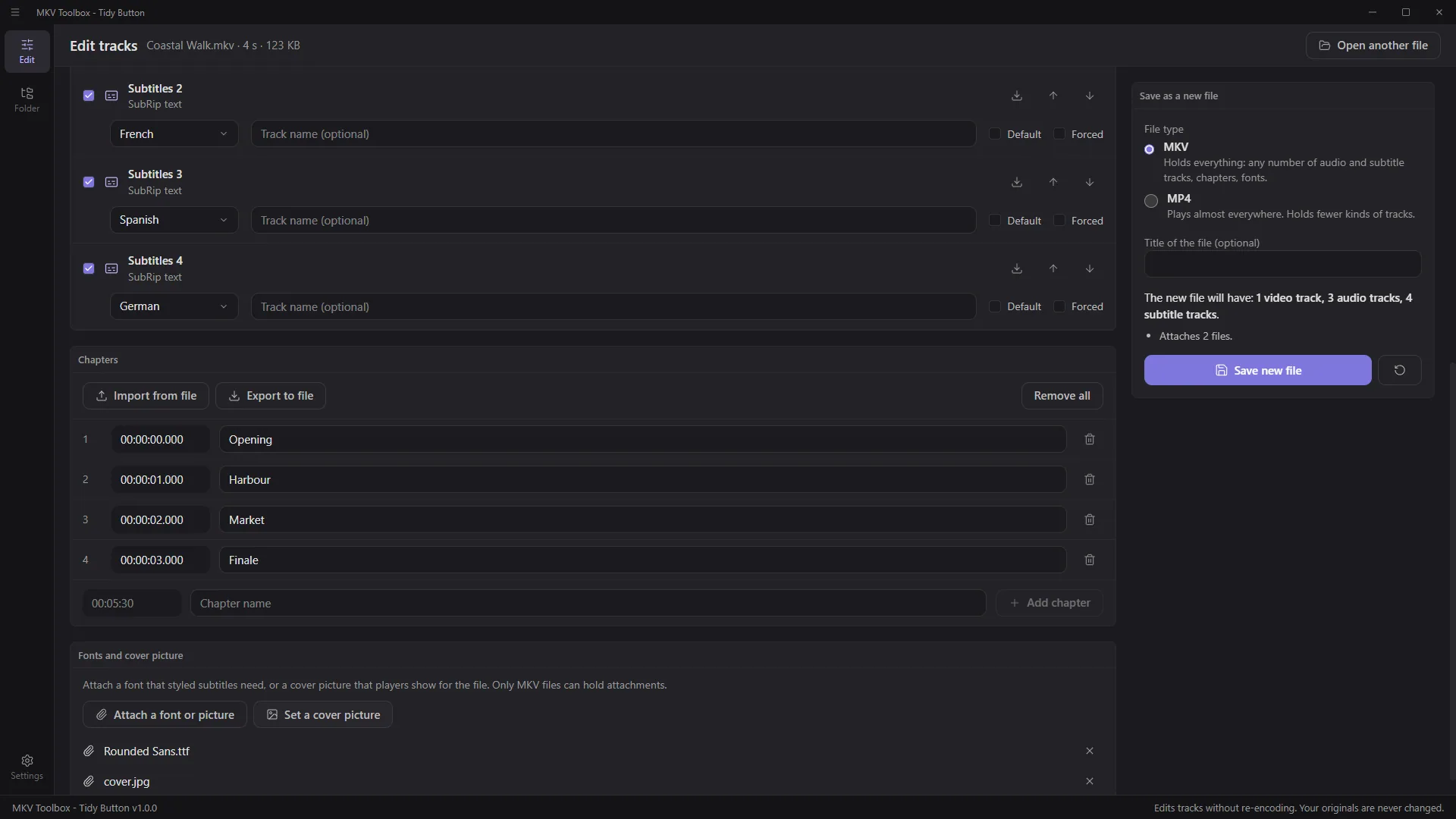
Chapters and attachments
Edit chapters, and with Pro attach fonts or a cover picture to an MKV file
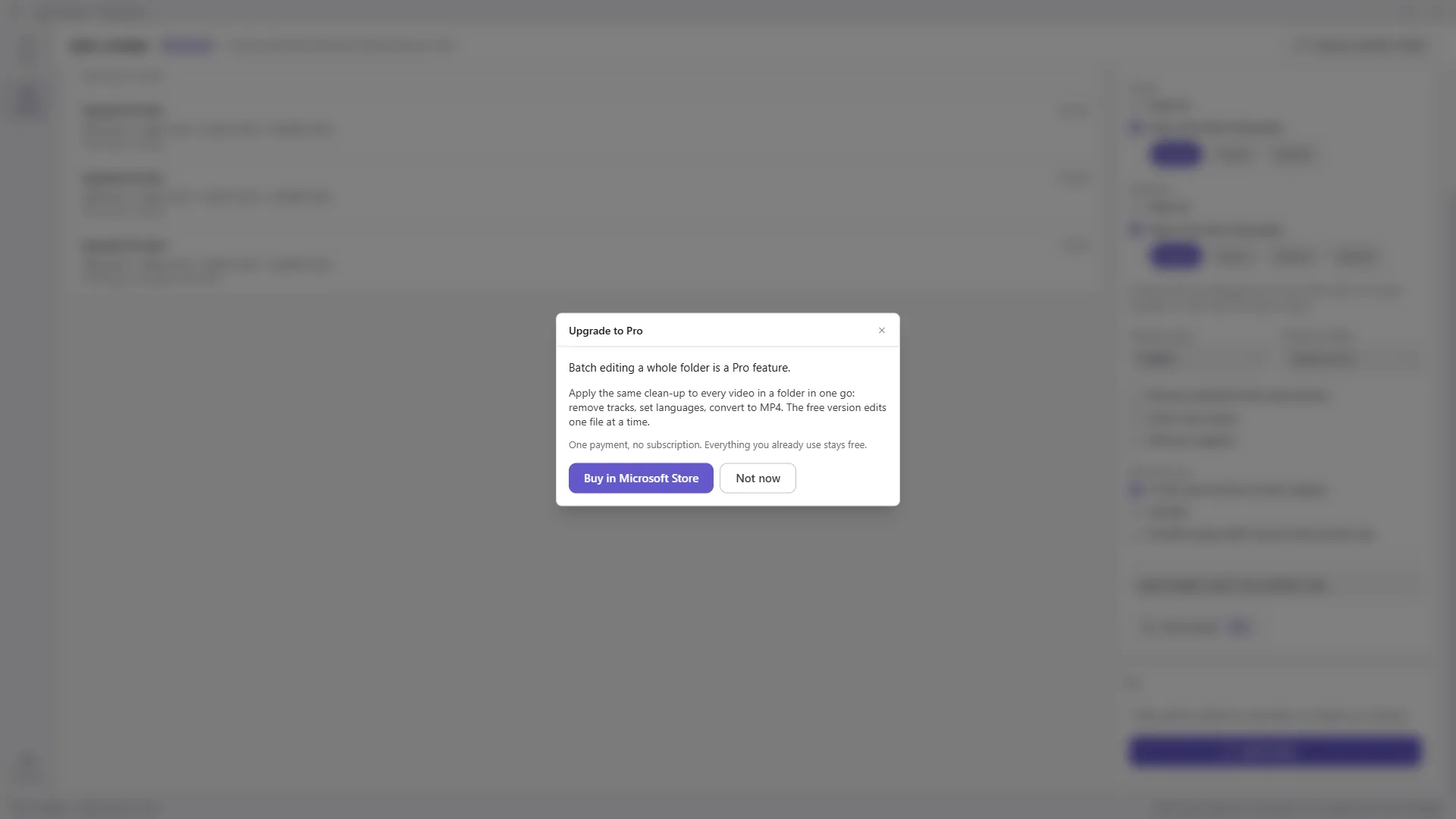
Free limit
The free version edits one file at a time. A whole folder at once is part of the one-time Pro add-on
Screens show a small sample video, not real films. The app has light and dark themes.
How it works
Three steps. No manual.
01
Open a video
Drag an MKV, MP4 or MOV file onto the window, or choose one.
02
Fix the tracks
Untick what you do not want, set languages and names, and add subtitle files.
03
Save a new file
Choose MKV or MP4, press Save new file and your original stays as it was.
What it does
What it does.
A video file often carries tracks you never play: extra languages, commentary, subtitles you cannot read, or a language label that is wrong so your player picks the wrong one. Open the file, untick what you do not want, fix what is wrong and save a new file. Everything happens on your PC. The picture and sound are copied as they are, so quality never drops, and the app works with the internet turned off.
Every track in one list
Video, audio and subtitle tracks with their format, language, name and default and forced flags. Remove tracks and move them up or down within their kind.
Languages and names
Set the language and name of any track and choose which audio and subtitle track plays by default.
Add subtitles
Add subtitle files (SRT, ASS, SSA, VTT, SUP) or audio files. The language is guessed from the file name.
MKV or MP4
Switch between them without re-encoding. Plain-words warnings say what is converted and what MP4 cannot hold.
Chapters
Add, rename, move and remove chapters, or remove them all.
Extract a track
Save any track to its own file in its own format.
Know before you save
A plain summary says what the new file will have and what changes, before anything is written.
Whole folders
Preview a rule set on every file in a folder. Pro runs it over the whole folder in one go.
The small print, in plain English
Safe by design.
Read what changes before you save: what is converted and what MP4 cannot hold.
Always a new file, checked before it appears. Your original is not changed.
Nothing is re-encoded. The picture and sound are copied, so quality never drops.
Your original file is never changed, moved or deleted.
Nothing is ever overwritten. A number is added to a taken name.
The free version edits one file at a time and previews folders. Pro runs a whole folder.
Works offline. No account. No ads. No tracking.
What it does
Your files, your choice.
Decide what stays in the file before you save.
Choose MKV or MP4 and read the warnings first.
Tracks
Keep what you use
Remove audio, subtitle and other tracks, and reorder them within their kind.
Languages
Right label, right track
Set the language and name of every track, and the default and forced flags.
Subtitles
Language guessed for you
Add SRT, ASS, SSA, VTT or SUP files. The language comes from the file name.
Format
Told in plain words
MKV to MP4 and back without re-encoding. Text subtitles are converted; picture subtitles and fonts cannot go into MP4.
Chapters
Your own list
Add, rename, move and remove chapters.
Folders
Season at once
Preview a rule set on every file. Pro runs it on the whole folder.
The app brings its own video tool, so nothing else has to be installed.
Good for
Handy when the tracks are a mess.
Dropping extra languages from films and series
Fixing a wrong language label so the player picks the right track
Adding subtitles to a video
Making an MKV that plays on a TV or phone
Cleaning up a whole season at once
Questions
Plain answers.
Is anything uploaded?
No. Your videos are read on your PC and never leave it. The app works with the internet turned off.
Does it re-encode my video?
No. The picture and sound are copied exactly as they are, so quality never drops. Only text subtitles can be converted between text formats.
Does it change my original file?
No. The result is always a new file in a folder you choose, and nothing is overwritten.
Can I switch between MKV and MP4?
Yes. The app tells you before you save what goes across unchanged, what is converted and what MP4 cannot hold, such as picture subtitles and attached fonts.
Which files can I open?
MKV, MP4 and MOV files, and a few related formats such as M4V and WebM.
Is there a limit in the free version?
The free version edits one file at a time and previews what a rule set would do to a whole folder. An optional one-time Pro add-on runs a rule set over a whole folder, saves presets, imports and exports chapters as text files and attaches fonts or a cover picture.