How to make a mind map on your PC with the keyboard
This guide shows how to build a mind map quickly with the keyboard, make it easier to read, and save or share it.
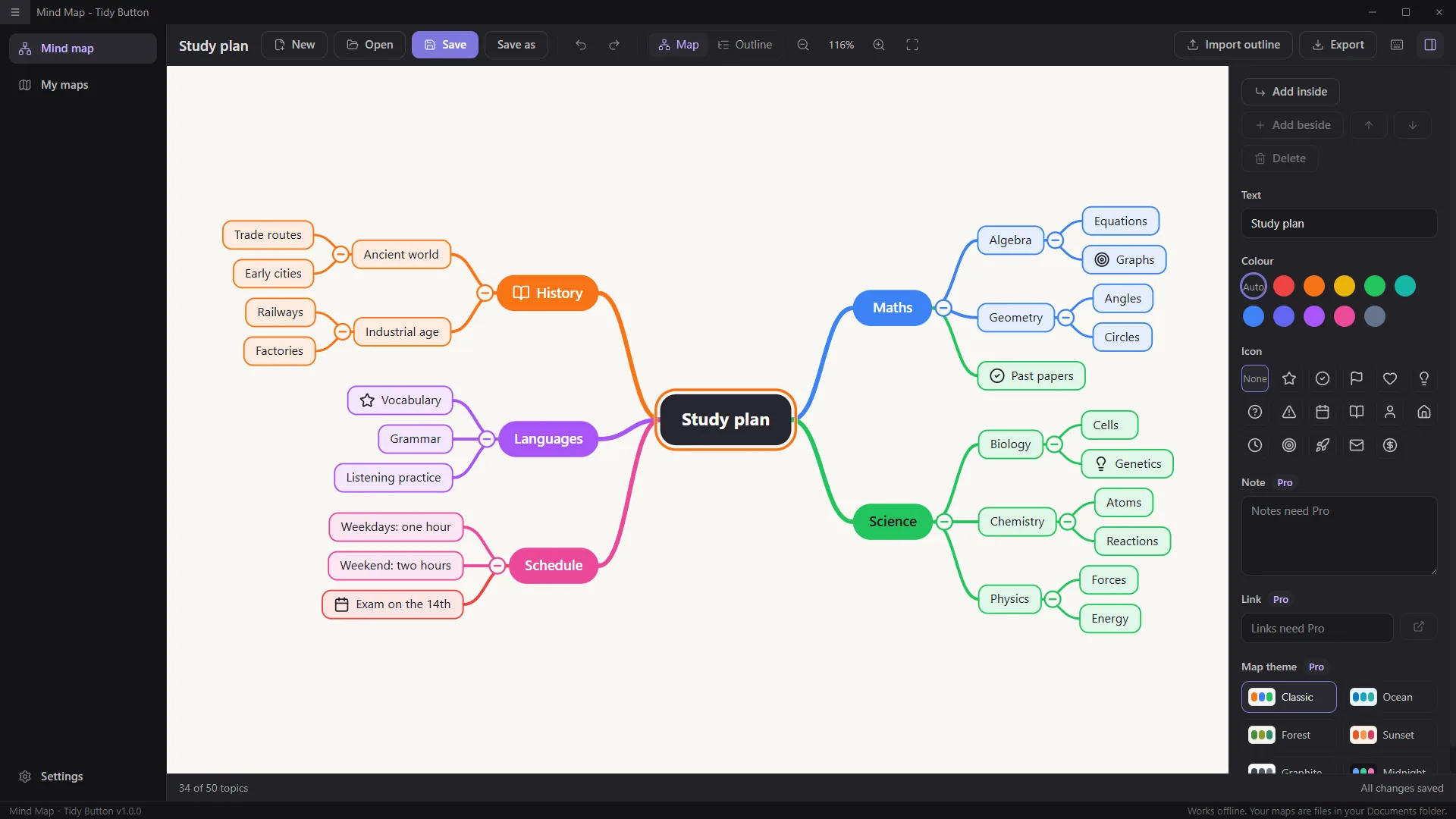
This app is not on the Microsoft Store yet. This guide is ready for the day it arrives.
Build a map with the keyboard
- Open Mind Map. You start on a map with one central topic.
- Press F2 to edit the central topic. Type a name and press Enter.
- Press Tab to add a topic inside the selected one. Type its name and press Enter.
- Press Enter to add another topic beside it, at the same level.
- Use the arrow keys to move to another topic, and press Tab or Enter to keep adding.
You can also use Add inside and Add beside in the panel on the right.
Make the map easier to read
- Select a topic.
- In the panel on the right, choose a colour under Colour.
- Choose a picture under Icon to mark an idea, a goal or a date.
- Select a topic with branches and press Space to fold it. Press Space again to unfold it.
- Use the plus and minus buttons beside the zoom figure, or Ctrl and the mouse wheel, to zoom. Press the fit button to see the whole map.
Work in the outline
- Press Outline above the map to see the same map as an indented list.
- Select a topic in the list and press F2 to edit its text.
- Press Map to go back to the picture.
Save the map and open it again
- Press Save and choose a name for the map.
- Open My maps in the sidebar to see all your saved maps.
- Press Open beside a map to continue working on it.
- Press New to start another map.
Maps are saved as files in your Documents folder.
Export the map as a picture
- Press Export.
- Choose PNG picture.
- Choose where to save the file. Use it in slides, notes or a message.
If something goes wrong
I pressed Tab but nothing was added.
Click a topic first so that it is selected. If a text box is open, press Enter to finish typing, then press Tab.
I cannot find part of my map.
A branch may be folded. Select the topic and press Space to unfold it. Press the fit button to bring the whole map into view.
Can I undo a mistake?
Yes. Press Ctrl+Z to undo and Ctrl+Y to redo, or use the undo and redo buttons at the top.
What are the keyboard shortcuts?
Press the Keyboard shortcuts button at the top right of the toolbar to see the full list.
Good to know
- The map is a tree of topics. It does not draw free-form links between topics on different branches.
Still stuck? Support is by email, and a person reads it.