How to make a printable math worksheet for kids
This guide shows how to make a math worksheet for a child, save it as a PDF, bring the same sheet back later, and practise with a timed drill on screen.
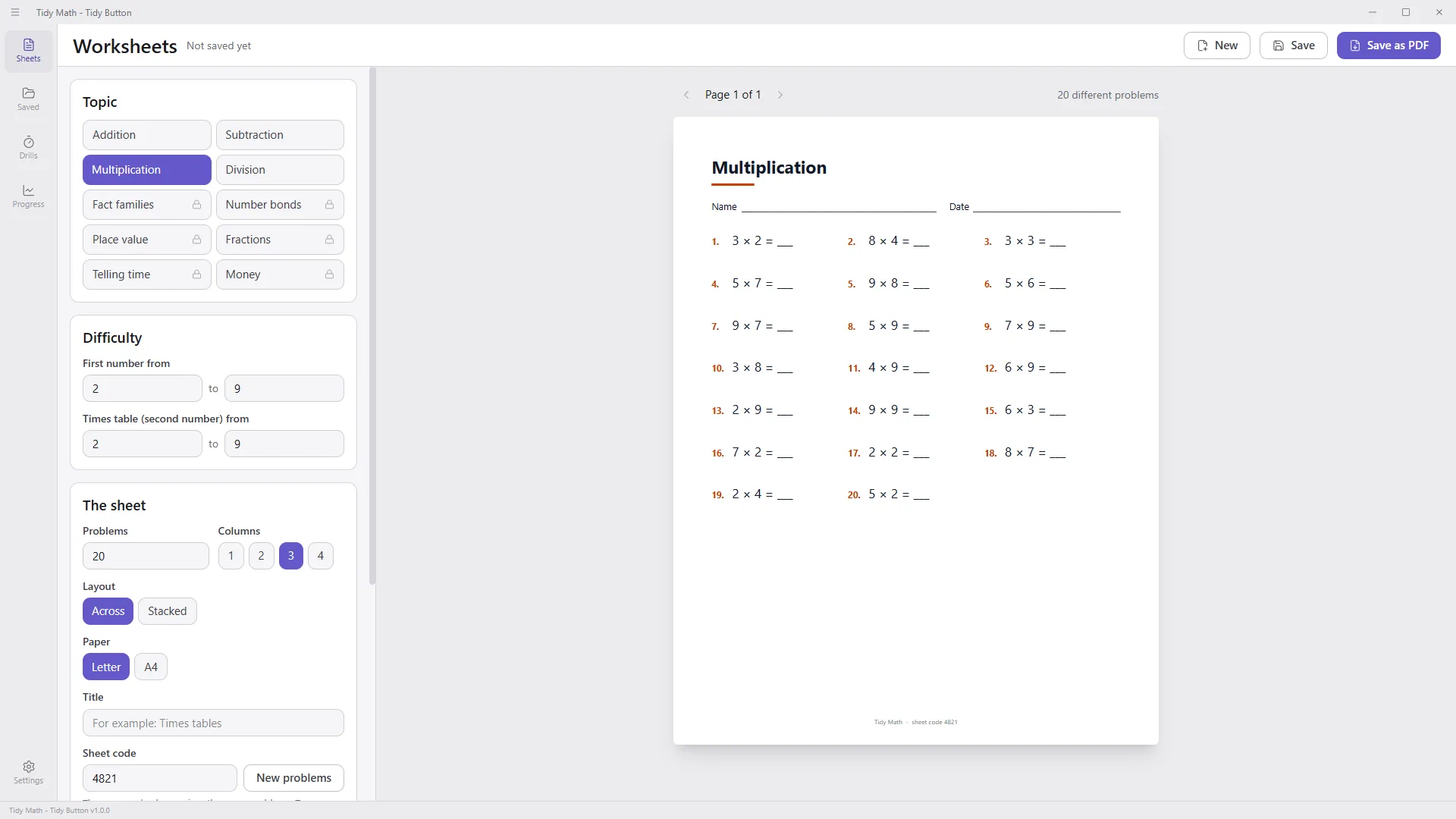
This app is not on the Microsoft Store yet. This guide is ready for the day it arrives.
Make a worksheet and save it as a PDF
The page on the right shows the worksheet as it will print.
- Open Sheets in the left menu.
- Under Topic, press Addition, Subtraction, Multiplication or Division.
- Under Difficulty, set the number range the problems may use. For Addition it is Numbers from.
- Under The sheet, set the number of problems, the Columns, and the Paper size, Letter or A4.
- Type a heading in Title if you want one, for example Times tables.
- Press Save as PDF and choose where to save the file. Open the PDF later to print it.
If your settings allow fewer different problems than you asked for, a note above the page tells you. Widen the number range to get more.
Print the same worksheet again later
Every sheet has a code. The same code always gives the same problems.
- On Sheets, find Sheet code under The sheet.
- Write the code down. It is also printed in the footer of the page.
- Next time, type the code into Sheet code with the same topic and settings. The same problems come back.
- Press New problems when you want a different set.
The code gives the same problems only when the topic and the other settings are the same.
Save a worksheet and open it again
- Make your worksheet on Sheets.
- Press Save.
- Type a name in Name and press Save again.
- To open it later, go to Saved in the left menu and press Open beside the worksheet.
Worksheets are saved in your Documents folder, in Tidy Button, Tidy Math.
Run a timed drill on screen
- Open Drills in the left menu.
- Choose a topic and difficulty, as you do for a worksheet.
- Under How long, press Against the clock and pick a time, or press A set number and pick how many problems.
- Press Start.
- Type each answer and press Enter, or press Check.
- Press Finish now to stop early.
- Read the score, the accuracy and the list under To look at again. Press Go again to repeat, or Change settings.
If something goes wrong
My worksheet has fewer problems than I asked for. Why?
The sheet shows only different problems. If the number range allows just a few, the sheet is shorter and a note above the page says so. Widen the range in Difficulty.
How do I get a different set of problems?
Press New problems under Sheet code. A new code is made and the page changes.
Where are my saved worksheets?
In your Documents folder, in Tidy Button, Tidy Math. They are also listed on the Saved screen.
How do I make a negative answer possible in subtraction?
Choose Subtraction under Topic, then turn on Allow negative answers under Difficulty.
Good to know
- The app saves a worksheet as a PDF file. It has no print button, so open the PDF and print it from there.
Still stuck? Support is by email, and a person reads it.