How to write markdown with a live preview on Windows
This guide shows how to write markdown notes on your PC and see the finished page beside them. Your notes stay as ordinary .md files.
This app is not on the Microsoft Store yet. This guide is ready for the day it arrives.
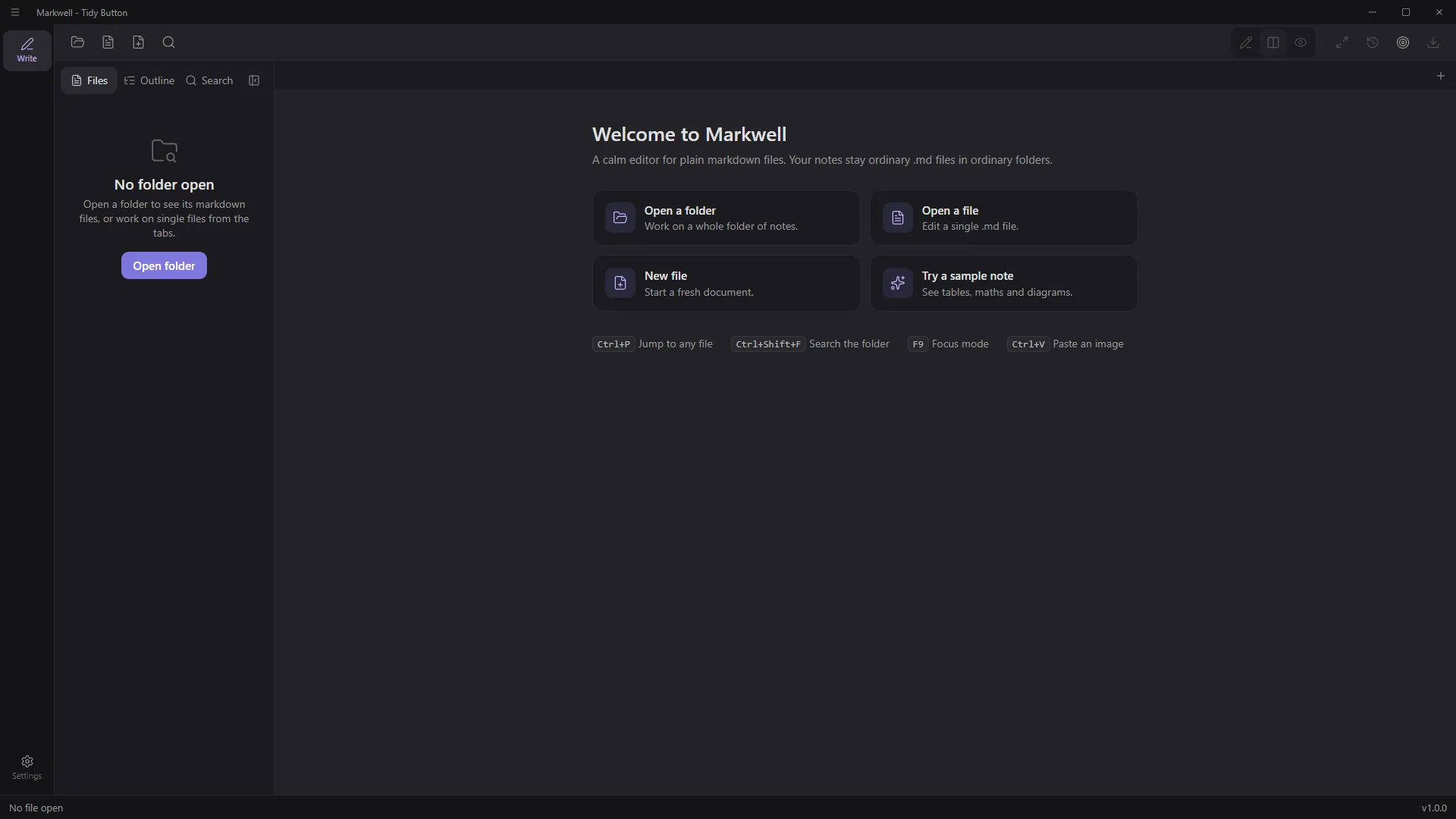
Open your notes and start writing
- Press Open folder and choose the folder that holds your notes. To edit just one file, press Open file.
- Click a file in the Files list on the left to open it in a tab.
- To start a new note in the open folder, press New file above the Files list, type a name such as Ideas.md, and press Create.
- Type in the editor. With Save automatically on, your file is saved a moment after you stop typing. The message at the top says when all changes are saved.
Save automatically is in Settings and is on by default. If you are not sure where to begin, press Try a sample note on the welcome screen.
Format text and add tables, lists and diagrams
- Select some text, then press Bold (Ctrl+B) or Italic (Ctrl+I) in the bar above the editor.
- Press Heading and choose Heading 1 or Heading 2 to make a title.
- Press Bulleted list, Numbered list or Task list to start a list.
- Press Table to add a table you can fill in.
- Press Maths block or Diagram to add a formula or a diagram.
- Press Insert picture to add a picture, or paste one with Ctrl+V.
A pasted picture is saved in an assets folder beside your file.
Change how the editor and preview are shown
- Press Editor and preview side by side to see the page take shape as you type.
- Press Editor only or Preview only to see just one of them.
- Press Focus mode (F9) to dim everything except the paragraph you are writing.
- Press F9 or Esc to leave focus mode.
- Press Outline above the file list on the left to see your headings, and click one to jump to it.
Find text across every note
- Press Search above the file list on the left, or press Ctrl+Shift+F.
- Type a word in Search in folder.
- Turn on Match case, Whole word or Regular expression if you need them.
- Click a result to open that file at the right line.
- To jump to a file by name, press Quick open (Ctrl+P) and start typing.
Save your note as one web page
- Open the note you want to share.
- Press Export in the bar at the top.
- Choose HTML page.
- Press Export in the window.
- In the Windows save window, pick a folder and a name.
The page holds your styles, pictures, maths and diagrams in one file. It opens in any browser.
If something goes wrong
The preview does not show. How do I get it back?
You may be in editor only view. Press Editor and preview side by side above the editor.
I changed a file in another program and now the app asks me something. What do I choose?
Press Reload from disk to take the version on disk, or Keep mine to keep what you have in the app.
How do I rename or delete a note?
Point at the file in the Files list. Press the rename button, or the delete button. Delete asks first and moves the file to the Recycle Bin.
Search finds nothing. What should I check?
Search only looks inside the folder you opened. Make sure a folder is open with Open folder, and turn off Match case, Whole word and Regular expression if they are on.
Still stuck? Support is by email, and a person reads it.