How to write a LaTeX document and preview the PDF
This guide shows how to start a LaTeX document, compile it to a PDF, fix errors and save the result. The PDF is made by a TeX engine on your PC.
This app is not on the Microsoft Store yet. This guide is ready for the day it arrives.
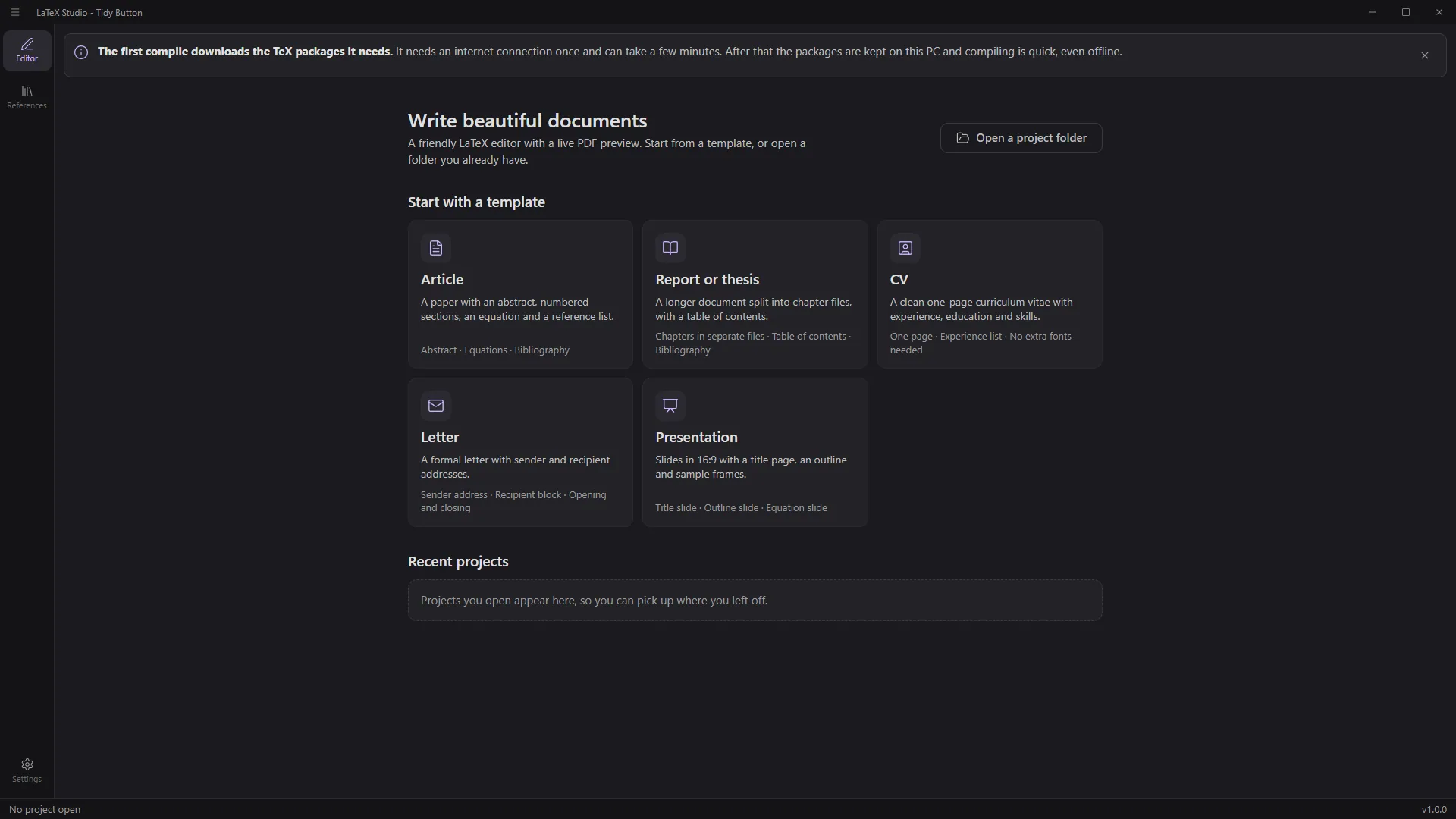
Start a new document from a template
- Open Editor in the left menu.
- If no project is open, pick a card under Start with a template. If a project is open, press New in the toolbar.
- Choose a template, for example Article, CV or Letter.
- Type a name in Project name and choose Where to save it.
- Press Create. If you chose to pick a folder, pick it when asked.
The new project appears in the file list on the left. Click the main file, marked with a star, to open it in the editor. To work on a folder you already have, press Open or Open a project folder.
Compile and read the PDF
- Write or change your text in the editor on the left.
- Press Compile in the toolbar. You can also press Ctrl+Enter, or Ctrl+S while Compile when I save is on in Settings.
- The PDF appears on the right. Use Zoom in, Zoom out or Fit the page width to change the size.
- Press Show in PDF to flash the place on the page that matches the line you are on.
- Double-click in the PDF to jump to the matching line in your text.
If a compile fails, the last good PDF stays on screen.
Fix errors and warnings
- Look at the panel under the editor. Open the Problems tab.
- Click an error or warning in the list. The cursor jumps to its line.
- Correct the line and press Compile again.
- Open the Compiler output tab to read the full text from the compiler.
- Press Stop if a compile runs for too long.
When the list is empty, it says the last compile finished without errors or warnings.
Add a section, a list or a picture
- Open a .tex file from the file list, then press Insert in the toolbar.
- Choose Section heading, Bulleted list, Numbered list or Figure with a picture.
- To bring a picture into the project, press Add images or files to the project above the file list.
- Change the file name inside the inserted text to match your picture.
Save the PDF
- Compile your document first so that a PDF is shown on the right.
- Press Save the PDF as... above the preview.
- Choose where to save the file.
If something goes wrong
The app says it needs a TeX engine. What do I do?
The app does not contain the program that makes the PDF. Press Get Tectonic (small, downloads packages as needed) or Get MiKTeX, install one, then press Check again. If you already have one, press Choose an engine on this PC....
The first compile takes a long time. Is something wrong?
If you use Tectonic, no. The first compile downloads the TeX packages your document needs, so it needs an internet connection once and can take a few minutes. After that the packages are kept on your PC.
The Compile button is greyed out. Why?
A project must be open first. Press New to start one or Open to pick a folder.
The preview shows nothing. What should I try?
Press Compile now in the preview area. Then check the Problems tab for an error.
Good to know
- The app needs a TeX engine on your PC to make PDFs. It cannot compile without one.
Still stuck? Support is by email, and a person reads it.