How to keep your Windows PC awake during a download
This guide shows how to stop your PC going to sleep while a download, a render or a talk is running. Windows goes back to its normal settings when the time is up.
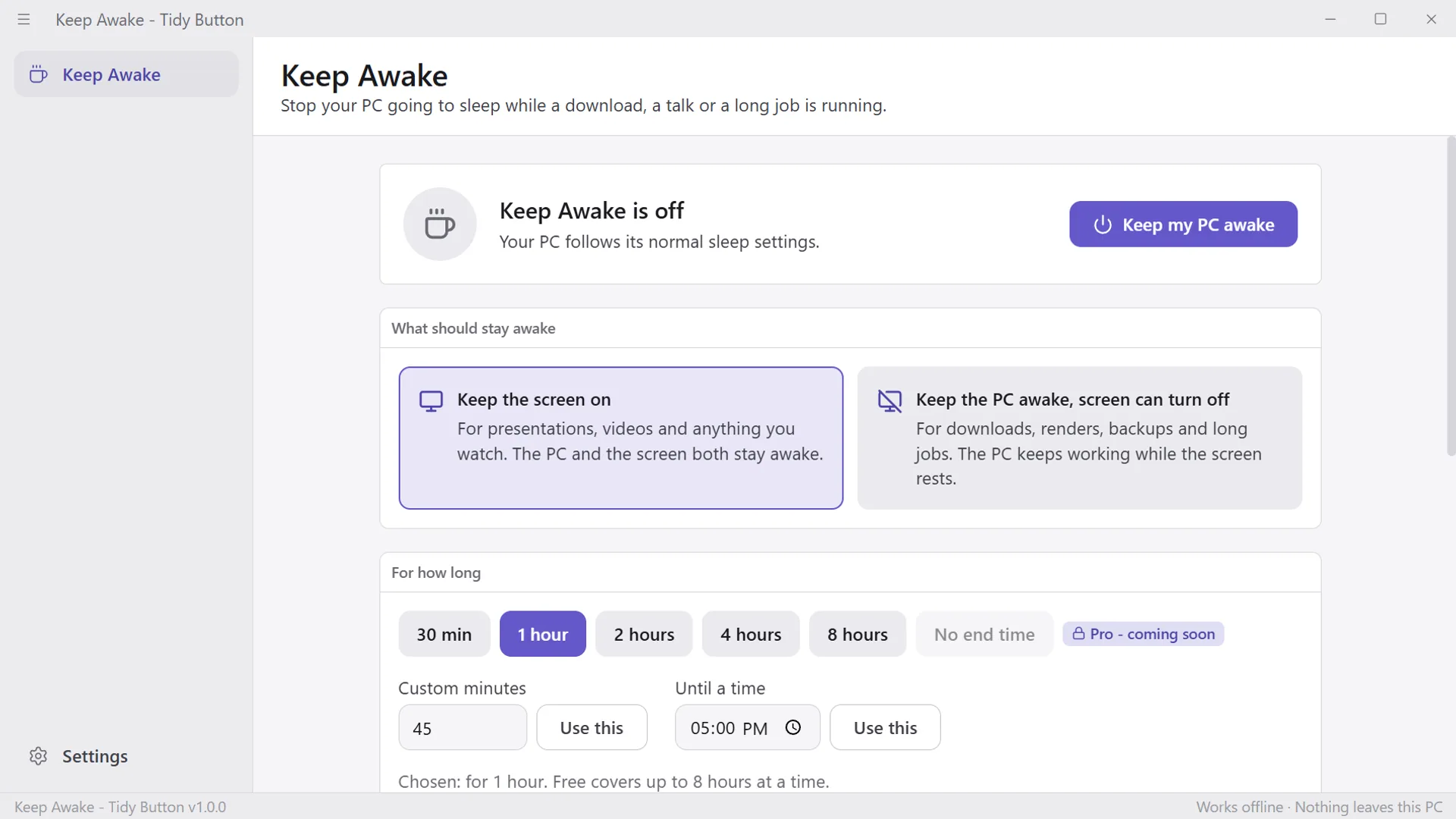
Keep the PC awake for a long download
Use this when the screen can go dark but the PC must keep working.
- Open Keep Awake.
- Under What should stay awake, choose Keep the PC awake, screen can turn off.
- Under For how long, pick a time such as 2 hours or 4 hours.
- Press Keep my PC awake.
- Check the countdown on the status card. It shows how much time is left.
When the countdown ends, your normal Windows power settings apply again.
Keep the screen on for a presentation or a video
- Open Keep Awake.
- Under What should stay awake, choose Keep the screen on.
- Under For how long, pick a time that covers your talk.
- Press Keep my PC awake.
- When you are done, press Stop keeping awake.
Keep the PC awake until a set time
Use this when you know when the job should be finished, for example 17:30.
- Open Keep Awake.
- Find the Until a time box under For how long.
- Enter the time you want, such as 17:30.
- Press Use this next to it.
- Press Keep my PC awake if the session is not running yet.
If you want a number of minutes instead, type it in Custom minutes and press Use this next to that box.
Start and stop from the tray or with a hotkey
- Start a session once so the tray icon appears near the clock.
- Click the tray icon to switch Keep Awake on or off. The icon changes to show the state.
- Right-click the tray icon and use Keep awake for to start a timed session.
- Press Ctrl + Alt + K from any app to switch it on or off.
- To pick a different hotkey, open Settings and use the Keyboard shortcut list.
You can close the window while a session runs. It keeps going from the tray. Choose Quit in the tray menu to end it at once.
If something goes wrong
My PC still went to sleep when I closed the lid. Why?
Keep Awake cannot stop sleep on lid close if Windows is set to sleep when the lid closes. It also cannot stop sleep when you press the power or sleep button.
My chat app still shows me as away. Can Keep Awake fix that?
No. Keep Awake does not move the mouse or press keys, so apps that track activity may still see you as idle.
The hotkey does nothing. What can I try?
Open Settings and look at the message under Keyboard shortcut. It says if another program is already using the keys. Pick a different shortcut from the list.
Will my PC stay awake after a restart?
No. A session is never saved. After a restart nothing is holding your PC awake until you start a new session.
Good to know
- Rules on a company or school PC can override Keep Awake.
- It only asks Windows to stay awake. It does not change your power plan or your settings.
Still stuck? Support is by email, and a person reads it.