Free on the Microsoft Store
Keep Awake Awake for exactly as long as you say.
Stop your PC going to sleep during a download, a talk or a long job. One click or a hotkey, a timer and a tray icon. It only asks Windows to stay awake, and never moves the mouse or presses keys. Works offline.
Longer sessions and sessions with no end time.
Pro keys go on sale when this app's Pro update reaches the Microsoft Store.
One key for this app. Free to use without it. See all pricing
Prefer the command line? winget install 9PB5T7J5KCTZ --source msstore
- Works offline
- No account, no ads, no tracking
- Never moves the mouse
- Free
See it
Six views. Pick, press, done.
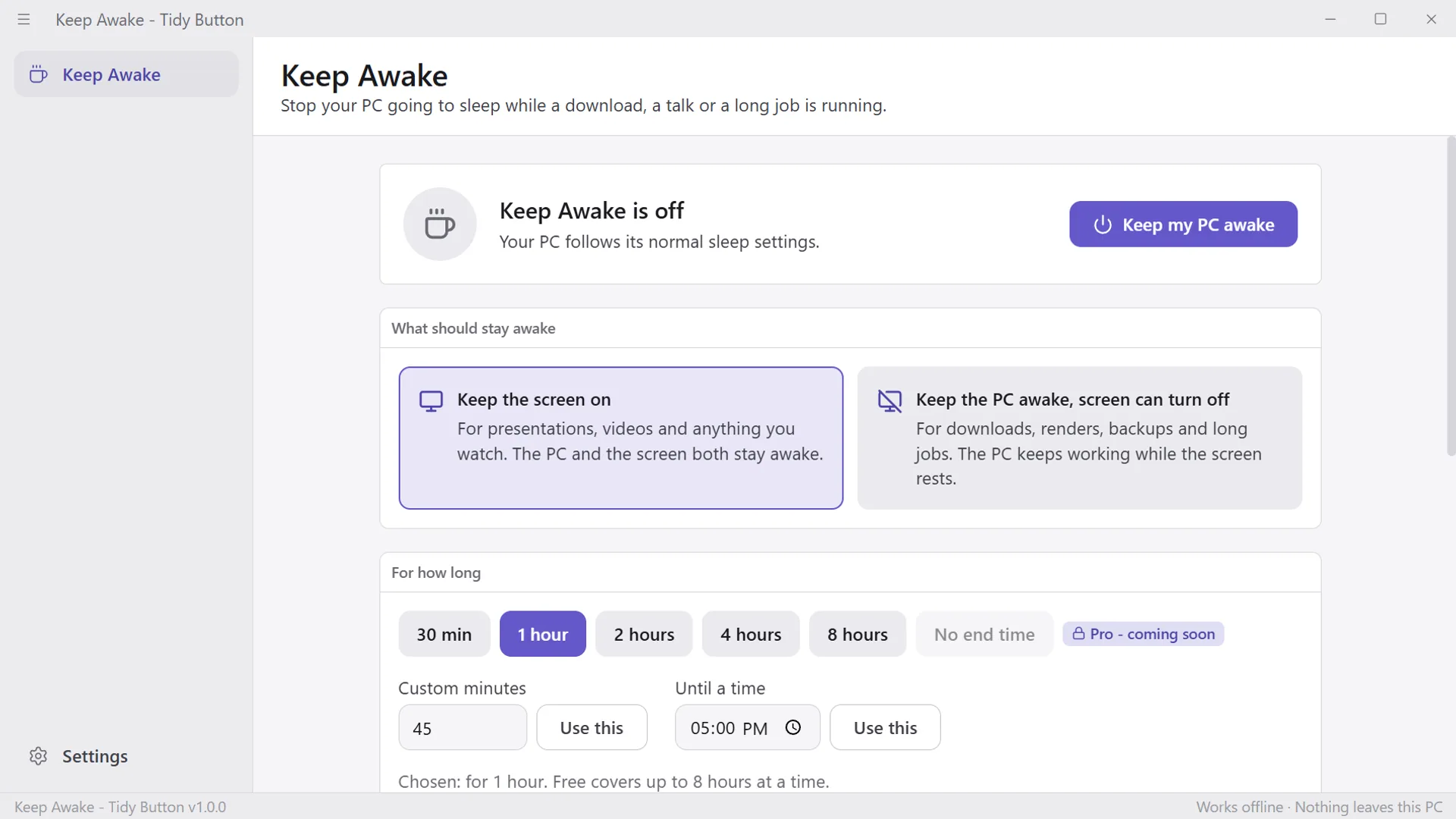
Ready
Choose what stays awake and for how long, then press one button. Nothing changes in your Windows settings
Screen on
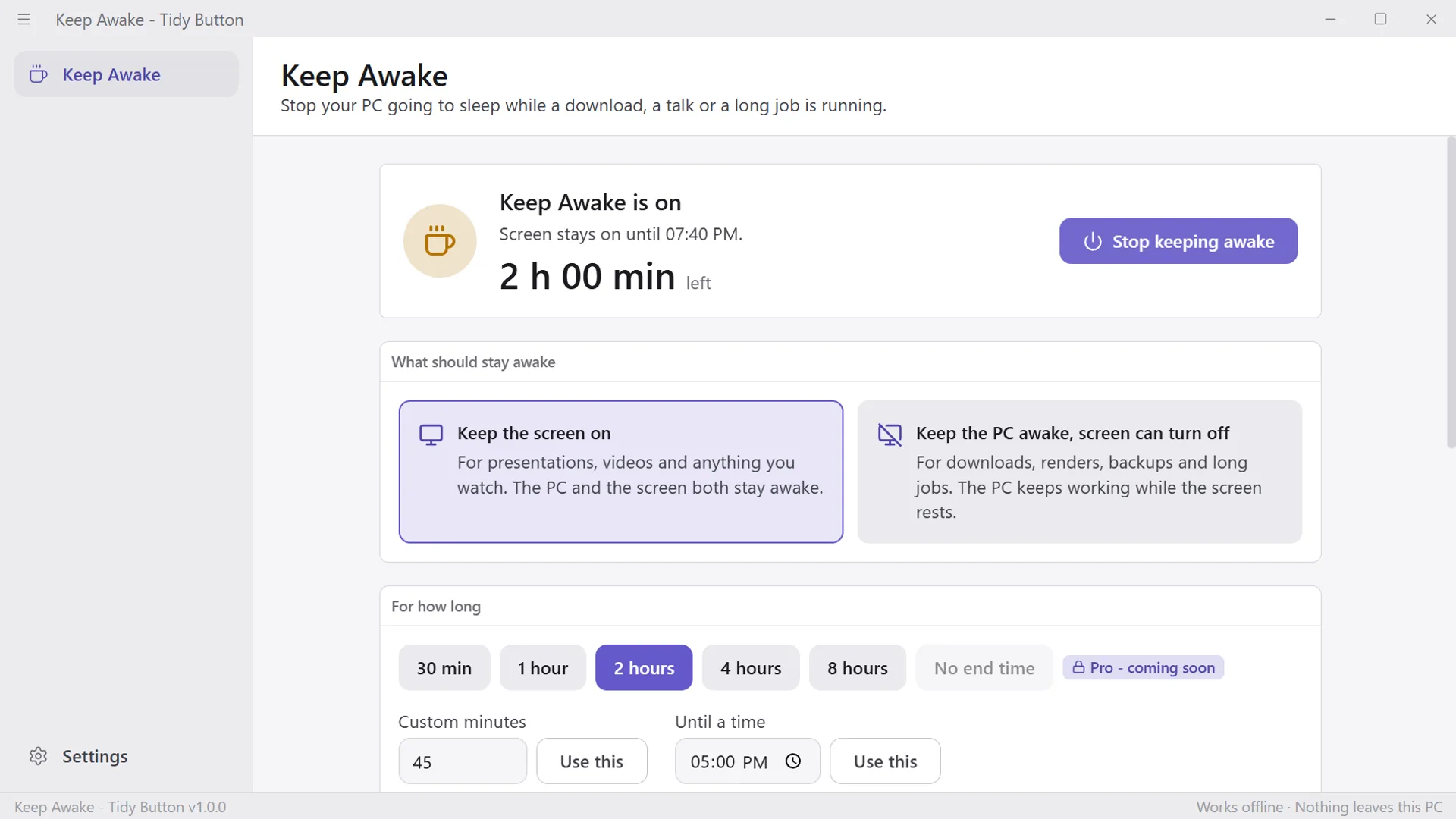
A two-hour session with the screen kept on: a live countdown and the time it ends
PC awake
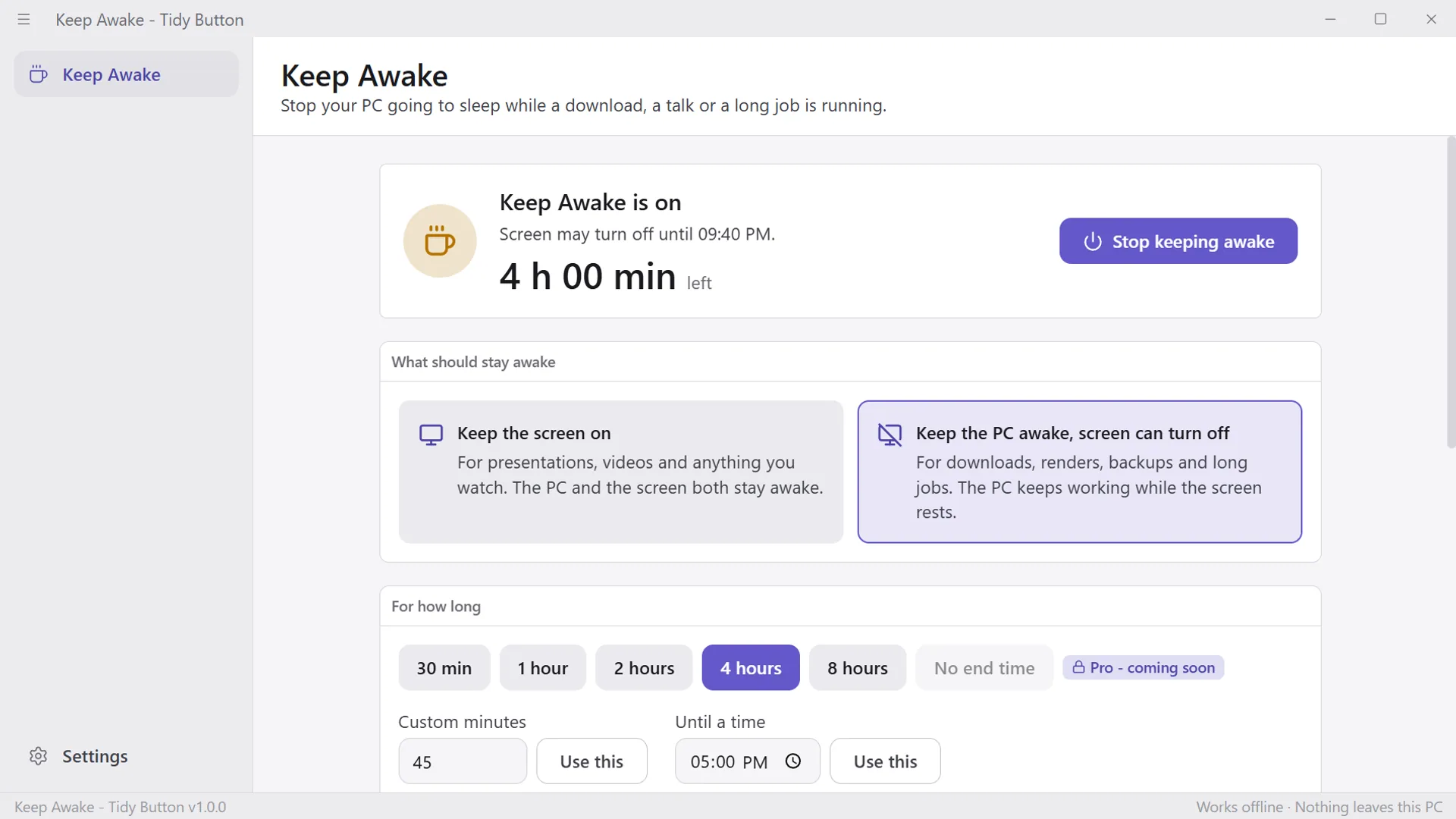
Keep only the PC awake for a download or render. The screen is allowed to turn off
Until a time
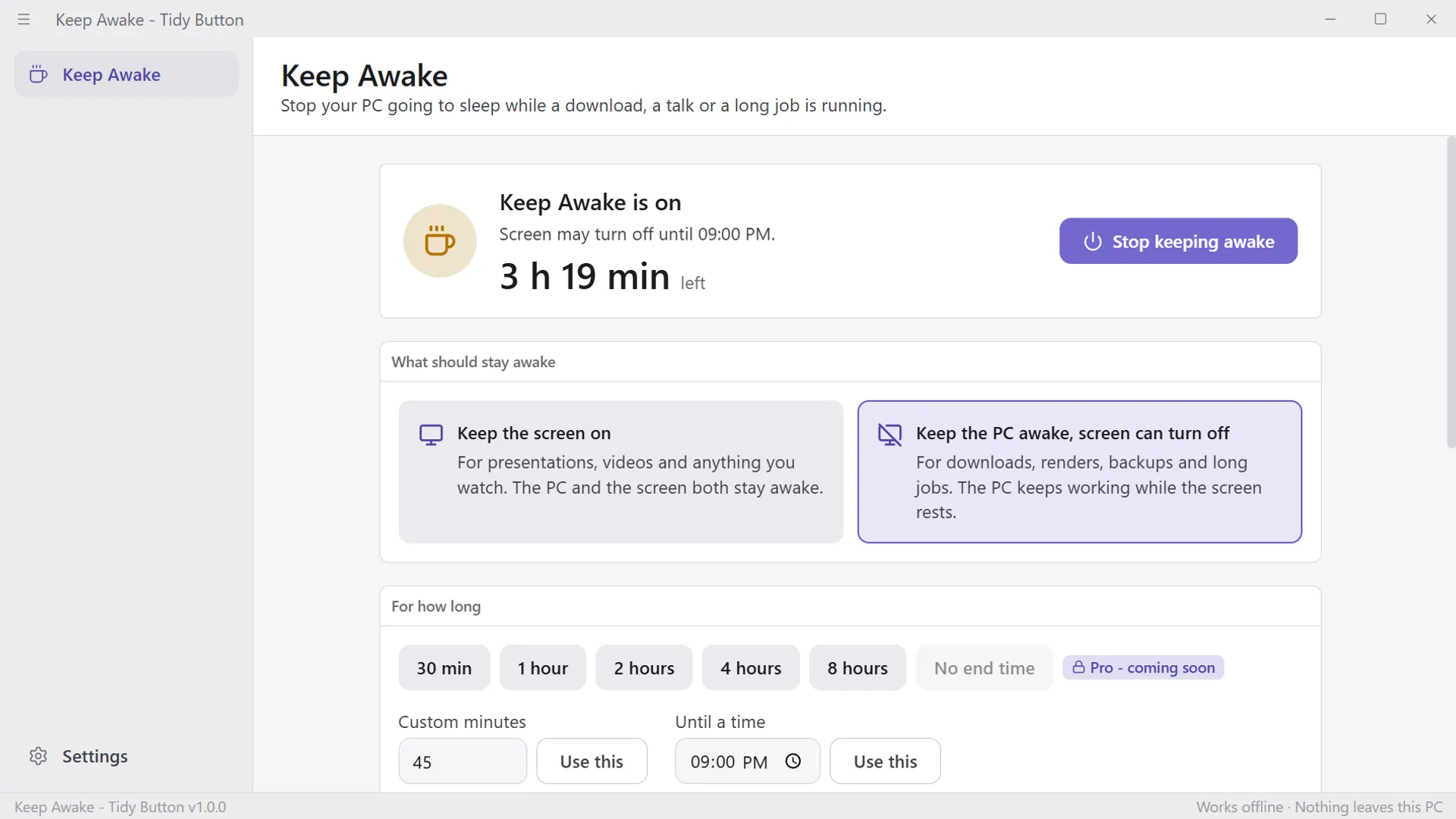
Or keep it awake until a time you pick
Settings
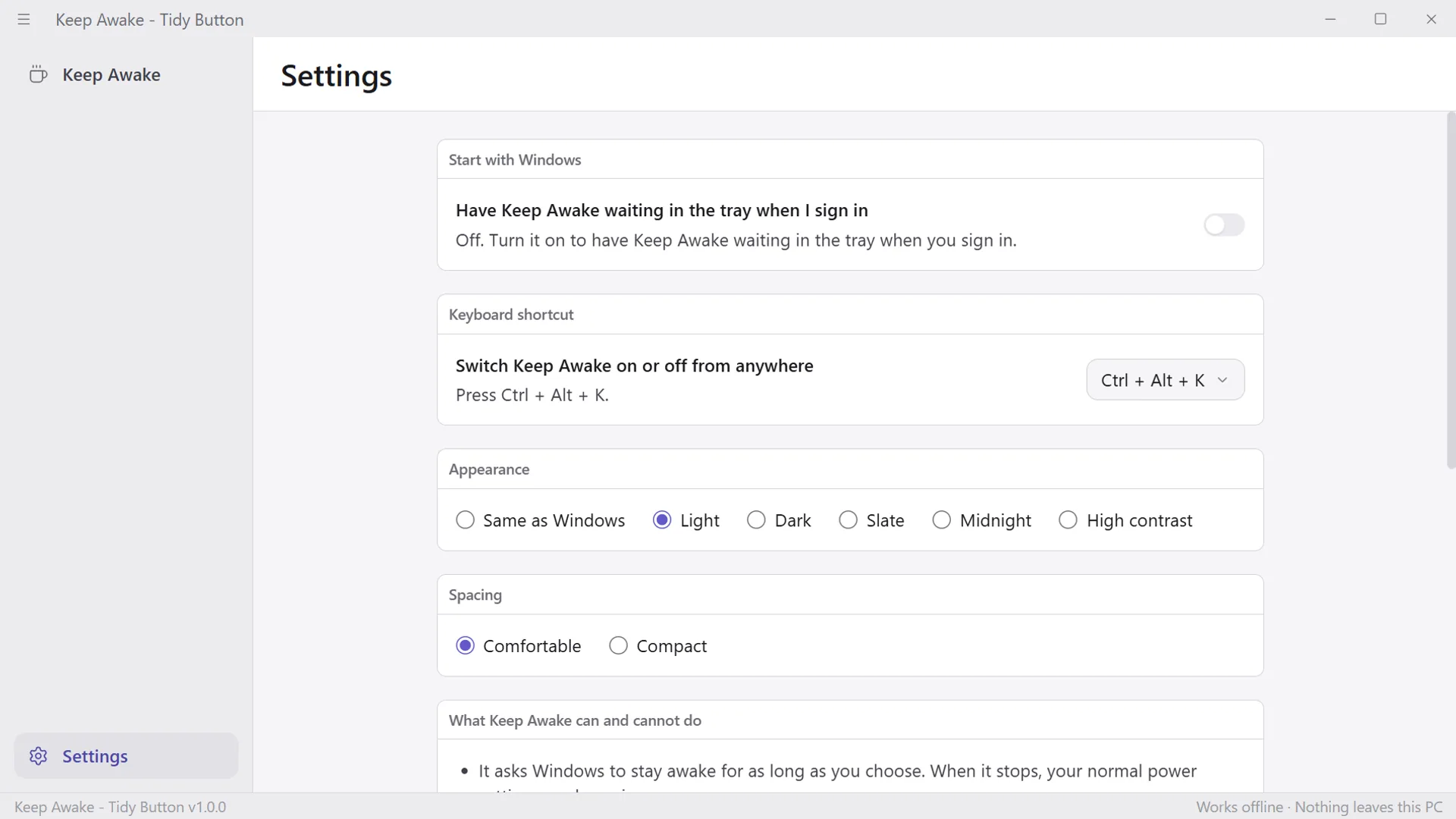
Start with Windows, a global keyboard shortcut and a choice of themes
Midnight theme
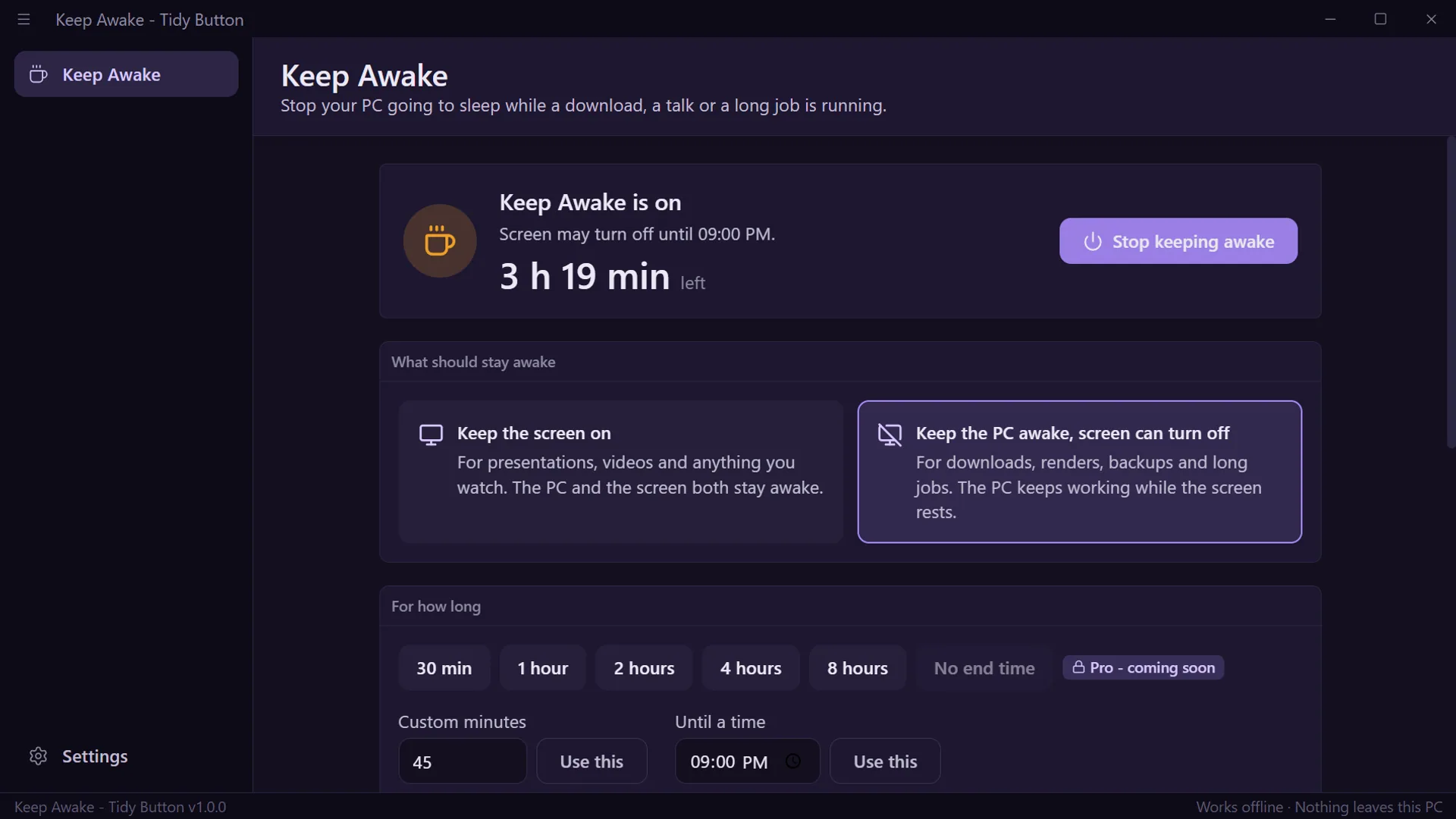
The same window in the Midnight theme. Closing it keeps the session running from the tray
The app has several themes, including a light one and Midnight.
What it does
What it does.
Your PC goes to sleep right when you least want it to: halfway through a big download, a render, a backup or a presentation. Keep Awake asks Windows to stay awake for exactly as long as you say, then lets go. Pick what should stay awake and for how long. A countdown shows how long is left, and Windows goes back to its normal settings when it ends.
Keep the screen on
For presentations, videos and anything you watch. The PC and the screen both stay awake.
Keep the PC awake, screen can rest
For downloads, renders and long jobs. The PC keeps working while the screen turns off.
Pick how long
30 minutes, 1, 2, 4 or 8 hours, your own number of minutes, or until a time you choose such as 17:30.
Tray icon
One click switches it on or off, and the icon shows which.
A global hotkey
Ctrl + Alt + K by default, and you can pick another.
Closing keeps it going
Closing the window keeps a session running from the tray. Quit from the tray menu ends it at once.
Start with Windows
Set up from the app in the Microsoft Store version. It never starts a session by itself.
Lets go safely
If the app closes or crashes, Windows lets go of the request, so nothing is left switched on.
The small print, in plain English
Safe by design.
- Keep Awake only asks Windows to stay awake. It never changes your power plan or any Windows setting.
- It does not move the mouse or press keys, and it does not read your keystrokes.
- A running session is never saved, so nothing resumes after a restart.
- Works offline. No account, no ads, no tracking, no network use.
Good for
Handy when the job takes a while.
- Big downloads and backups
- Renders and long jobs
- Presentations and videos you are watching
Questions
Plain answers.
Does it change my power settings?
No. It only asks Windows to stay awake while a session runs. Your power plan and sleep settings are not changed, and Windows lets go when the session ends.
Does it move the mouse or press keys?
No. It never simulates input. Because it does not fake activity, a program that tracks whether you are active may still see you as idle.
What can it not stop?
It cannot stop the PC sleeping when you close the lid if Windows is set to sleep on lid close, or when you press the power or sleep button. Rules set by a company or school on a managed PC can override it.
What happens if the app crashes?
Windows lets go of the request, so nothing is left switched on.
Is anything sent anywhere?
No. The app makes no network requests.
What is free?
Sessions of up to 8 hours at a time, with the tray icon, timer and hotkey. Longer sessions, schedules and rules for chosen apps are planned for Pro (coming soon).
Which versions of Windows does it run on?
Windows 10 and Windows 11.