How to host a karaoke night with your own songs on a PC
This guide shows how to play karaoke files you already own, line up who sings next, change the key to fit a voice and sing along with a microphone.
This app is not on the Microsoft Store yet. This guide is ready for the day it arrives.
Add your songs and play one with lyrics
The app plays the files you choose. It does not come with songs or lyrics.
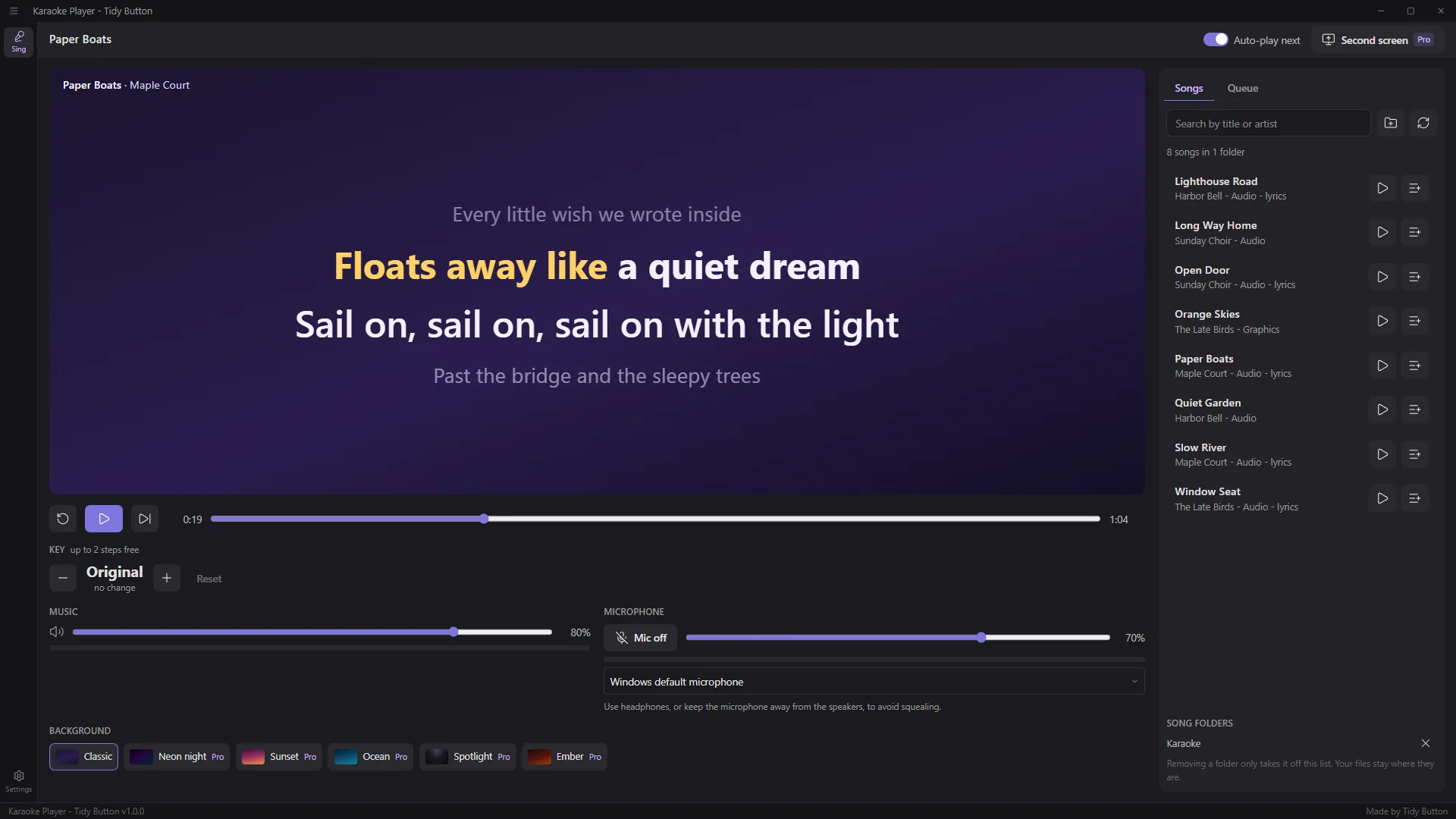
- Open Karaoke Player and stay on the Songs tab.
- Press Add a song folder and choose the folder that holds your karaoke files.
- Type part of a title or artist in Search by title or artist to find a song.
- Press the play button on the song's row.
- Watch the stage. The words show in time with the music, and each word lights up when the lyrics file has word timing.
- Drag Song position to jump to another part of the song.
To see lyrics, keep a lyrics file (.lrc) in the same folder with the same name as the song.
Line up the next singers
- In the Songs tab, press the add to queue button on each song you want to sing.
- Open the Queue tab to see the order.
- Use the up and down arrow buttons to move a song, or the cross button to take it off the queue.
- Keep Auto-play next switched on so the next song starts by itself when one ends.
- When a song ends, the stage announces the next song with a countdown. Press Start now to skip the wait, or Wait to hold.
- Press Sing the next song now if you want to jump ahead at any time.
Press Clear and then Clear queue to empty the queue. Your song files are not touched.
Change the key to fit a voice
- Start a song so the key controls turn on.
- Press Raise the key by one step to move the song up, or Lower the key by one step to move it down.
- Read the number under the key. It shows how many steps the song has moved.
- Press Reset to go back to the original key.
Sing with a microphone
- Plug in a microphone, and use headphones or keep the microphone away from the speakers.
- Press the microphone button, which reads Mic off. It changes to Mic on.
- Choose your microphone in the Microphone list. The first choice is Windows default microphone.
- Set Microphone volume and Music volume until the voice and the music sound right.
- Watch the level bars. A bar turns red when the sound is too loud.
The microphone is used only after you press the button.
If something goes wrong
A song I expected is not in the list. Why?
The app lists audio and video files and audio files with a .cdg graphics file. A note under the list says how many files cannot be played in this version, for example .kar or .mid files. Press Read the folders again after you add files to a folder.
The stage says there are no lyrics. What should I do?
Put a lyrics file (.lrc) in the same folder with the same name as the song, then play the song again.
The microphone does not work. What should I check?
Windows may be blocking it. Turn the microphone on for this app in Settings, Privacy, Microphone. Then press the microphone button again.
The next song does not start by itself. Why?
Check that Auto-play next is switched on at the top, and that the queue has a song in it.
A note says some graphics files have no audio file. What does that mean?
A .cdg graphics file needs an audio file with the same name next to it. Add the matching audio file to the folder.
Good to know
- The app does not include songs or lyrics. You need your own files.
- Some karaoke formats, such as .kar and .mid, cannot be played in this version.
Still stuck? Support is by email, and a person reads it.