How to plan your work on a kanban board on a Windows PC
This guide shows how to make a board, add cards with details and find the cards that matter.
This app is not on the Microsoft Store yet. This guide is ready for the day it arrives.
Make a board
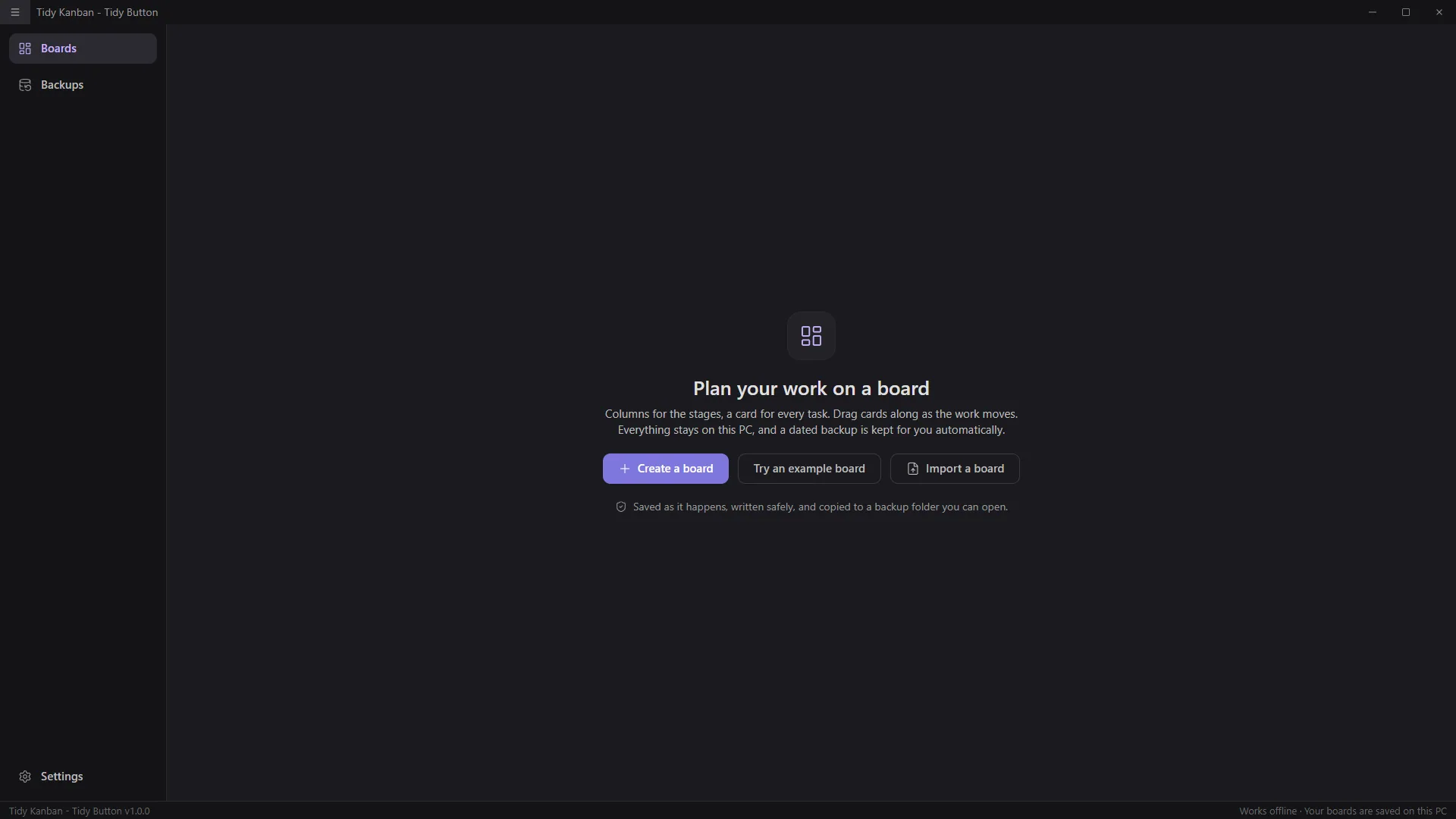
- Open Tidy Kanban. Press Create a board.
- Name the board. It starts with To do, Doing and Done columns.
- Press Add a column to add another, or rename a column to suit your work.
- Press Try an example board to see a finished one first.
Add cards
- Press Add a card in a column and type a title.
- Click the card to open it.
- Add notes, pick a label, set a due date and add checklist items.
- Press Save.
A card shows its due date and checklist progress on the board.
Move cards and find things
- Drag a card to the next column as the work moves, or move the focused card with Alt and an arrow key.
- Type in Search cards to find a card by title or notes.
- Press a label at the top to show only the cards with that label.
- Press Clear filter to see everything again.
If something goes wrong
How many boards can I make for free?
The free version holds 2 boards, each with every other feature. Asking for a third shows a message and hides nothing.
What if the PC loses power while I work?
Every change is saved safely, so a power cut leaves the whole old board or the whole new one. Dated backups can be restored from the Backups screen.
Where are my boards stored?
Each board is one file in your Documents folder, in Tidy Kanban. Deleting a board backs it up first and sends it to the Recycle Bin.
Can I move a board to another PC?
Yes. Export it as JSON or CSV, then use Import a board on the other PC.
Still stuck? Support is by email, and a person reads it.