How to open and read a JSON file on Windows
This guide shows how to open a JSON file on your PC, read it as a tree, find a value, and fix a file that will not open. Your files stay on your computer.
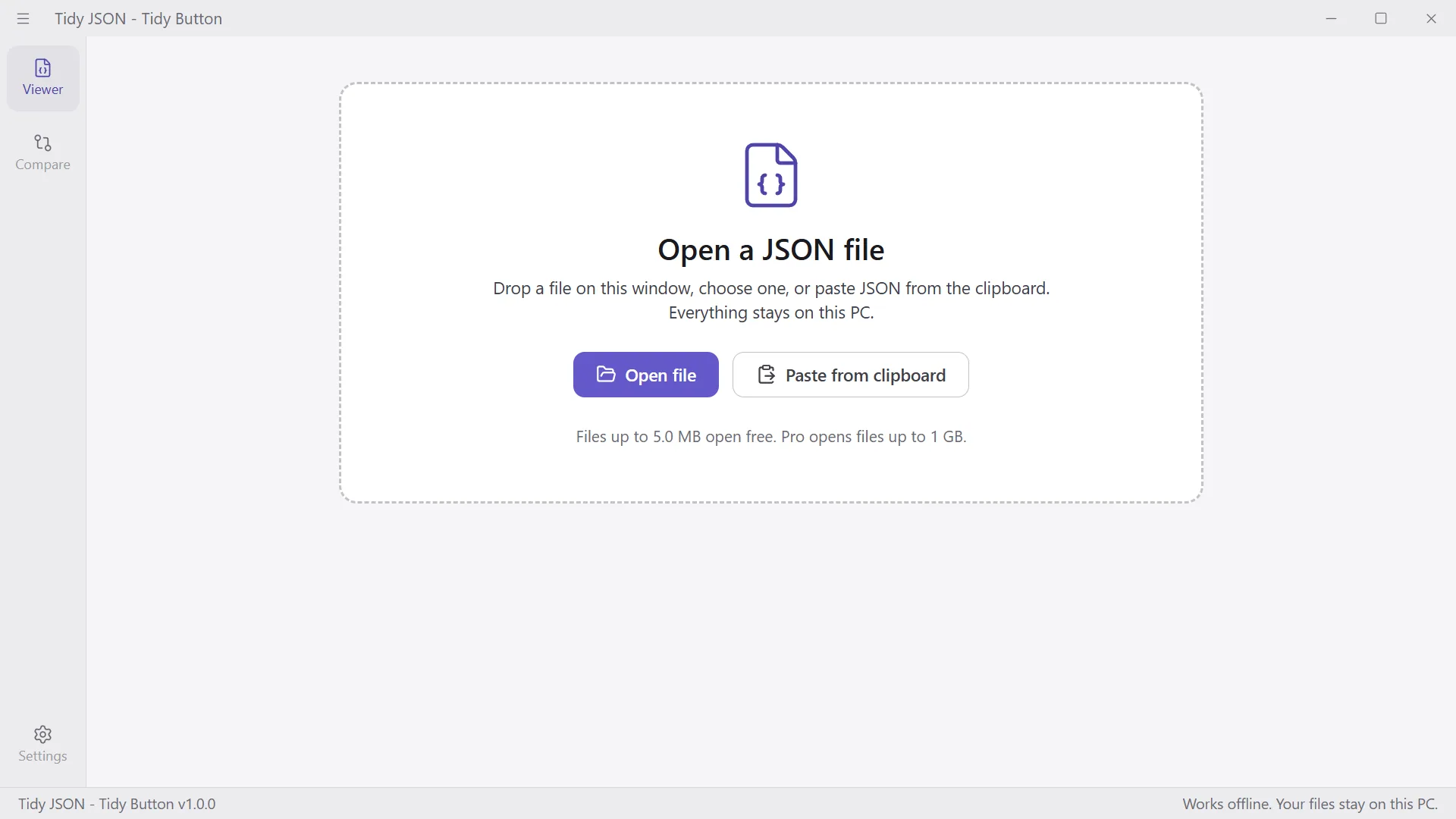
This app is not on the Microsoft Store yet. This guide is ready for the day it arrives.
Open a JSON file or paste JSON
- Press Open file on the start screen, then choose your file.
- Or drop the file anywhere on the window.
- To use text you copied, press Paste from clipboard.
- Look for the Valid JSON tag at the top. It means the file passed the check.
- Use Recent files on the start screen to open a file you used before.
Press Open at the top of an open document to switch to another file.
Browse the tree and find a value
- Pick the Tree tab. Click the arrow beside a row, or double-click the row, to open or close it.
- Press Collapse all to close everything, or 1 level, 2 levels or 3 levels to open the tree to that depth.
- Type a word in Search keys and values. The tree opens to the first match.
- Press the Next match and Previous match buttons to move between matches.
- Turn on Match case if capital letters matter.
Long text is shortened in its row. Click the row and press Show full text to read all of it.
Copy a path or a value into your code
- Open the file and click the row you want in the Tree tab.
- Press Copy path to copy its path, for example $.products[1].name.
- Press Copy value to copy the value as it is.
- If the row is an object or a list, press Copy formatted to copy it with indents.
Check a file and fix an error
- Open the file. If it is not valid, the app shows Not valid at the top and a message instead of the tree.
- Read the message. It gives the line and column of the problem and the line itself. For common mistakes it also gives a hint.
- Open the file in a text editor and fix that spot. The hints cover mistakes such as single quotes, comments, NaN and a plus sign before a number.
- Open the file again and check that Valid JSON appears.
Save a formatted or minified copy
- Open a valid file.
- Press Save as at the top.
- Choose Formatted file... for an indented copy, or Minified file... for the smallest copy.
- Type a file name and save.
The app saves a new file where you choose. You can also read the file as written in Raw, or indented in Pretty.
If something goes wrong
The Tree tab is greyed out. Why?
The file is not valid JSON. Fix the error shown at the top, then open the file again.
My search finds nothing. What should I check?
Check the spelling, and turn off Match case if it is on. The search looks at keys and values.
A big number looks the same as in my file. Is that right?
Yes. Numbers are shown exactly as written, so a long integer is not rounded and 1.0 stays 1.0.
Is my file uploaded anywhere?
No. Files are read on your PC and the app works without an internet connection.
Good to know
- The app checks strict JSON, so a file with comments or single quotes shows an error until you fix it.
Still stuck? Support is by email, and a person reads it.