How to keep a private diary on your Windows PC with a password
This guide shows how to write daily entries, find them again later, and protect your journal with a password so nobody else can read it.
This app is not on the Microsoft Store yet. This guide is ready for the day it arrives.
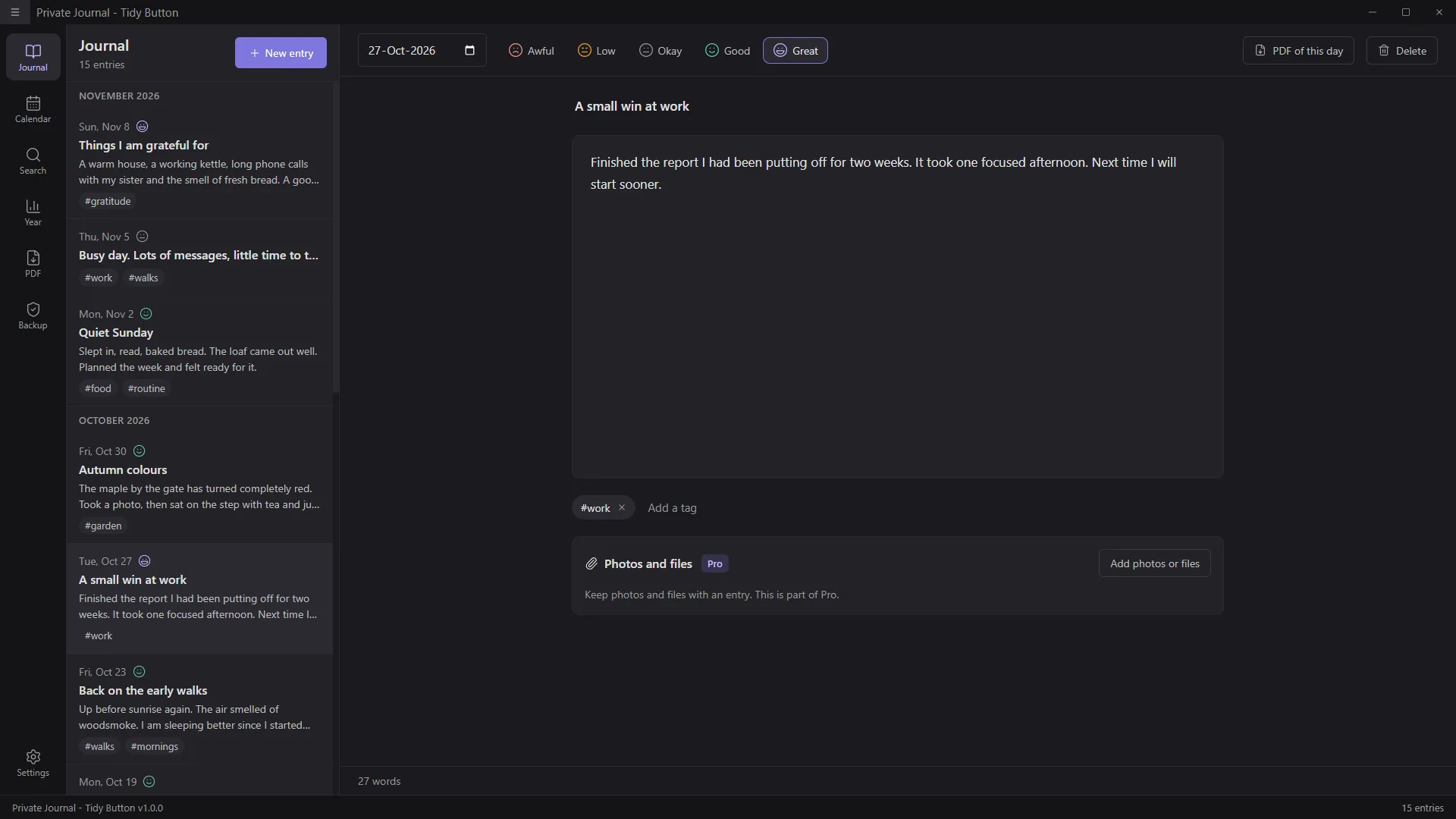
Write a new entry
- Open Private Journal and press New entry.
- Check the date at the top. Change it if you are writing about another day.
- Type a heading in Title (optional) if you want one.
- Write in Entry text. The entry saves as you type.
- Choose how you feel with one of the mood buttons, from Awful to Great.
- Type a tag in Add a tag and press Enter. Add as many as you like.
The word count and a save message appear at the bottom of the page.
Find an old entry
- Open Calendar to see which days have entries. Select a day to read it.
- Or open Search and type a word. Matching words are highlighted in the results.
- Use the Tag and Mood lists and the From and To dates to narrow the results.
- Press Clear to start over.
Lock the journal with a password
- Open Settings and find Password lock.
- Type a password in New password and again in Type it again.
- Press Turn on password lock, then confirm with Turn on the lock.
- Press Lock now in the sidebar to lock the journal straight away. The journal also asks for the password each time the app starts.
A forgotten password cannot be recovered, so keep it somewhere safe.
Save one day as a PDF
- Open Journal and choose the entry.
- Press PDF of this day.
- Choose where to save the file.
If something goes wrong
Where are my entries stored?
On your PC, in a Private Journal folder inside your Documents folder. Press Open the journal folder in Settings to see it.
I forgot my password. Can I get my entries back?
No. The password is not stored anywhere, so a forgotten password cannot be recovered. This is what keeps the journal private.
How do I remove an entry?
Open it and press Delete. The app asks before it removes anything.
A day on the calendar is empty. How do I add an entry for it?
Select the day, then press Write an entry for this day.
Good to know
- If you lose the password, nobody can open the journal, including the publisher of the app.
Still stuck? Support is by email, and a person reads it.