How to watch your own M3U playlist on a Windows PC
This guide shows how to open a playlist you already have, find the channel you want and play it. IPTV Player includes no channels or playlists, so you bring your own.
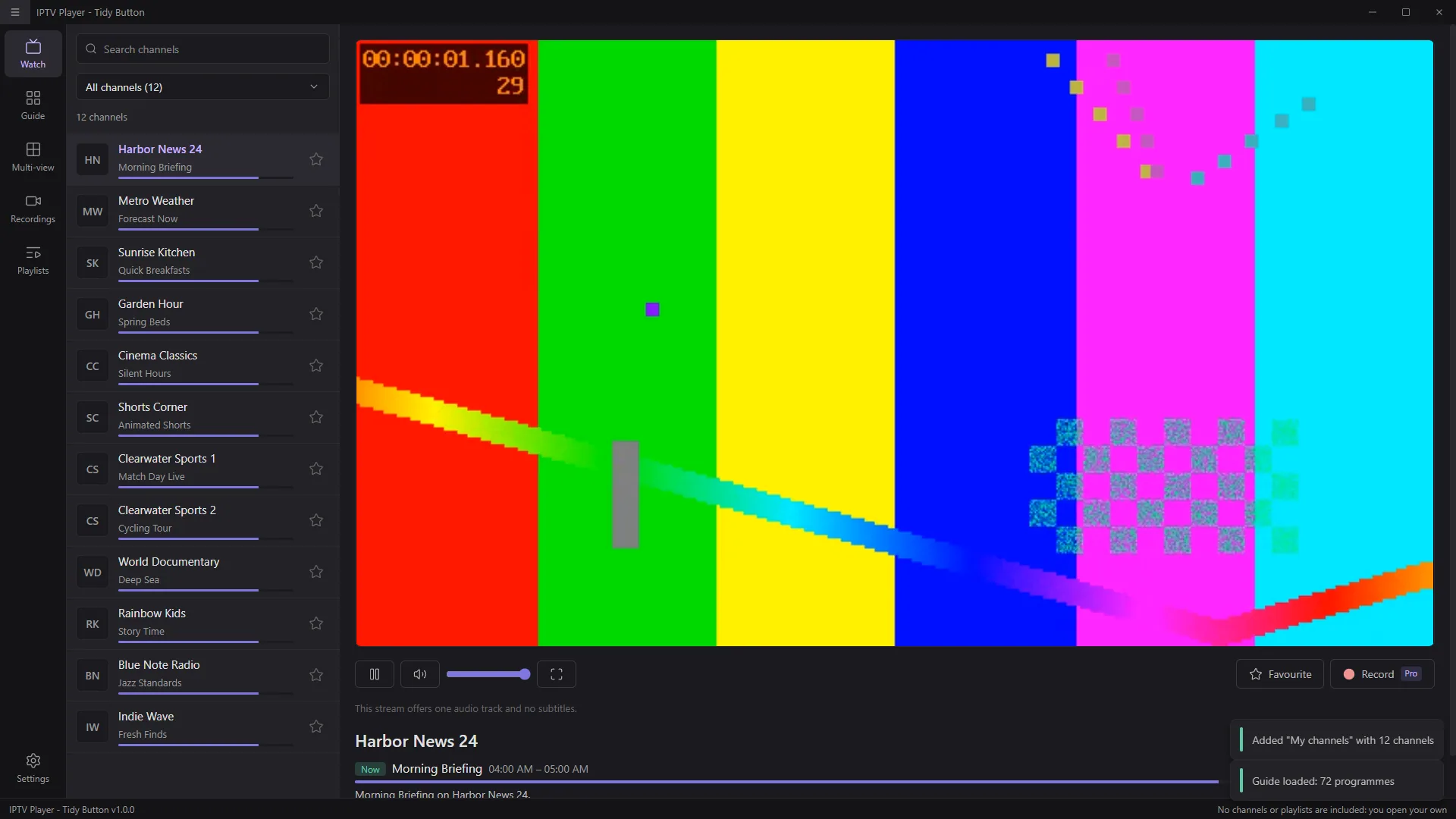
This app is not on the Microsoft Store yet. This guide is ready for the day it arrives.
Open a playlist and play a channel
Use this the first time you open the app.
- Open IPTV Player.
- Press Open a playlist file and choose your .m3u or .m3u8 file. You can also drop the file onto the window.
- Wait for the message that says the playlist was added.
- Click a channel in the list. It starts playing.
- Use the volume slider and the full screen button under the picture.
If your service gives you a web address instead of a file, press Add a playlist link and paste the address.
Find a channel by group or by name
- Press Watch in the bar on the left.
- Type part of a channel name in Search channels. The list narrows as you type.
- To browse instead, open the Group list and pick a group.
- Click the channel you want.
Keep your favourite channels together
- Click the star beside a channel, or press Favourite under the picture.
- Open the Group list and choose Favourites.
- Click a favourite to play it.
- Click the star again to remove it from the list.
Choose another audio track or turn on subtitles
- Play a channel that offers more than one audio track or subtitles.
- Look under the picture for the Audio track and Subtitle track lists. They appear only when the stream offers them.
- Pick the audio track or the subtitles you want.
If a stream offers only one track, the app says so under the picture.
Show what is on now and next
- Press Playlists in the bar on the left.
- If your service gave you a guide address, paste it into Guide address and press Save address.
- If you have a guide file instead, press Load a guide file and choose it.
- Go back to Watch. The programme names show beside the channels and under the picture.
If something goes wrong
A channel will not play. What can I do?
The app tries three times and then stops and shows the reason. Press Try again to start over. If it still fails, the address in your playlist may be down or may need a different app from your provider.
The list is empty after I open my playlist.
Check that the file is an M3U or M3U8 playlist and that it contains channel entries. A file that is only a web page or a list of other files will not show channels.
Does the app come with channels?
No. IPTV Player includes no channels, playlists or links. You open a playlist from a service or source you are allowed to use.
Where is my playlist stored?
On your PC, in the app's data folder. The app does not send it anywhere.
Good to know
- IPTV Player plays the addresses in your playlist. It cannot fix a stream that is offline or blocked by the provider.
Still stuck? Support is by email, and a person reads it.