How to view photos and flick through a folder on Windows
This guide shows how to open pictures, move through a folder of them, look closer, and play a slideshow. Your pictures stay on this PC.
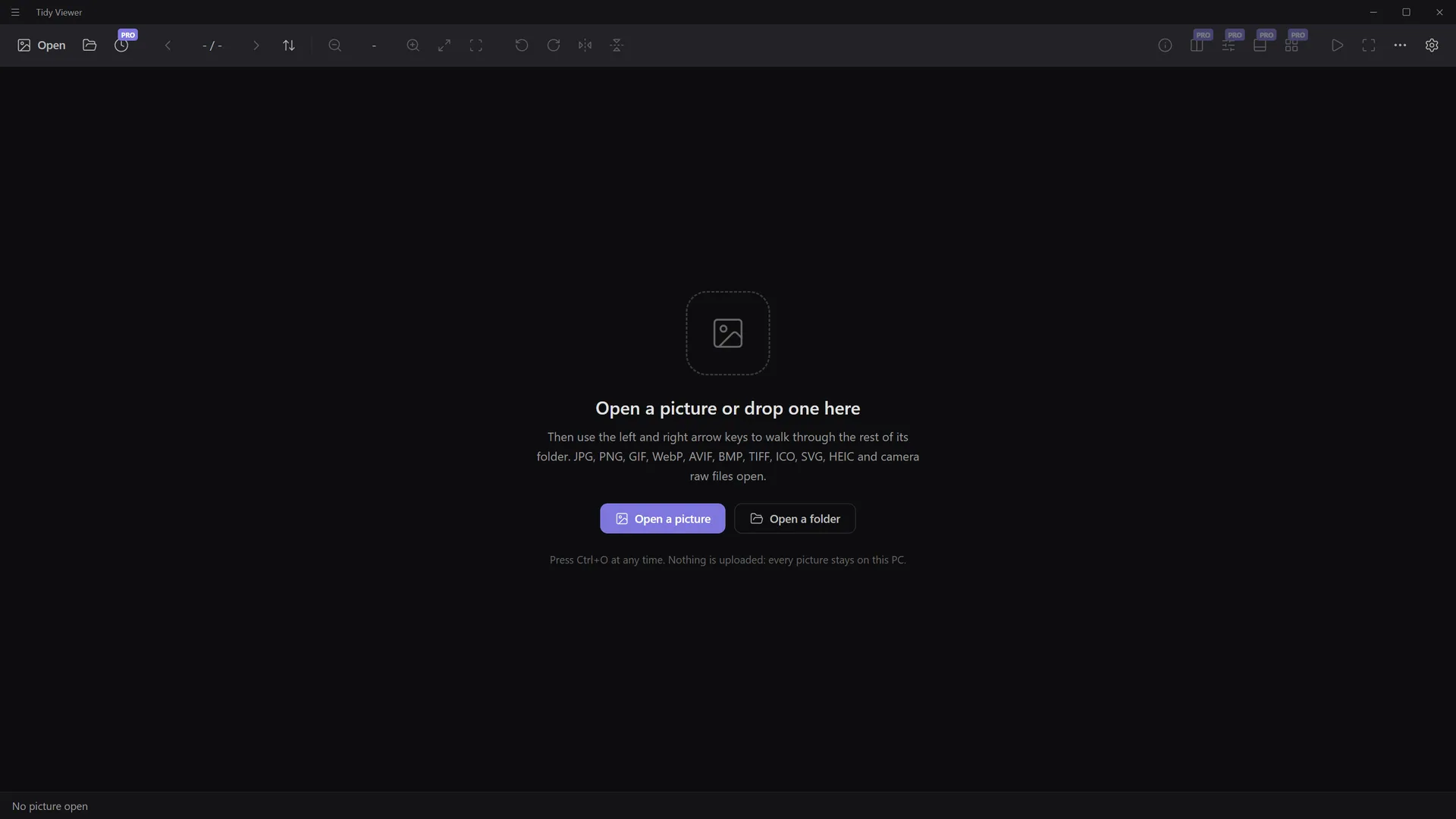
This app is not on the Microsoft Store yet. This guide is ready for the day it arrives.
Open a picture and walk through its folder
- Press Open a picture and choose a file, or drop a picture on the window. The other pictures in its folder load too.
- Press the Right arrow key to see the next picture and the Left arrow key to go back.
- To open a whole folder instead, press Open a folder.
- Use Sort the folder to put the pictures in order by name, date or size.
- Choose Ascending or Descending in the same menu.
You can also press Ctrl+O at any time to open a picture.
Zoom in and move around a picture
- Press Zoom in or Zoom out, or turn the mouse wheel over the picture.
- Drag the picture to move it around when it is zoomed in.
- Press Actual size, 100% to see it at its real size.
- Press Fit to window to bring the whole picture back into view.
- Double-click the picture to switch between fit and 100%.
Rotate a picture and keep the change
- Press Rotate left or Rotate right until the picture looks the right way up.
- Use Flip left to right or Flip top to bottom if the picture is a mirror image.
- Press Save rotation to write the change into the file. The app asks you to confirm first.
- Press Undo the rotation if you change your mind before saving.
Until you press Save rotation, the picture is only turned on the screen. Saving works for JPG, PNG and WebP pictures. The app sends the original to the Recycle Bin when it saves.
Play a slideshow
- Open a folder with more than one picture.
- Press Start a slideshow, or press F5.
- Press Esc to stop it.
- To change how long each picture stays, press Settings and look in Viewing for Slideshow: time per picture.
- In the same place, switch on Slideshow: shuffle the order or Slideshow: start again after the last picture if you want them.
Press Full screen or F11 to use the whole screen.
See picture details and use the picture elsewhere
- Press Picture information to open the Information panel.
- Read the file, camera and location details shown there. A picture that has no camera or location data says so.
- Press More actions for more choices.
- Choose Copy picture to paste it into another program.
- Choose Show in folder to find the file in File Explorer.
If something goes wrong
A phone photo in HEIC format will not open. What do I do?
Windows needs a free extension to read these files. When that is the problem, the app shows a Get the free HEIF extension button that opens the page to get it.
The arrow keys do nothing. Why?
The folder may hold only one picture, so there is nothing to step to. Open a folder with Open a folder or open one picture from a folder that has others.
How do I delete a picture?
Press More actions and choose Move to Recycle Bin, or press the Delete key. The app asks you to confirm first, and the file goes to the Recycle Bin.
A small picture looks tiny. Can it be made bigger?
Press Settings, look in Viewing, and switch on Enlarge small pictures to fit the window. It is off by default, so small pictures show at their real size.
Good to know
- A rotation is saved into the file only for JPG, PNG and WebP pictures, and only when you press Save rotation.
Still stuck? Support is by email, and a person reads it.