How to convert a PNG or JPG picture to a Windows ICO icon file
This guide shows how to turn a picture into a .ico file for a program, a shortcut or a website, and how to pick the sizes it holds.
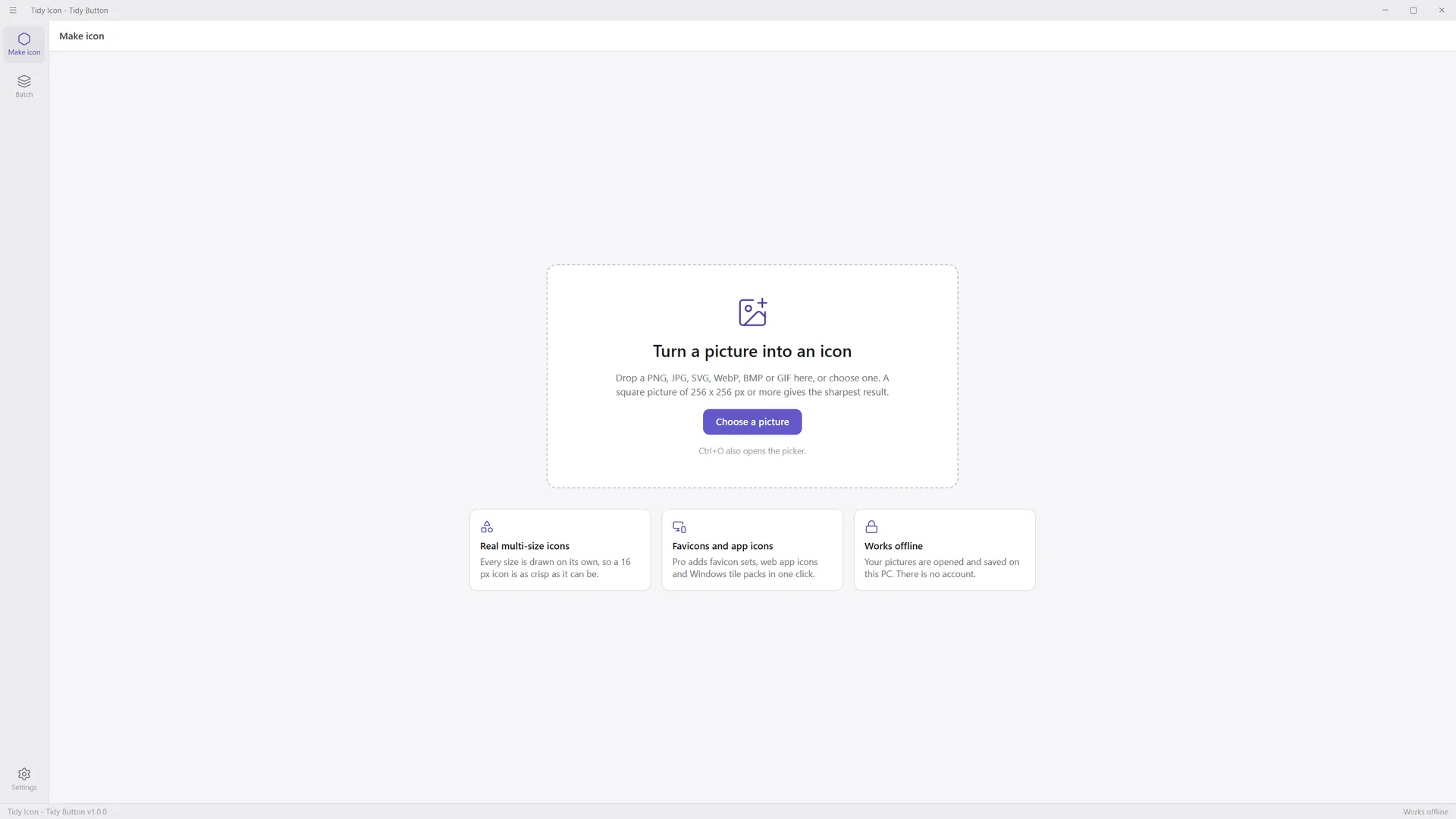
This app is not on the Microsoft Store yet. This guide is ready for the day it arrives.
Make an .ico file from a picture
- Open Make icon in the left menu.
- Press Choose a picture, or drop a picture on the window. You can also press Ctrl+O.
- Look at the preview. It shows your picture at several sizes, on a light or dark background.
- Type a name in File name.
- Press Save .ico... and choose where to keep the file.
- Press Show in folder to see the saved file.
A square picture of 256 x 256 px or more gives the sharpest result. The app shows a note if your picture is small.
Choose which sizes go inside the file
Windows picks the size that fits where the icon is shown, so one .ico file can hold several sizes.
- Find Sizes in the .ico file on the Make icon screen.
- Press Recommended to keep all six standard sizes. This is the safe choice for most icons.
- For a website icon, press Favicon (16, 32, 48) instead.
- To pick sizes yourself, tick or untick the boxes for each size.
- Check the preview, then press Save .ico....
Choose at least one size, or the file cannot be saved.
Fit a picture that is not square
- Open Make icon and choose your picture.
- Find Fit on the same screen.
- Choose Whole picture to keep all of it, with empty space where the picture is not square.
- Choose Fill the square to crop the picture to a centred square.
- Watch the preview change, then save the file.
Try a different picture
- Press Change picture at the top of the Make icon screen.
- Choose another file, or drop it on the window.
- Check the preview and save again with a new File name.
If something goes wrong
My icon looks blurry. What can I do?
Start from a square picture of 256 x 256 px or more. A small picture gives a softer icon. The app shows a note when your picture is small.
The app will not open my file. Why?
It opens PNG, JPG, SVG, WebP, BMP and GIF pictures. Press Choose a picture and pick a file of one of those types.
I cannot save. What should I check?
Check that at least one size is ticked in Sizes in the .ico file. Press Recommended to tick all six.
Does the app send my pictures anywhere?
The app works offline. Your pictures are opened and saved on this PC, and there is no account.
Good to know
- The app makes a .ico file from one picture at a time on the Make icon screen.
Still stuck? Support is by email, and a person reads it.