We will link the Store listing here the day it is live. Until then there is nothing to download.
Real app, with a sample picture ready to save as an icon.
Works offline
No account, no ads, no tracking
Unlimited free icons
Free
See it
Eight views. One picture, every size.
Start
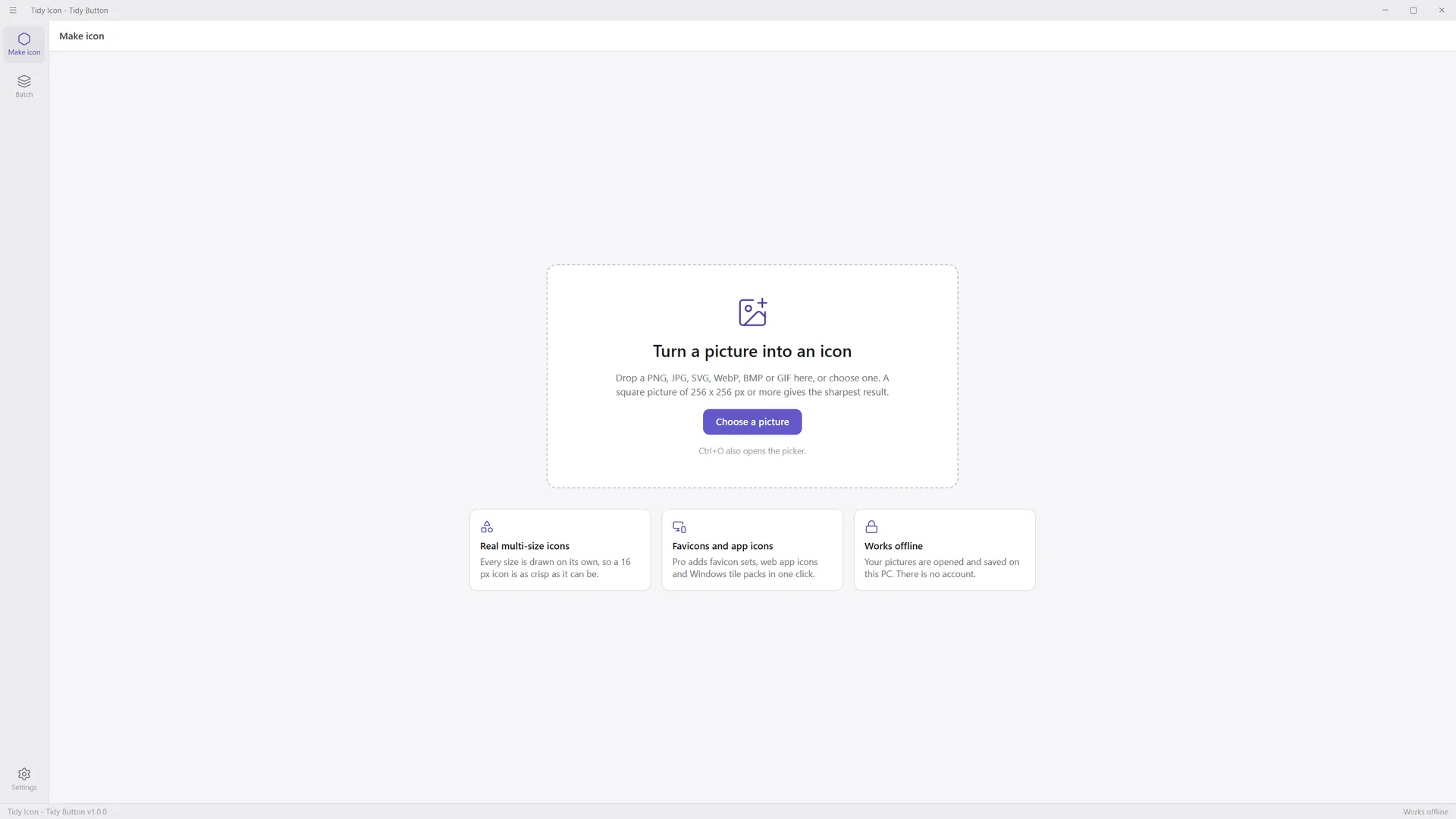
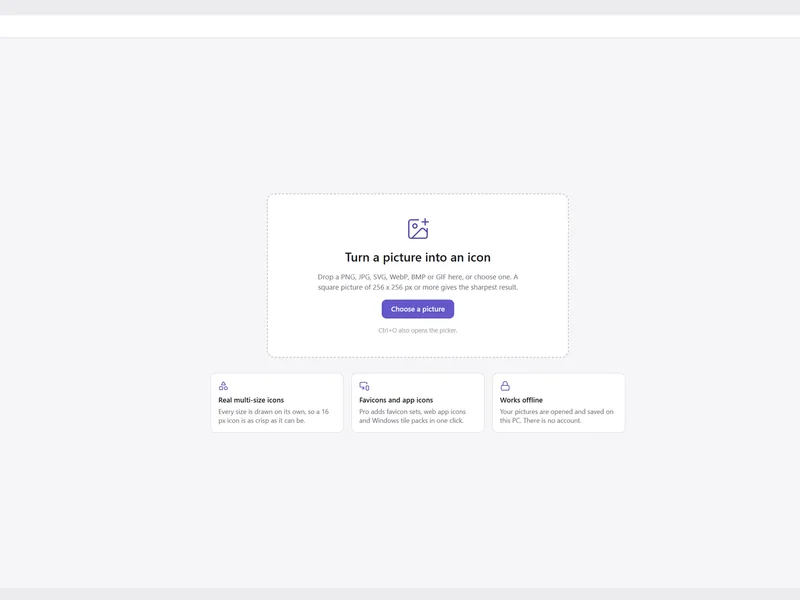
Start by choosing a picture or dropping one on the window
Preview
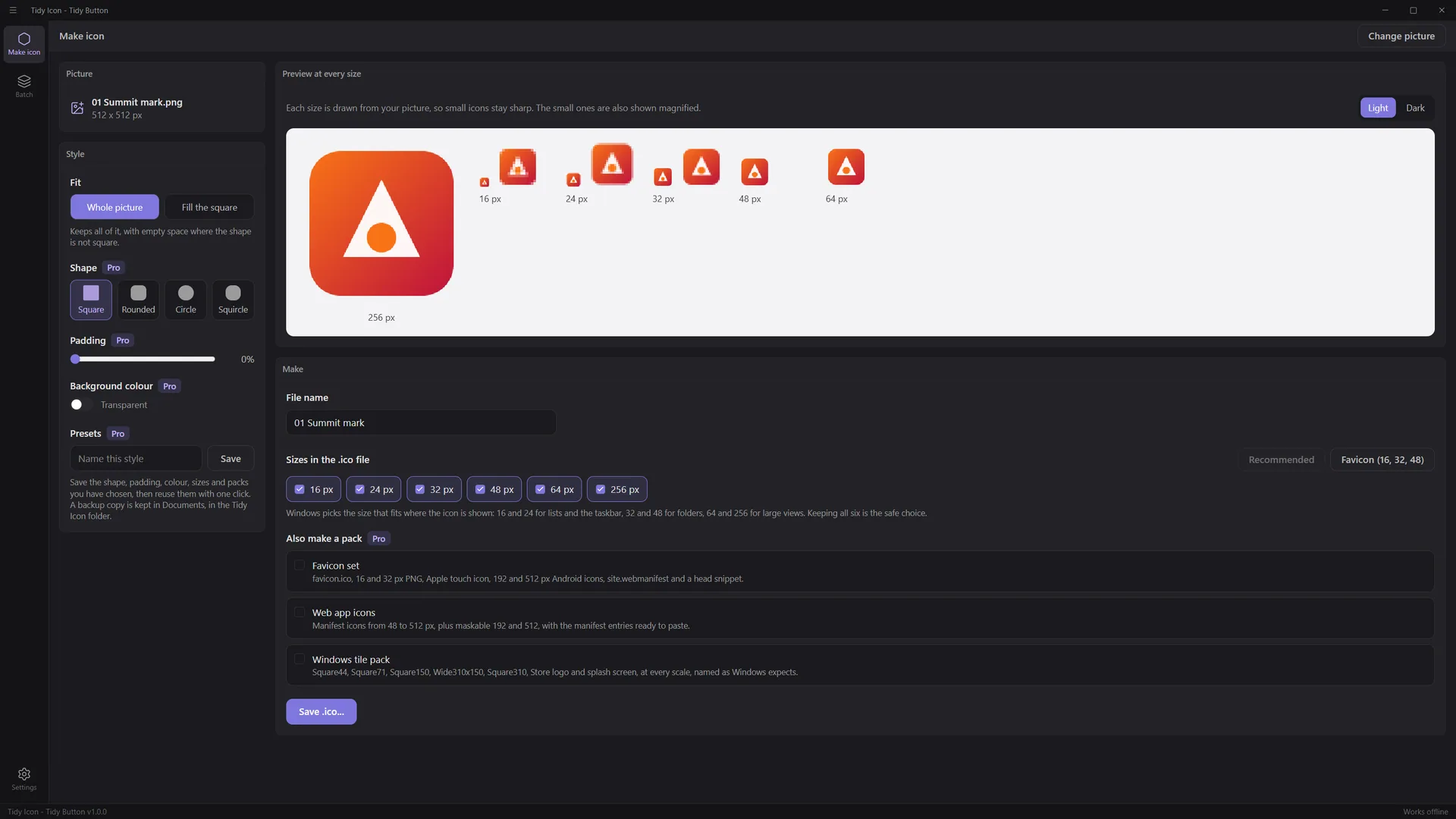
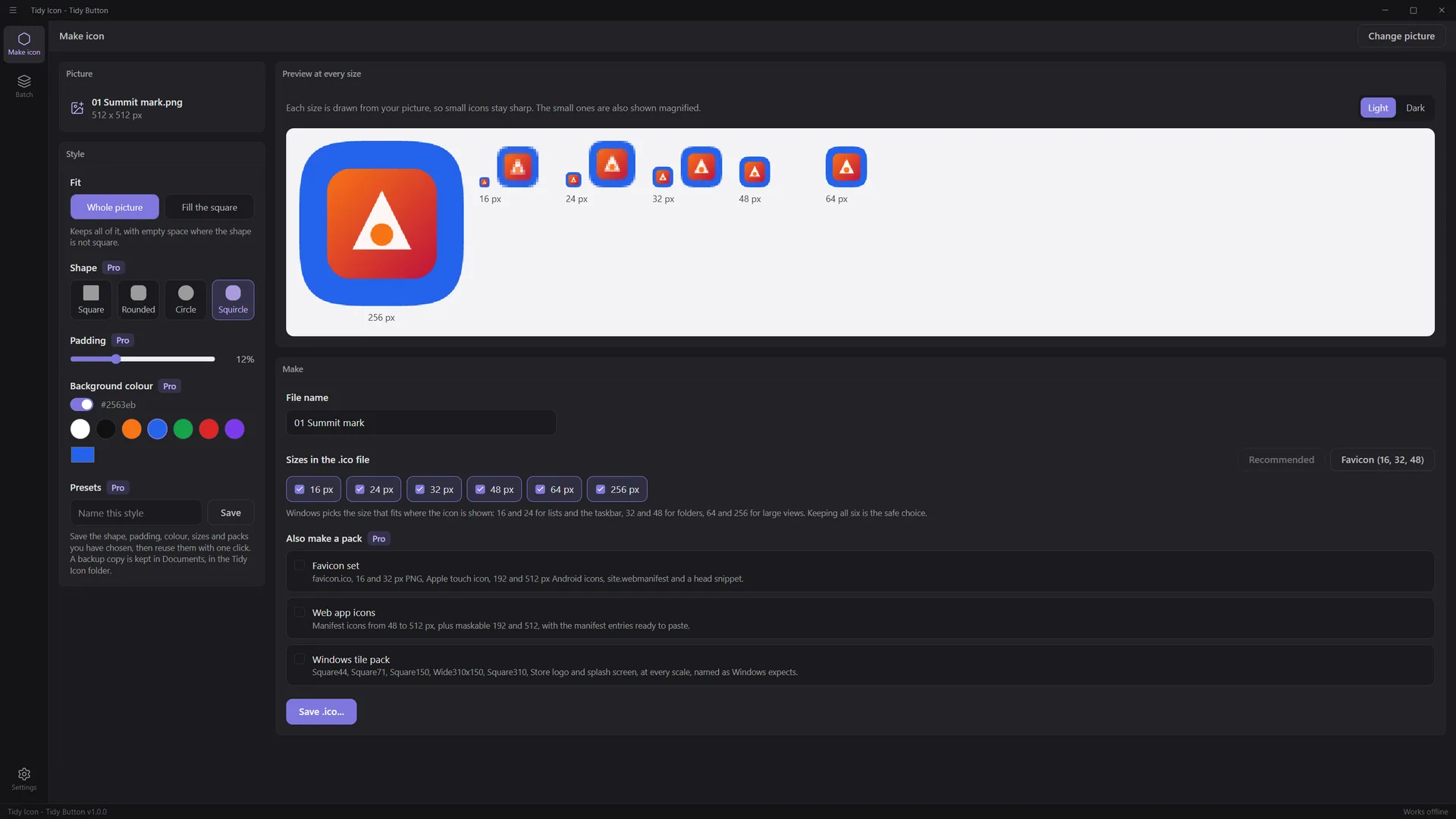
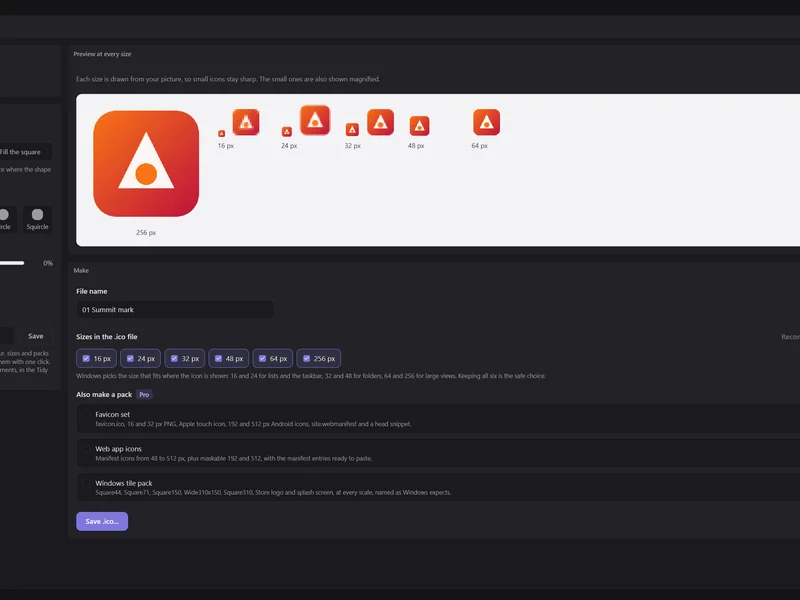
See your icon at every size, true size and magnified
Save
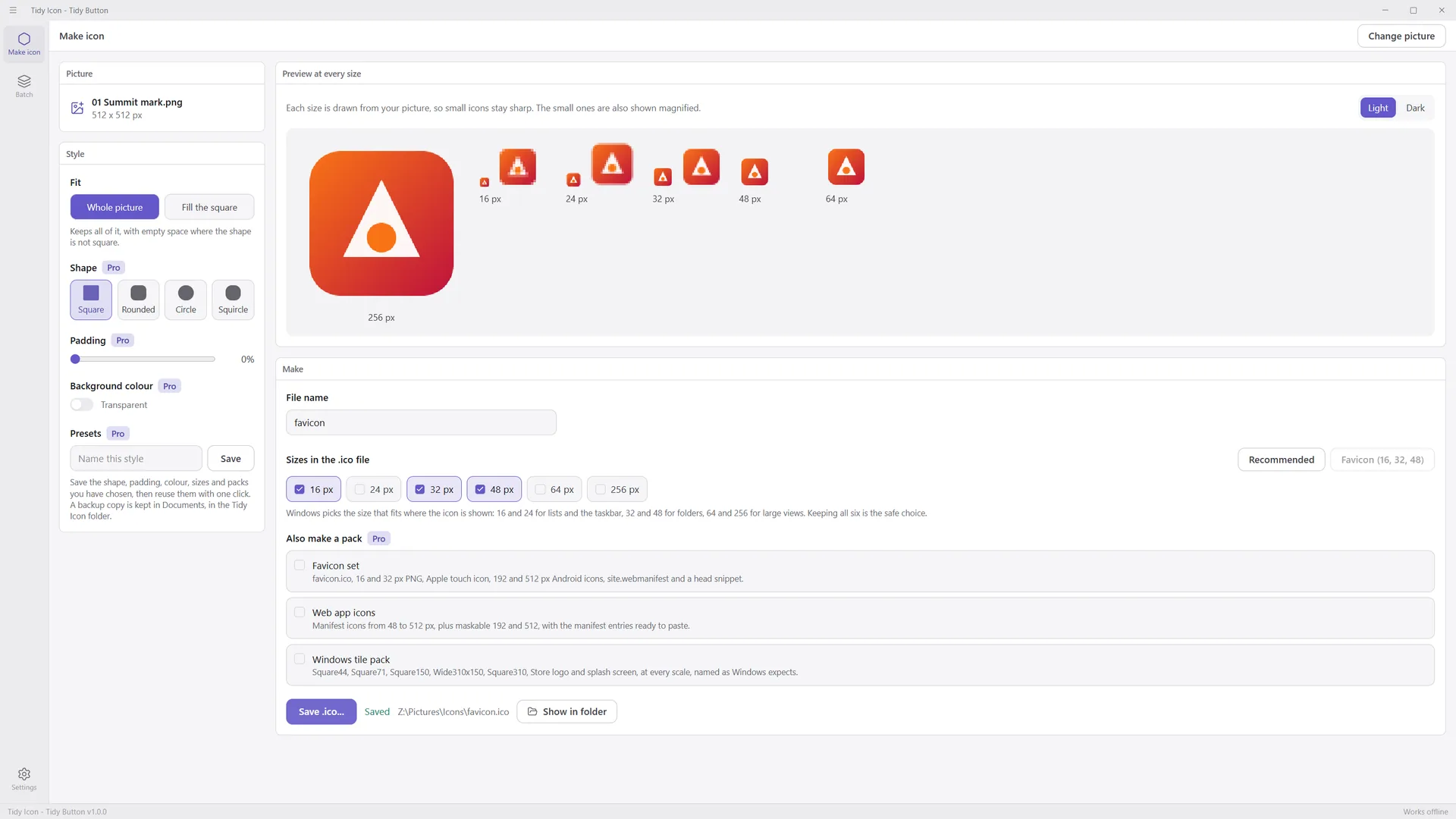
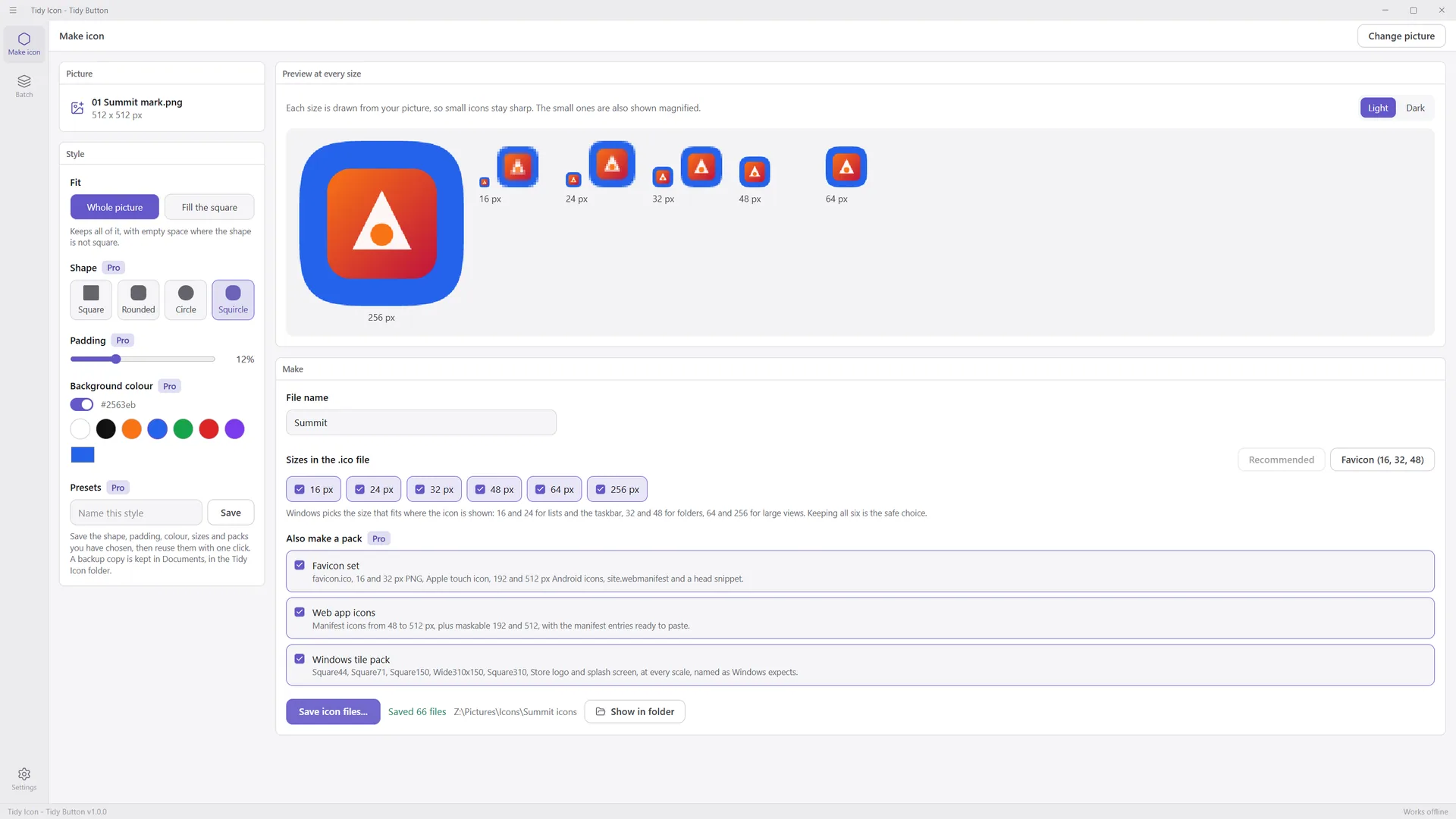
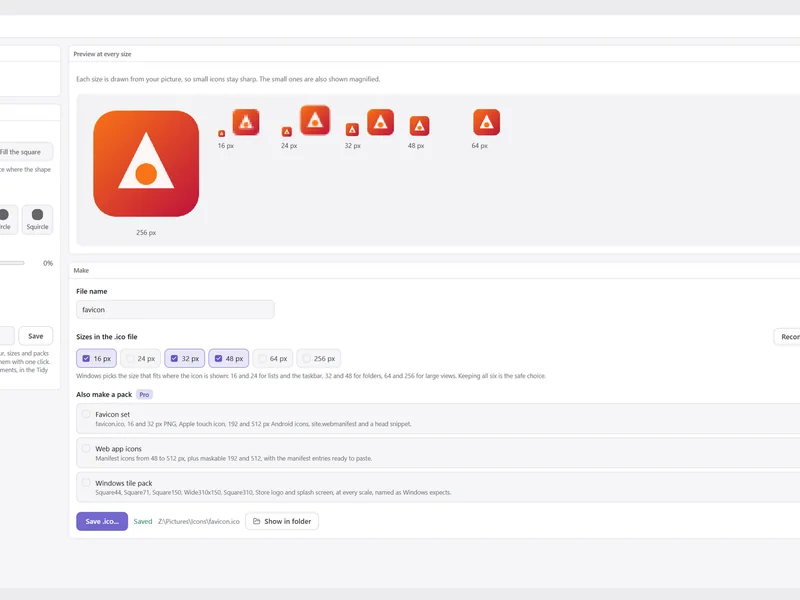
Pick the sizes, save a real multi-size .ico and open its folder
Pro
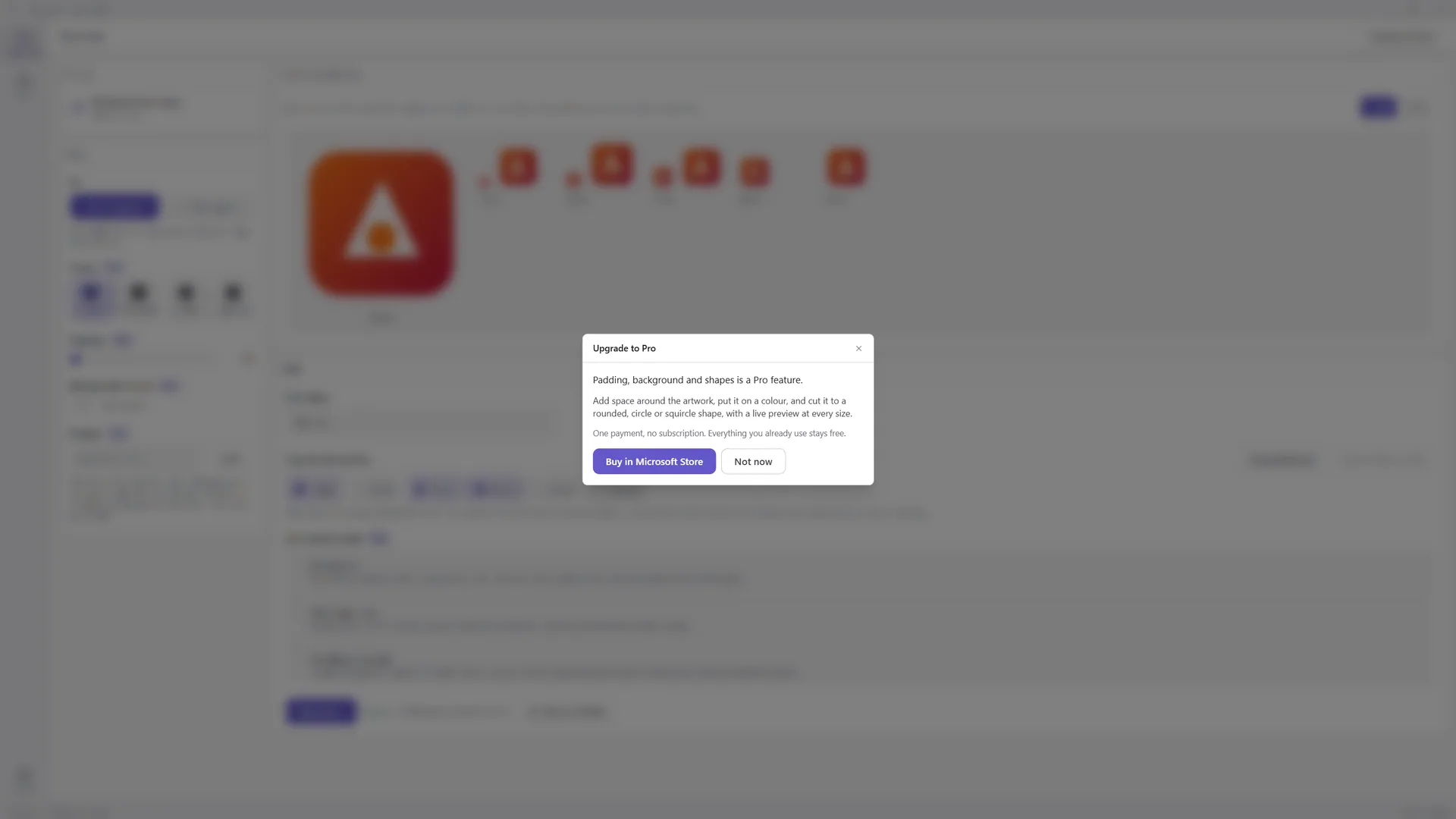
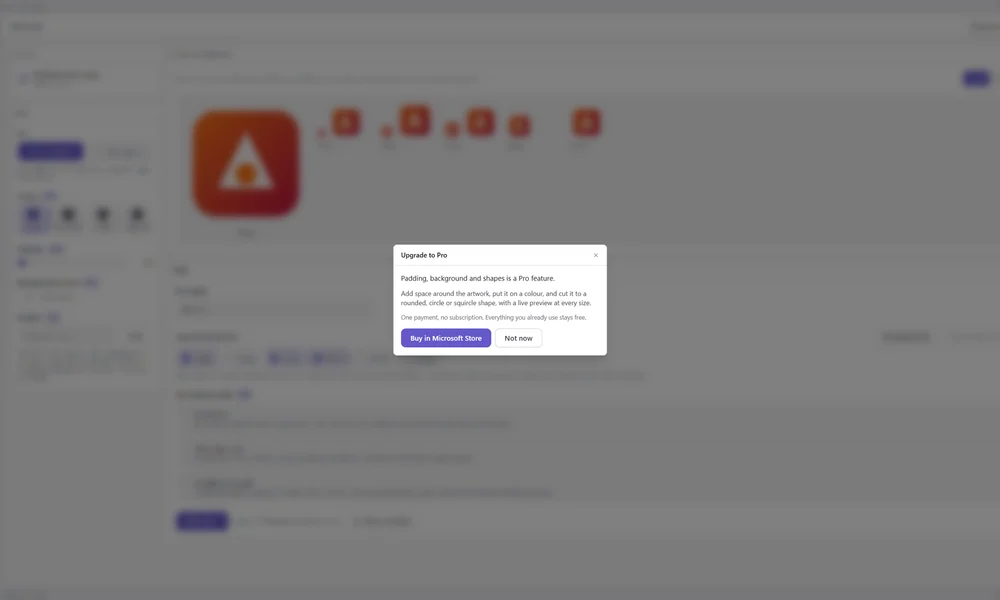
Pro controls explain themselves only when you touch them
Style
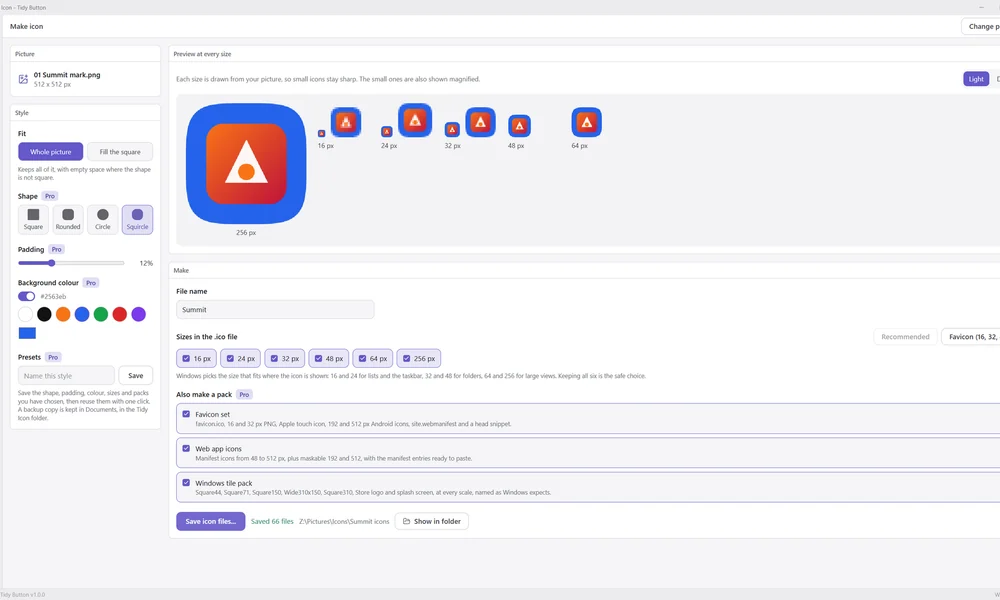
Shape, padding and a background colour, with a live preview
Packs
A favicon set, web app icons and a Windows tile pack in one click
Presets
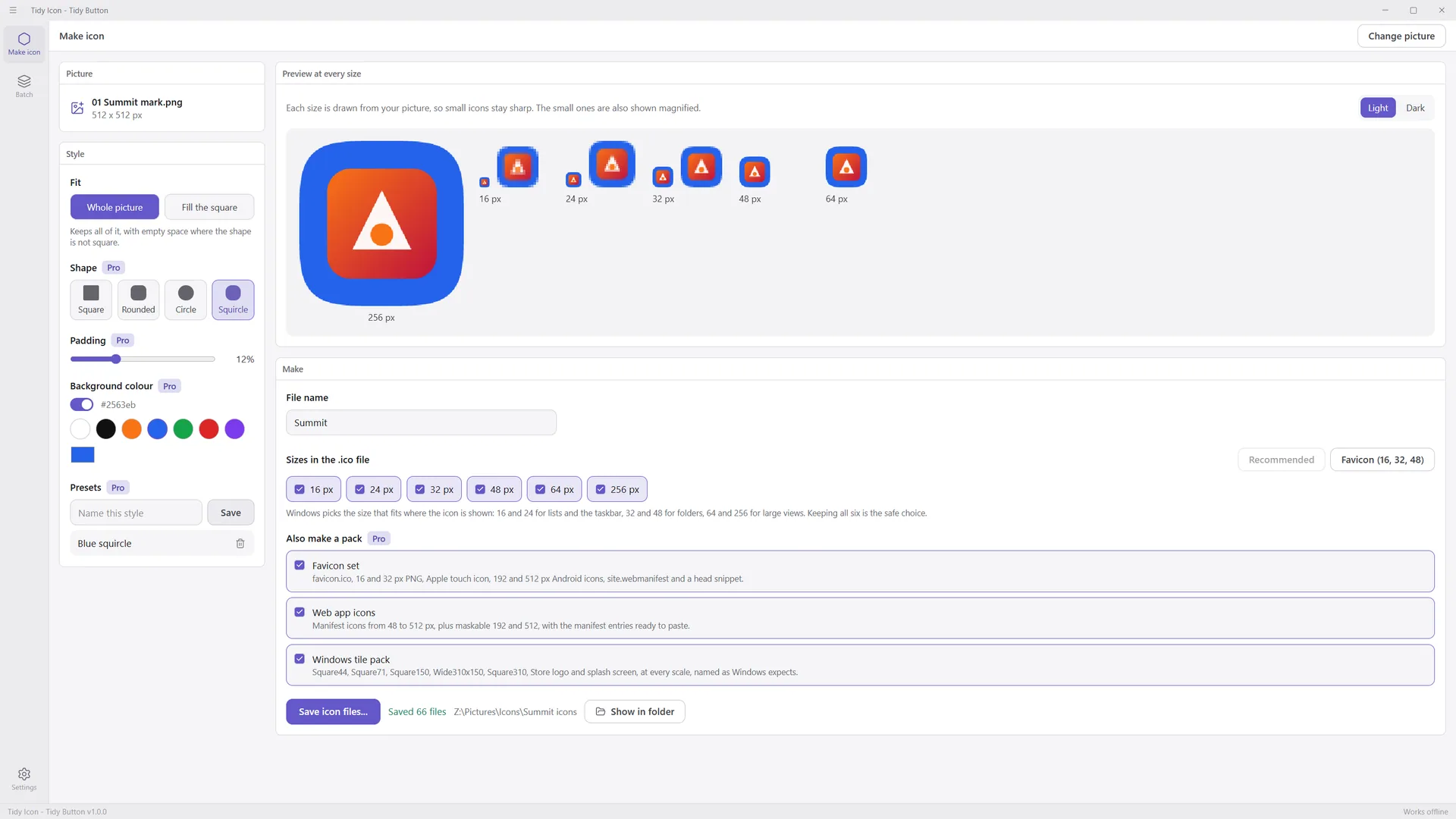
Save a style as a preset and reuse it with one click
Batch
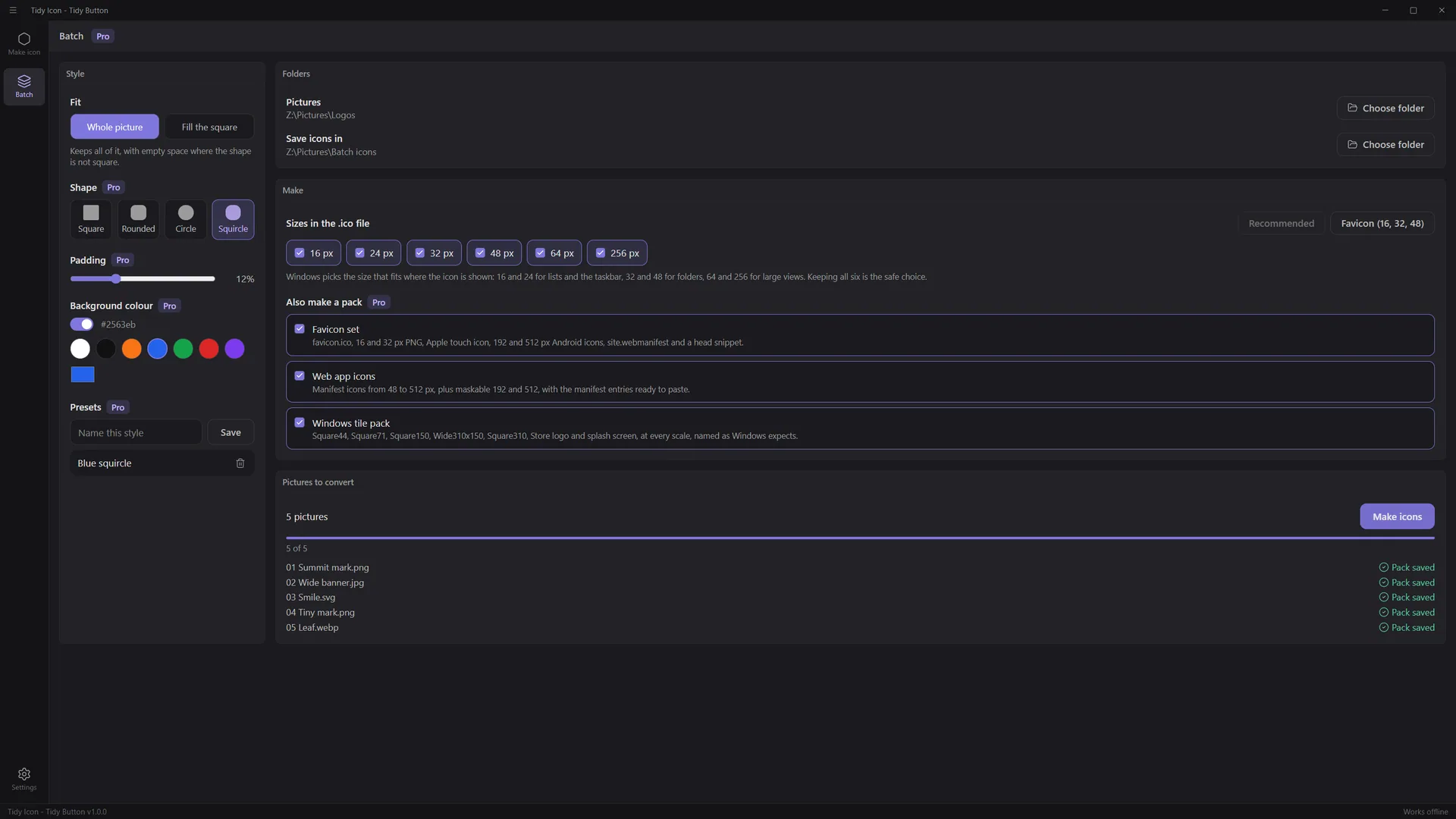
A whole folder of pictures, each one made into an icon pack
Screens show sample pictures made for this page. The app has light and dark themes.
How it works
Three steps. No manual.
01
Choose a picture
Press Choose a picture, drop one on the window, or press Ctrl+O.
02
Check every size
The preview shows the icon at 16, 24, 32, 48, 64 and 256 px.
03
Save the icon
Pick the sizes, name the file and press Save. The file is checked after it is written.
What it does
What it does.
A good Windows icon holds several sizes, and each one should look sharp. Choose a picture, check the live preview at 16, 24, 32, 48, 64 and 256 px, and press Save. Everything happens on your PC. The app works with the internet turned off, and the free version has no limit on how many icons you make.
A real multi-size .ico
Every size is drawn separately from your picture, so small icons stay sharp. The saved file is read back to check it.
See every size
A live preview shows 16, 24, 32, 48, 64 and 256 px at true size and magnified, on a light or a dark background.
Pick the sizes
Choose any of the six standard sizes, or use the Recommended and Favicon (16, 32, 48) shortcuts.
Many picture types
Open a PNG, JPG, SVG, WebP, BMP or GIF with a button, by drag and drop, or with Ctrl+O. SVG files are cleaned before they are drawn.
Shapes and style (Pro)
Rounded, circle or squircle shapes, padding around the picture and a background colour, with a live preview.
Icon packs (Pro)
A favicon set, web app icons with a manifest, and a Windows tile pack, written into a new folder.
Whole folders (Pro)
Pick a folder of pictures and every picture gets the icon or pack.
Saved presets (Pro)
Save a style with its sizes and packs by name and reuse it, with a backup copy in Documents.
The small print, in plain English
Safe by design.
A Saved note shows where the file went, with a button to open its folder.
The upgrade message appears only when you touch a Pro control.
Nothing is uploaded. Your pictures are read on your PC and never leave it.
Your pictures are never changed, and packs go into a new folder so nothing is replaced.
Free icons have no limit on how many you make.
The upgrade message only appears when you touch a Pro control, never at launch.
Works offline. No account. No ads. No tracking.
What it keeps
Your picture, your icon.
The icon you need is free. Pro adds the extras.
Shapes, padding and a background colour with a live preview.
Sizes
Real separate sizes
16, 24, 32, 48, 64 and 256 px, each drawn from your picture.
Fit
Your choice
Keep the whole picture, or fill the square.
Favicons
One click
A Favicon shortcut picks 16, 32 and 48 px for a website icon.
Packs
Pro
Favicon set, web app icons and a Windows tile pack, each written into a new folder.
Batch
Pro
A whole folder of pictures made into icons or packs.
Free
No count limit
Making .ico files has no limit on how many, ever.
SVG files are cleaned before they are drawn, so a picture can never run a script or load something from the web.
Good for
Handy when you need a .ico.
A program or shortcut that needs a .ico file
A favicon for a website
Web app icons with a manifest
Windows tile images for a packaged app
Questions
Plain answers.
Is anything uploaded?
No. Your pictures are read on your PC and never leave it. The app works with the internet turned off.
Is there a limit in the free version?
No. You can make as many .ico files as you like from any picture. Pro adds shapes and style, icon packs, batch folders and saved presets.
Is the .ico a real multi-size file?
Yes. Each size is drawn separately from your picture, and the saved file is read back to check its sizes.
Which pictures can I use?
PNG, JPG, SVG, WebP, BMP and GIF. A square picture of 256 x 256 px or more gives the sharpest result.
Will it replace my files?
Not without asking. Packs go into a new folder, and a name that is taken gets a number.
What does Pro cost?
One payment of $5.99, no subscription. Everything you already use stays free.