How to make a list of everything you own on your PC
This guide shows how to list what you own, add photos and serial numbers, find any item fast, and save the list as a PDF or a spreadsheet.
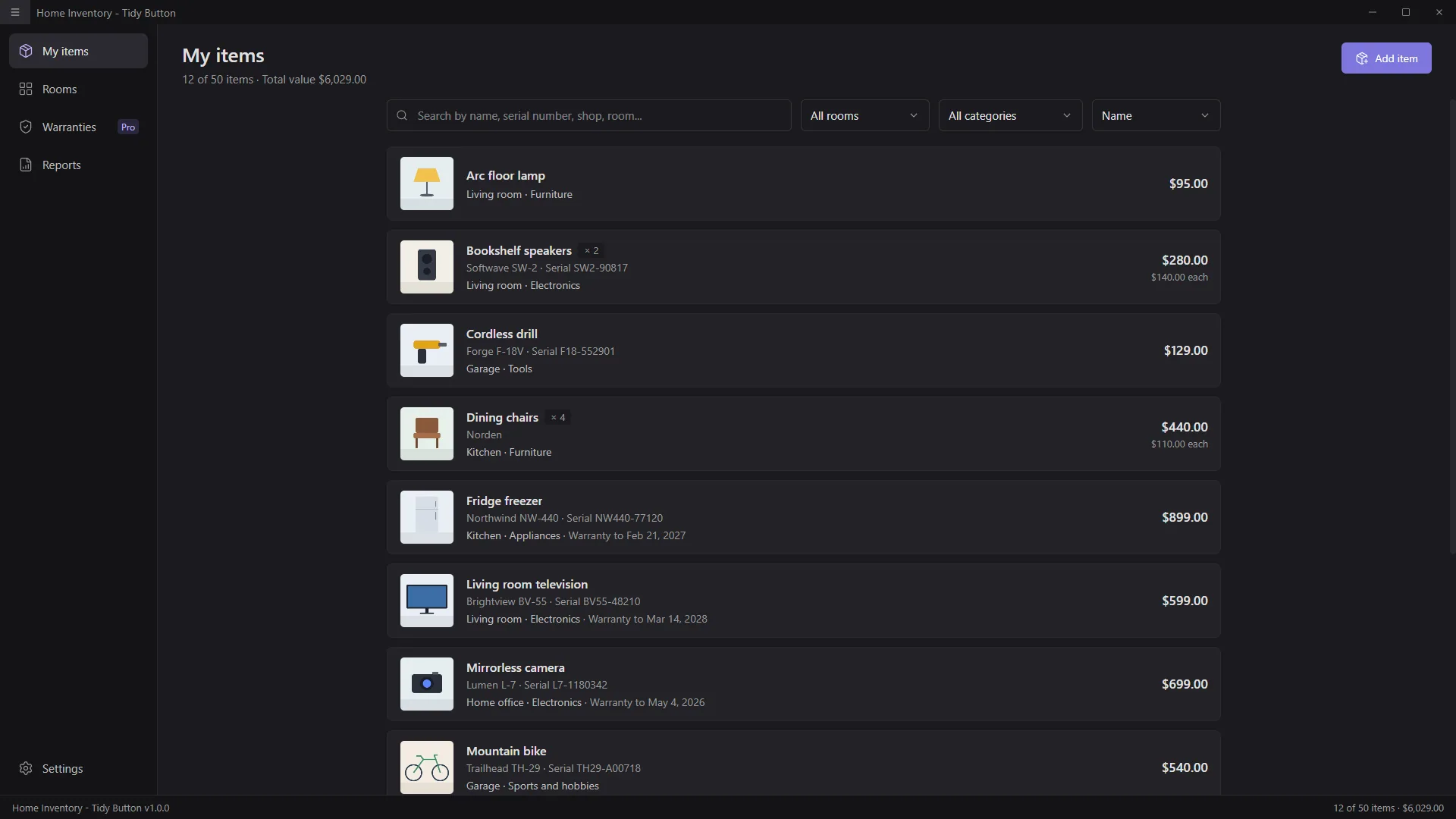
This app is not on the Microsoft Store yet. This guide is ready for the day it arrives.
Add your first item with a photo
Start with one thing, such as a television, and fill in what you know.
- Open Home Inventory and press Add your first item. Later you can press Add item at the top right.
- Type what it is in Name, then choose its Room and Category.
- Fill in Brand, Model and Serial number if you have them.
- Type what it would cost to replace today in the value box, and what you paid in the price box.
- Set the Purchase date, type the shop in Bought from, and note the receipt number or where the paper is kept in Receipt details.
- Press Add photos and pick up to 4 pictures from your PC.
- Press Add item to save.
Your inventory is saved in a Home Inventory folder inside your Documents.
Find an item by name, serial number or shop
- Choose My items in the left menu.
- Type part of a name, a serial number or a shop in the search box.
- Use Filter by room or Filter by category to show one group.
- Use Sort items to put the highest value or the newest items first.
- Click an item to open it, change anything, and press Save changes.
- If the list says Nothing matches, press Clear search and filters.
Group your things into rooms and categories
- Choose Rooms in the left menu.
- Type a new name, for example Attic, in the box under the list of rooms and press the button next to it.
- Do the same under categories to add a category such as Musical instruments.
- Press Rename on a row to change a name.
- Press Remove on a row. If items are in it, choose where they should go and press Move and remove.
Removing a room or category never deletes items.
See the total value and save a list
- Choose Reports in the left menu.
- Read the total value, the number of items and the value of each room and category.
- Press Save summary PDF for a PDF with totals and a table for each room, then choose where to save it.
- Press Save CSV for a spreadsheet you can open in Excel.
- Press Open folder to see your inventory folder in Windows Explorer.
Bring back an inventory from a backup folder
- Choose Reports in the left menu.
- Press Restore... and read the message.
- Press Choose a backup and pick the backup folder.
Your current list is saved as a file in the Home Inventory folder first.
If something goes wrong
Where are my photos and items saved?
In a folder named Home Inventory inside your Documents. Press Open folder on the Reports screen to see it. The folder stays if you uninstall the app.
Can I use a currency other than US dollars?
Yes. Choose Settings in the left menu and pick one in Currency for values and reports. Nine currencies are offered.
Why can I not remove my only room?
The app keeps at least one room and one category, so the Remove button is greyed out on the last one. Add another first, or press Rename to change its name.
A photo will not add. What can I try?
The picture picker shows JPG, PNG, BMP and GIF files, and an item holds up to 4 photos. Remove one with the small cross on its corner to make room.
How do I change the look of the app?
Choose Settings and pick a Theme, such as Light or Dark.
Good to know
- The app keeps your records only. It does not give insurance or financial advice.
Still stuck? Support is by email, and a person reads it.