How to look inside a file as hex and text on Windows
This guide shows how to open a file and read its bytes, find text or a byte pattern, jump to a place in the file, and change a byte without touching the original.
This app is not on the Microsoft Store yet. This guide is ready for the day it arrives.
Open a file and read its bytes
Use this to see what a file really contains.
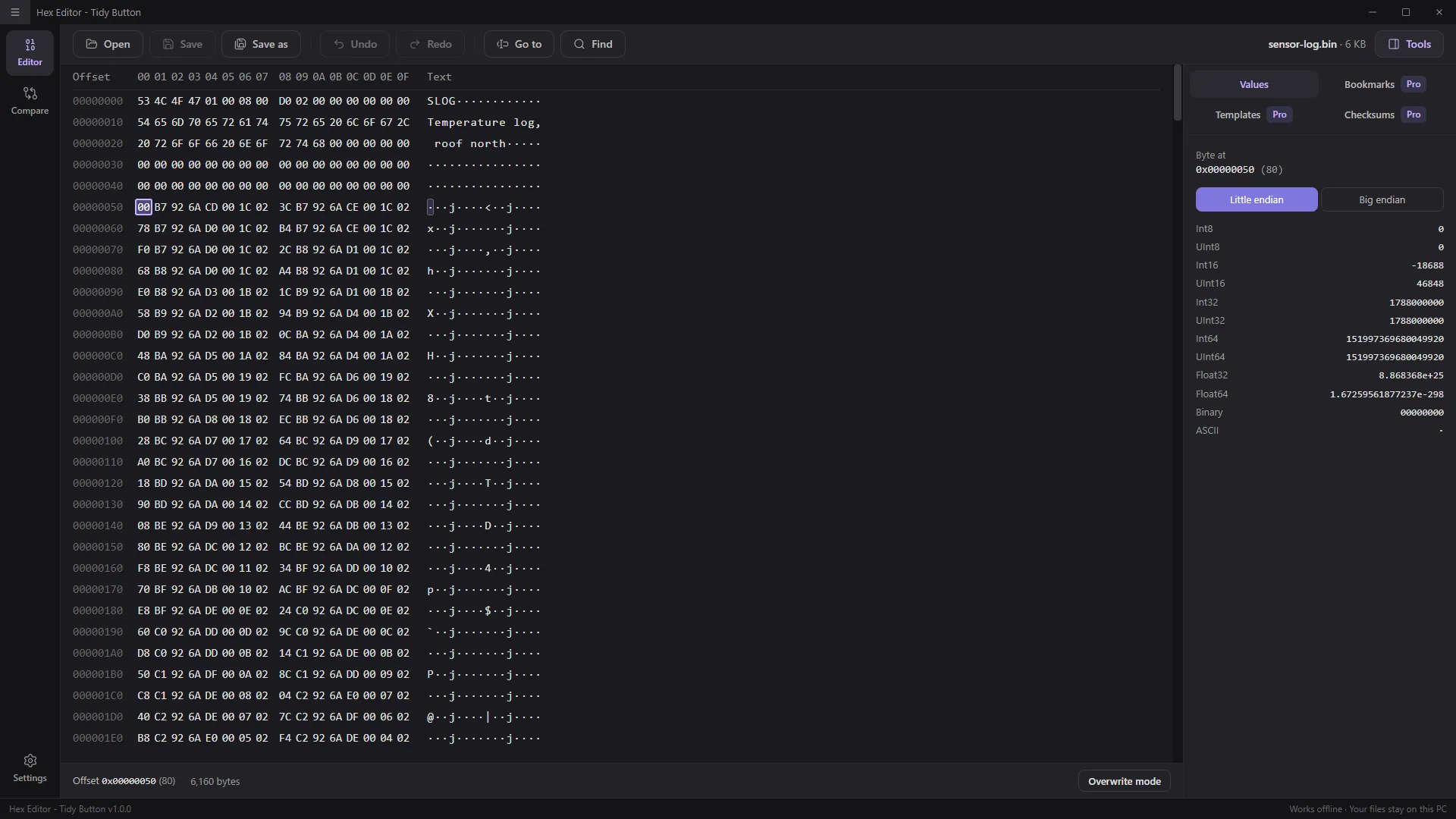
- Open Hex Editor and press Choose a file…, or press Open at the top left. You can also drag a file onto the window.
- The hex bytes are on the left and the same bytes as text are on the right. The first column is the offset of each row.
- Click a byte. The Values panel on the right shows it as numbers, as binary and as a letter.
- Press Little endian or Big endian to choose the byte order used for numbers made of several bytes.
- If the panel is hidden, press Tools to show it.
Big files open at once, because the app reads only the part you are looking at.
Search for text or bytes
- Press Find at the top, or press Ctrl+F.
- Pick Text or Hex bytes in Search for.
- Type what to find in the box. In a hex search, type bytes like DE AD BE EF. Use ?? for any single byte.
- For a text search, tick Ignore upper and lower case if the case does not matter, or Wide text (UTF-16) for text stored two bytes per letter.
- Press Next to go to the next match. Press Find all to list every match, then click one to jump to it.
Jump to an offset
- Press Go to at the top, or press Ctrl+G.
- Choose Hex or Decimal in Number base.
- Type the offset in Offset, for example 1F40 for hex or 8000 for decimal.
- Start with + or - to move forward or back from the cursor instead.
- Press Go.
Change a byte and save a copy
Work on a copy so the original stays as it is.
- Open the file and click the byte you want to change.
- Type two hex digits, for example 4F. The byte changes and the cursor moves on. Changed bytes are marked.
- Press Undo if you change your mind, or Redo to bring the change back.
- To add or remove bytes instead of replacing them, press the Insert key. The button at the bottom changes from Overwrite mode to Insert mode.
- Press Save as and choose a new file name. To change the original file instead, press Save and confirm.
Save changes the file on your PC to match what you see on screen.
If something goes wrong
Nothing happens when I type over a byte. Why?
In overwrite mode, a typed byte has to fit inside the file. If you are at the very end, press the Insert key to switch to Insert mode, which can add bytes.
The search finds nothing. What should I check?
Check that Search for matches what you typed: Text for words and Hex bytes for byte values. Try Ignore upper and lower case, or Wide text (UTF-16) if the text may be stored two bytes per letter.
My offset is refused. What is wrong?
Check Number base. A value like 1F40 is hex, and 8000 is decimal. The offset also has to be inside the file. The message in the dialog says how many bytes the file has.
Where did the Values panel go?
Press Tools at the top right to show or hide the panel.
Good to know
- Hex Editor changes bytes. It does not know what a file means, so a changed file may no longer open in the program that made it. Keep a copy of files you care about.
Still stuck? Support is by email, and a person reads it.