How to manage gym members and check them in on a PC
This guide shows how to run the front desk of a small gym from one PC. You set up a plan, add a member, check them in and take payments.
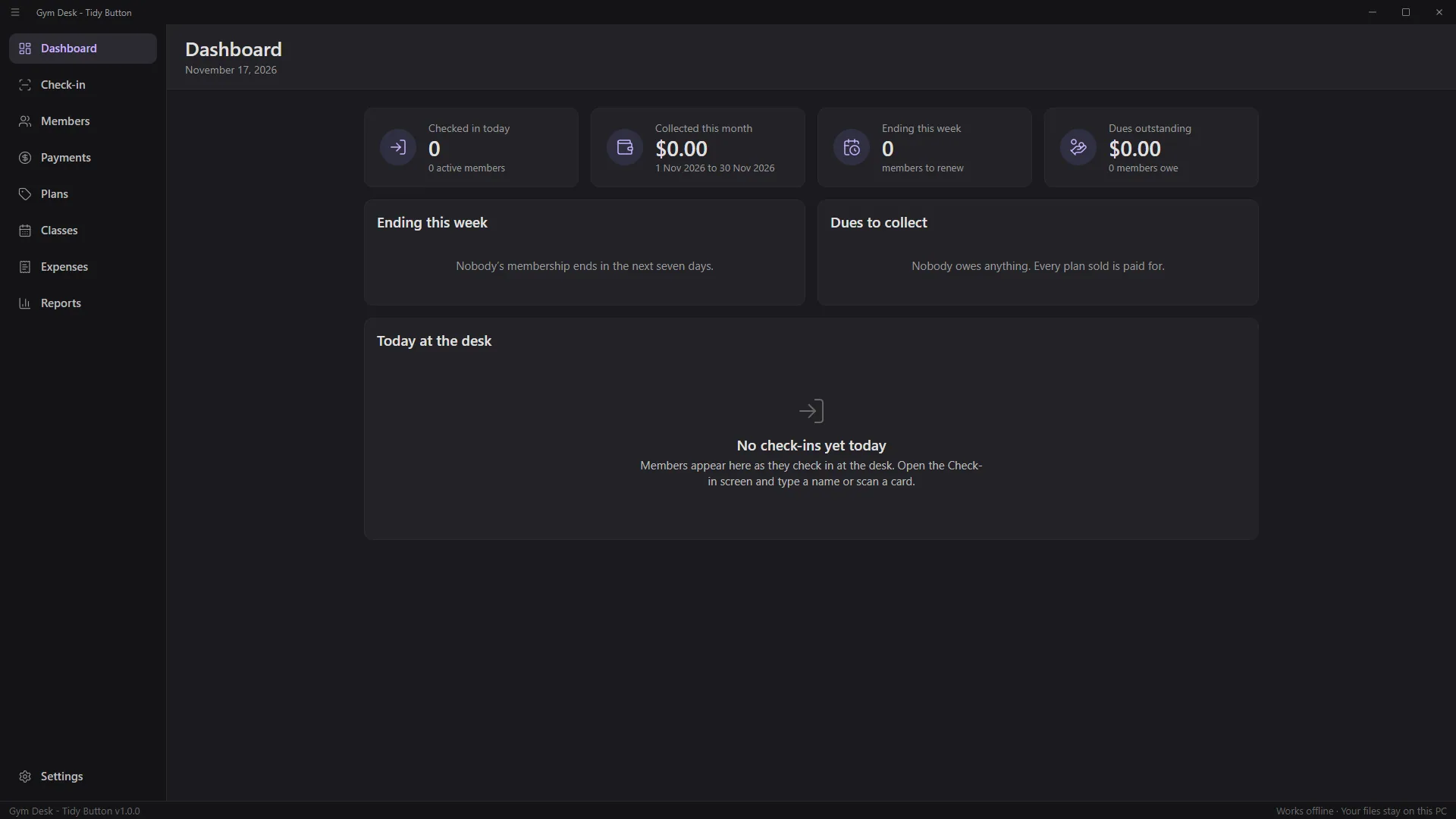
This app is not on the Microsoft Store yet. This guide is ready for the day it arrives.
Set up your gym and your first plan
A plan is a length of time and a price, such as Monthly.
- Open Settings in the left menu.
- Type your gym's name in Gym name. It is printed on receipts.
- Choose your currency in Currency, then press Save gym details.
- Open Plans in the left menu and press Add the first plan.
- Type a name in Name, for example Monthly. Set Lasts, Unit and the price.
- Press Add plan.
Add a member and sell them a membership
- Open Members in the left menu and press Add a member.
- Type the Full name. Fill in Phone, Email and the Emergency contact if you have them.
- Leave Member number empty to get the next number, or type your own.
- Press Add member. If you have a plan, a window to sell a membership opens by itself. If it does not, open the member from the list and press Sell a membership.
- Choose the Plan, check the Price, and type what they hand over in Paying now.
- Press Sell membership.
Leave Paying now empty to collect the money later.
Check members in at the desk
- Open Check-in in the left menu.
- Type a name or member number in the box. A desk scanner can type the number for you.
- Press Enter. Green means the membership is running. Red tells you why it is not.
- If a member is let in a second time on the same day, press Check in again.
- To let in someone with a red result, press Let in anyway. It is noted in the list.
- To remove a mistake, press Undo beside it under today's check-ins.
Collect money that is owed and save a receipt
- Open Payments in the left menu.
- Press the Dues tab to see who still owes money.
- Press Collect beside a member.
- Check Amount and Paid by, then press Record payment.
- Open the Receipts tab and press Receipt PDF beside a payment to save it.
The Dashboard also lists dues, with a Collect button, and memberships ending this week, with a Renew button.
Back up your records
- Open Settings in the left menu and scroll to the section called Your data and backups.
- Press Back up now to make a backup at once.
- Press Save a copy elsewhere to put a copy on a USB drive or another folder.
- To go back to an earlier backup, press Restore beside it in the list of automatic backups.
If something goes wrong
The check-in shows red. Why?
The membership has ended, is paused or has not started yet. Open the member and press Renew or sell (or Sell a membership if they have none) to sell a new plan.
I typed a name and nothing happened. What should I do?
Several members may match. Click the right one in the list that appears, or type the member number instead.
I entered a payment by mistake. How do I take it back?
Open Payments, find it under Receipts, and press Cancel. Type the reason and press Cancel the payment. The receipt number stays, and the money goes back on what the member owes.
How do I mark a member who left?
Open the member and press Archive. Their records are kept. Press Bring back to make them active again.
Where are my records saved?
In one records file in the Gym Desk folder inside your Documents folder on this PC. Nothing is sent anywhere.
Still stuck? Support is by email, and a person reads it.