How to remove a green screen background from a video
This guide shows how to cut out a green or blue backdrop, put a picture, colour or blur behind your subject, and save the result.
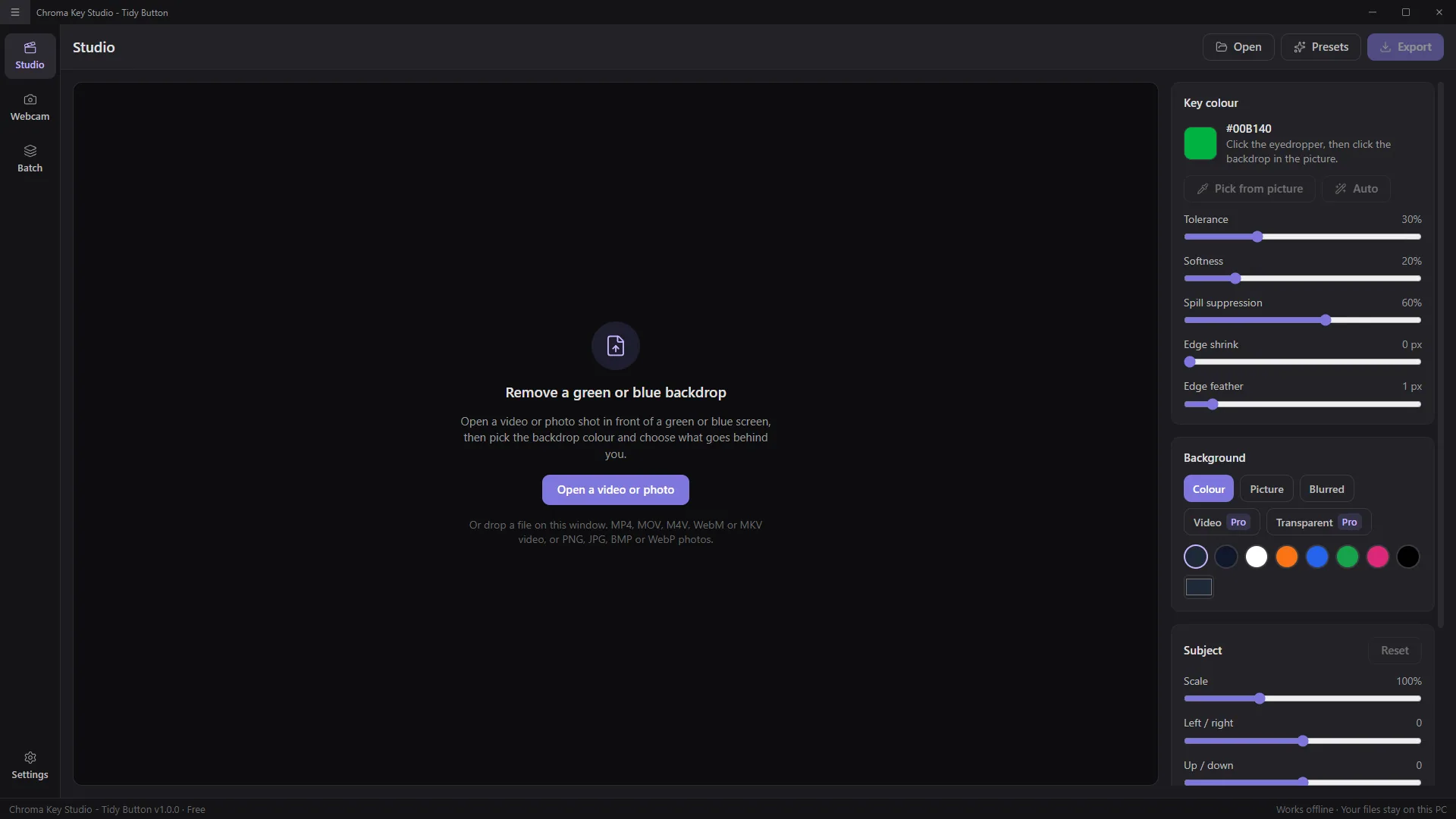
This app is not on the Microsoft Store yet. This guide is ready for the day it arrives.
Open a clip and pick the backdrop colour
- Open Studio in the left menu.
- Press Open and choose a video or a photo. You can also drag the file onto the window.
- Look at Key colour on the right. The app tries to find the backdrop colour by itself.
- If the colour is not right, press Pick from picture and click the backdrop in the preview.
- Press Auto to let the app try to find the colour again.
The backdrop should be as even as possible, with no strong shadows or creases.
Clean up the edges
The preview changes as you move each slider, so you can see the result straight away.
- Raise Tolerance until the backdrop disappears.
- Raise Softness a little if the edge looks harsh.
- Raise Spill suppression if you see a green or blue tint on skin or hair.
- Use Edge shrink to pull the edge in a few pixels, and Edge feather to blur it slightly.
Small changes work best. Very high values can eat into your subject.
Choose a new background
- Find Background on the right.
- Choose Colour and click one of the round swatches, or the custom colour box.
- Or choose Picture. A window opens so you can pick an image. Press Choose another file later if you want a different one.
- Or choose Blurred, pick an image, and move Blur amount. The image you pick is shown blurred behind your subject.
- Use Scale, Left / right and Up / down under Subject to move your subject in the frame.
- Press Reset under Subject to put it back.
Trim a video and save it
- Drag the Trim start and Trim end handles on the timeline to keep only the part you need.
- Press the play button to check the result. You can also press the space bar.
- Press Export.
- In the Export video window, keep the format on MP4 video and keep the Size that is already chosen, or pick a smaller one.
- Press Export again and choose where to save the file.
The MP4 keeps the sound from your clip.
Save a photo with a new background
- Open a photo with Open in Studio.
- Set the key colour and the background as above.
- Press Export. The window is called Export photo.
- Keep the Size that is already chosen, or pick a smaller one. Press Export and choose where to save the PNG.
If something goes wrong
The app says no green or blue backdrop was found. What now?
Press Pick from picture and click the backdrop in the preview. The app then uses that colour.
Parts of my subject have disappeared. How do I fix it?
Lower Tolerance and Edge shrink. If the subject wears a colour close to the backdrop, those parts may be cut out too.
There is a green glow around my hair. What helps?
Raise Spill suppression, then raise Edge shrink by a pixel or two.
The export button is greyed out. Why?
Export only works after you open a video or photo with Open. It is also off while another export is running.
Good to know
- The app removes one backdrop colour at a time. It works from the key colour you see in Key colour.
Still stuck? Support is by email, and a person reads it.