How to calculate student grades with weighted categories
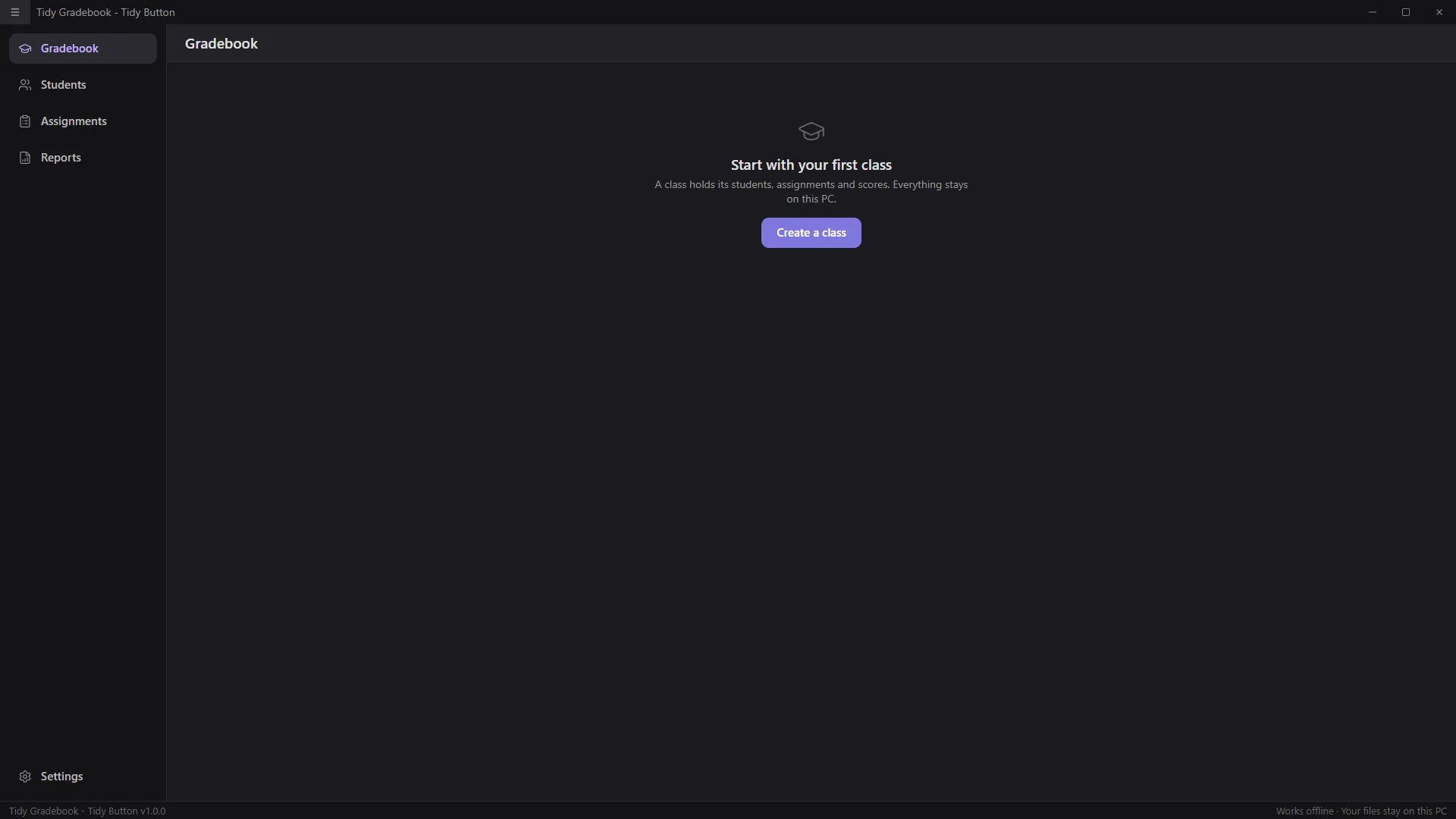
This guide shows how to keep a gradebook on your PC. You set up a class, add students and assignments, type scores, and save a report that shows how each grade was made.
This app is not on the Microsoft Store yet. This guide is ready for the day it arrives.
Create a class and add your students
- Open the app and press Create a class.
- Type a name in Class name. Add a Term or year (optional) if you want it printed on reports.
- Press Create class.
- Open Students in the left menu.
- Type a name in Student name and press Add student. Repeat for each student.
- To add many at once, press Paste or import. Paste one name per line, or press Choose a CSV file.
- Check the summary line in the box, then press the button at the bottom right that starts with Add.
A CSV file needs a Name column. An ID column is optional.
Set up categories and assignments
Categories group your work. A new class starts with Homework, Quizzes and Tests, and each assignment belongs to one category.
- Open Assignments in the left menu.
- In the Categories box, type a name in New category name and a weight in New category weight. Press Add category.
- Use the Drop lowest column if a category should ignore its lowest scores.
- If the weights do not add up to 100, the app shows a note. Each category then counts in proportion to its weight.
- Press New assignment. Type a Name, pick its Category, and type how many points it is worth in Worth (points).
- Turn on Extra credit if the points should not be added to what is possible. Press Save.
Type scores into the grid
- Open Gradebook in the left menu.
- Find the student's row and the assignment's column, and click the box.
- Type the points the student earned and press Enter to move down to the next student.
- Type M for missing, X for excused, or a number followed by L, for example 15L, for a late score.
- Leave a box empty if the work is not graded yet.
- Read the Grade column. It updates as you type.
Click an assignment's name at the top of its column, then press Mark blanks Missing or Mark blanks Excused to fill all its blank scores at once. Scores that are already there stay as they are.
Change how grades are worked out
- Open Gradebook and press Class setup.
- Under How the grade is worked out, choose Weighted categories or Total points.
- Pick a Grading scale, the Rounding style and the number of Decimals.
- Turn on Missing work counts as zero if a missing score should count against the student.
- Press Save.
Save a class or student report as PDF
- For the student report, open Students and click the student's name in the list.
- If you want a note printed on that report, type it in the Teacher comment box first.
- Press Save PDF report.
- For the whole class, open Reports in the left menu and press Class report (PDF).
- Choose where to save the file.
If something goes wrong
Where is my class data stored?
On this PC only, in a Tidy Gradebook folder inside your Documents folder. Open Settings to see the exact folder under Your data. A copy of each day is kept in a Backups folder inside it.
A student's grade looks wrong. How can I see why?
Open Students and click the student. The part called How the grade is made lists each category, its points and its result.
The weights do not add up to 100. Does that matter?
No. The app shows a note and each category counts in proportion to its weight, using only categories that have scores. Change the weights in Assignments if you want them to total 100.
My score box turns amber. What does it mean?
The number is more than the points the assignment is worth. Fix the number, or turn on Extra credit for that assignment.
How do I make a backup of everything?
Open Settings and press Back up now. To bring a backup back, press Restore from a backup.
Good to know
- The Class report (PDF) button needs at least one student in the class.
Still stuck? Support is by email, and a person reads it.