How to make a Gantt chart for a small project on Windows
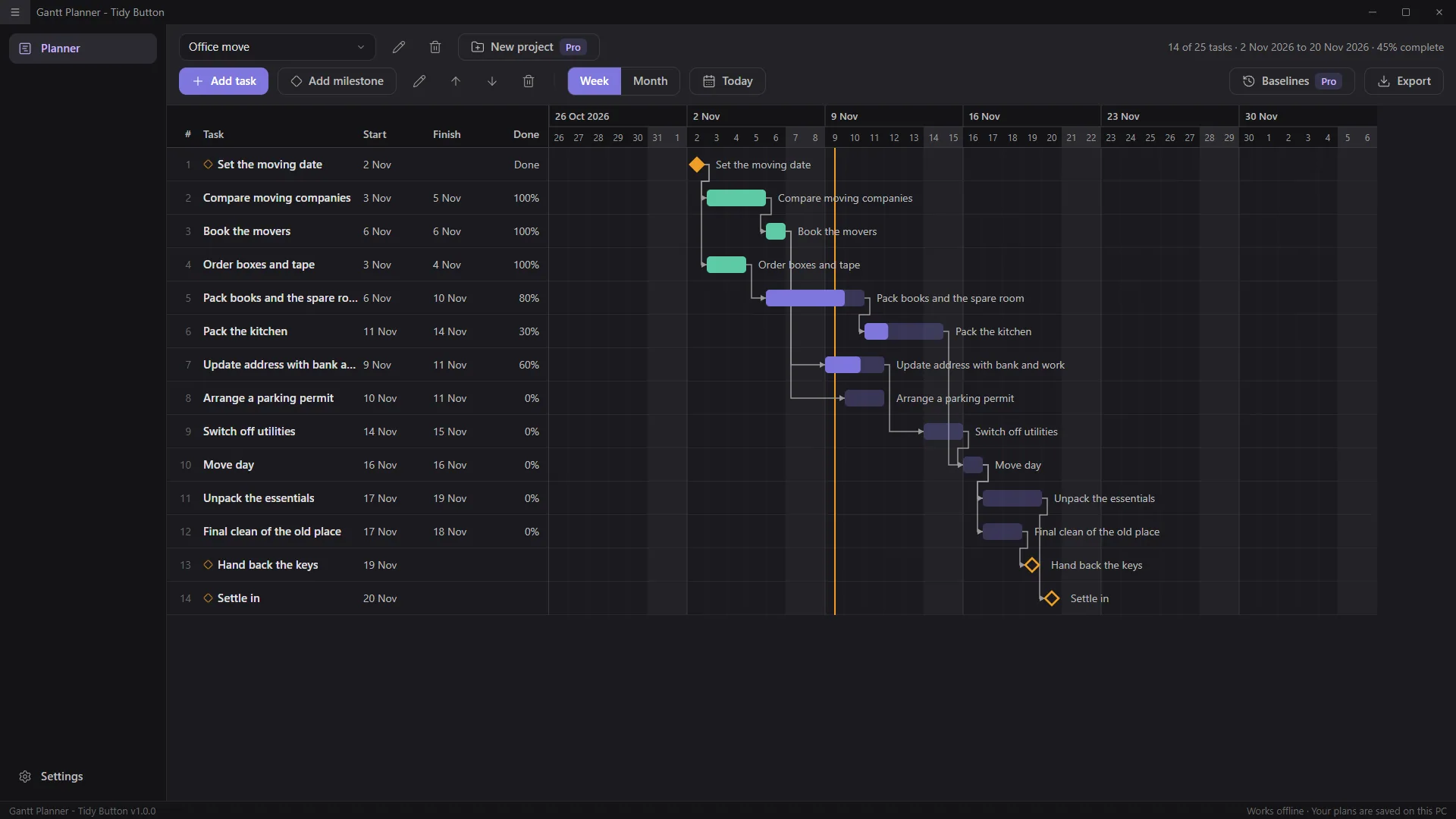
This guide shows how to build a simple Gantt chart, link the tasks that depend on each other and share the plan as a picture.
This app is not on the Microsoft Store yet. This guide is ready for the day it arrives.
Start a project and add tasks
- Open Gantt Planner.
- Type a name in Project name and press Create project. To look around first, press Start with an example project.
- Press Add task.
- Type the task name, then set Start and Finish.
- Press Save. The task appears in the list and as a bar on the chart.
Plans are saved as files in a Gantt Planner folder inside your Documents folder. For a date with no length, press Add milestone instead of Add task.
Link tasks so later ones follow
- Press Add task to open a new task, or double-click an existing task in the list.
- Under Starts after these tasks finish, tick the tasks this one depends on.
- Press Save.
- Look for an arrow on the chart from the earlier task to this one.
If an earlier task moves later, the tasks that follow it move too.
Move a task or change how long it takes
- Drag a bar sideways to move it to other dates.
- Drag the end of a bar to make the task longer or shorter.
- To change a task more exactly, double-click it in the list and change Start, Finish or the progress, then press Save.
See more or less of the timeline
- Press Week to see each day in detail.
- Press Month to see a long plan at a glance.
- Press Today to jump to the line for today.
Save the plan as a picture
- Press Export.
- Choose Picture (PNG).
- Choose where to save the file.
The picture uses the zoom you have on screen.
If something goes wrong
Where are my plans stored?
As files in a Gantt Planner folder inside your Documents folder. Copy that folder to make a backup.
A task moved by itself. Why?
It starts after another task that moved. Open the task and look at Starts after these tasks finish to see which one.
I cannot see the line for today.
Press Today to scroll the chart to it. If the plan is in the past or far in the future, the line is outside the part you are looking at.
Does the app ask before it deletes a task?
Yes. It asks you to confirm first, so read the message before you press the delete button to confirm.
Good to know
- Links only work as finish to start: a task starts after another one finishes.
Still stuck? Support is by email, and a person reads it.