How to test a game controller for stick drift
This guide shows how to check that a game controller works, how to test its sticks for drift, and how to test its vibration motors.
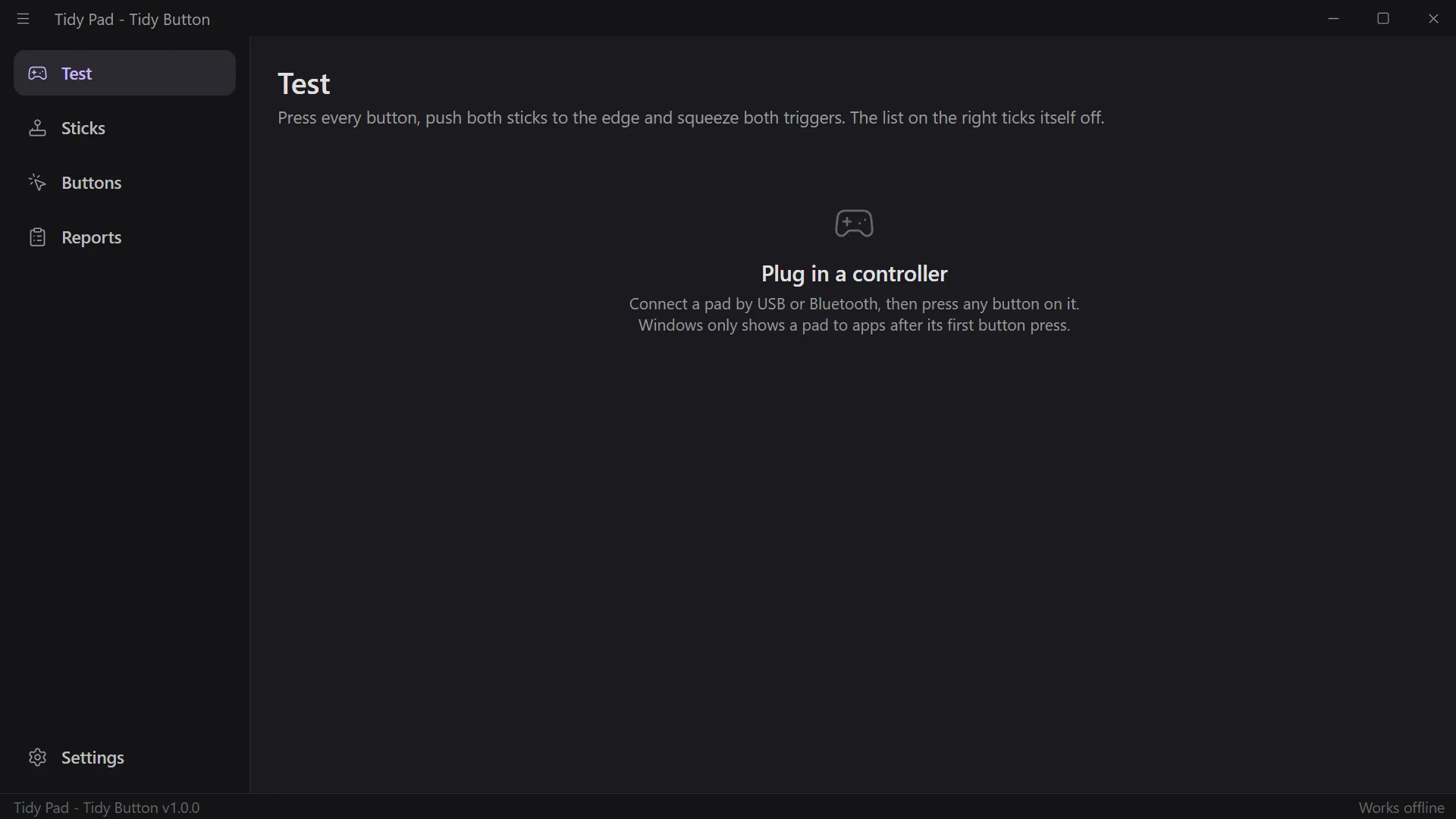
This app is not on the Microsoft Store yet. This guide is ready for the day it arrives.
Check that every button and trigger works
Connect the pad by USB or Bluetooth first. Windows only shows a pad to apps after you press a button on it.
- Plug in the controller and press any button on it.
- Open Test in the left menu.
- Look at Live view. Press each button, push both sticks to the edge and squeeze both triggers. The drawing follows what you do.
- Read Raw values below the drawing if you want the exact numbers.
- Watch Pass or fail on the right. Each item ticks itself off as you test.
A pad that does not use the standard layout is still listed. Its buttons and axes are shown by number.
Test a stick for drift
Drift is when a stick reports movement while you are not touching it.
- Open Sticks in the left menu.
- Keep this window in front of other windows while the check runs.
- Find the card for the stick you want to test.
- Take your thumb off the stick, then press Check drift.
- Wait three seconds without touching the stick.
- Read the verdict. It also shows how far the centre is off and the dead zone that would hide the drift.
If you touch the stick during the check, the app asks you to try again.
Check that a stick moves in a round path
- Open Sticks.
- Press Check roundness on the stick you want to test.
- Roll the stick slowly around its edge, one or two full laps, for about eight seconds.
- Read the score out of 100 and the share of directions the stick reached.
Test the vibration
- Open Test and find the Vibration card.
- Press Light motor, Heavy motor or Both motors.
- When the pad vibrates, answer Did you feel it? with Yes or No.
- Your answer is added to the Pass or fail list.
If the card says the pad does not offer vibration, Windows has not given apps a way to start the motors on that pad.
If something goes wrong
The app says to plug in a controller, but mine is plugged in. Why?
Press any button on the pad. Windows only shows a pad to apps after its first button press. Check the cable or the Bluetooth connection if it still does not appear.
The drift check says the stick was moved. What do I do?
Take your thumb off the stick completely and press Check drift again. If the window was behind another one, bring it to the front first.
Why does the app not show my battery level?
Windows does not tell apps a pad's battery level or whether it is wired or Bluetooth, so the app does not guess.
My pad vibrates in games, but the vibration test does not work. Why?
Many Bluetooth and generic pads do not offer vibration to Windows apps, even when they vibrate in games.
Good to know
- The app can only read what Windows shows to apps, so it cannot report battery level or whether the pad is wired.
Still stuck? Support is by email, and a person reads it.