How to make flashcards and study them on a Windows PC
This guide shows how to make a deck, study it with the keyboard and bring in a list from a file.
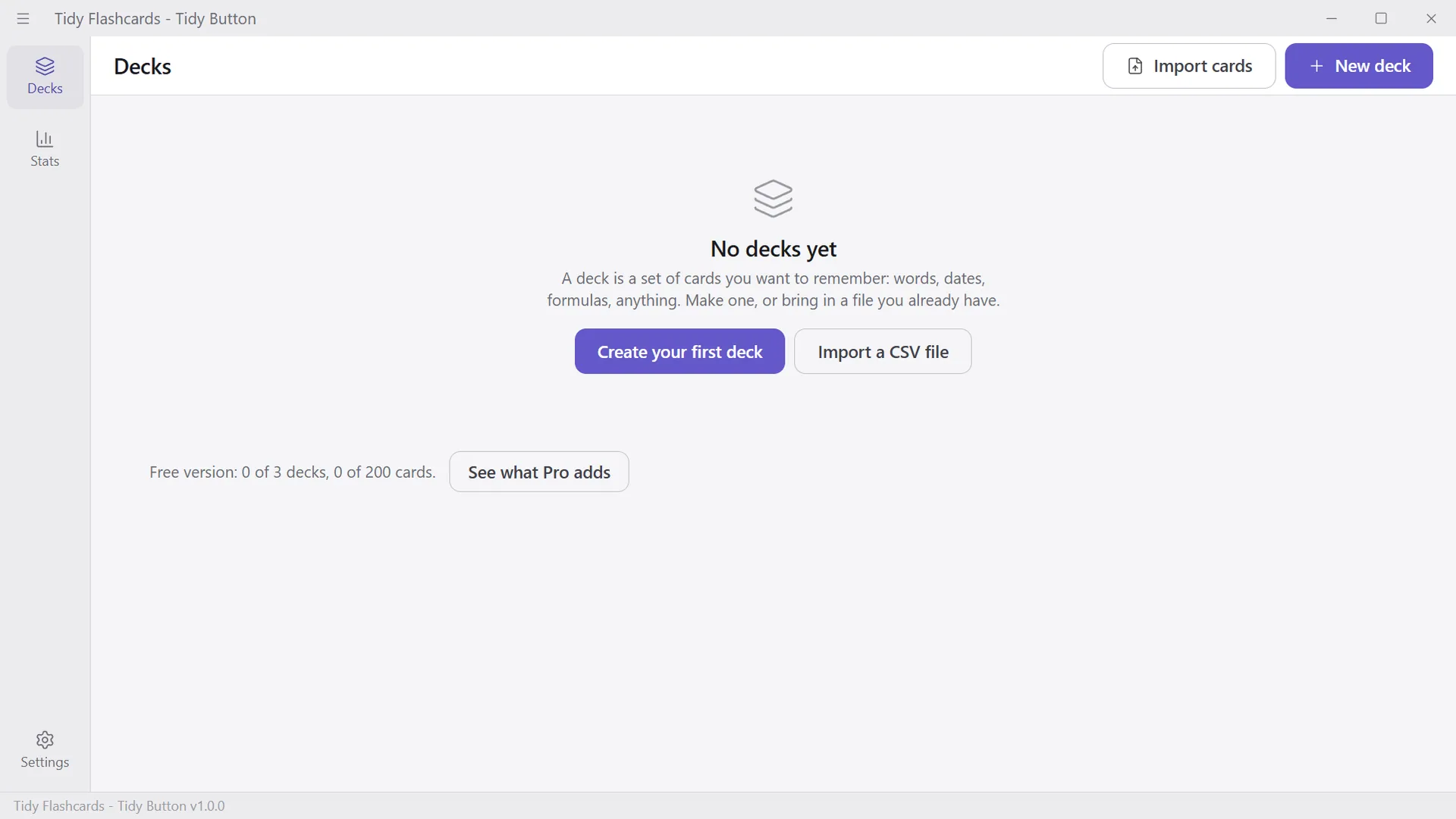
This app is not on the Microsoft Store yet. This guide is ready for the day it arrives.
Make a deck and add cards
- Open Tidy Flashcards. Press Create your first deck, or New deck if you already have one.
- Name the deck and create it.
- Open the deck with Cards, then press Add card.
- Type the front and the back of the card and save it.
Study a deck
- Press Study on a deck.
- Read the front, think of the answer and press Show answer, or press Space.
- Rate how well you knew it: Again, Hard, Good or Easy, or press 1 to 4.
- Each button shows when the card will come back.
- Press Esc to stop. A card you answered Again returns once more in the same session.
Hold Ctrl and press + or - to change the text size while you study.
Import cards from a file
- Press Import cards on the Decks screen.
- Choose a CSV, TSV or plain text file.
- Check the preview. It shows how many cards were found.
- Choose a deck or a new deck, then press the Add button.
See how you are doing
- Open Stats in the left menu.
- Read how many cards you answered today, your streak and how many are due now.
- Read the bar for how well learned your cards are.
If something goes wrong
How many cards can the free version hold?
It holds 3 decks and 200 cards in total. Cards over the limit are never removed or hidden, and everything you already have stays.
Are my cards backed up?
Your cards are saved after every change, and a dated backup is kept in your Documents folder, so an uninstall does not lose them.
Can I export a deck?
Yes. Open the deck and press Export CSV.
Coming to the Microsoft StoreAbout Tidy Flashcards
Still stuck? Support is by email, and a person reads it.