How to share a folder over your home network from a Windows PC
This guide shows how to share one folder on your local network, decide who can connect and read the log of what happened.
This app is not on the Microsoft Store yet. This guide is ready for the day it arrives.
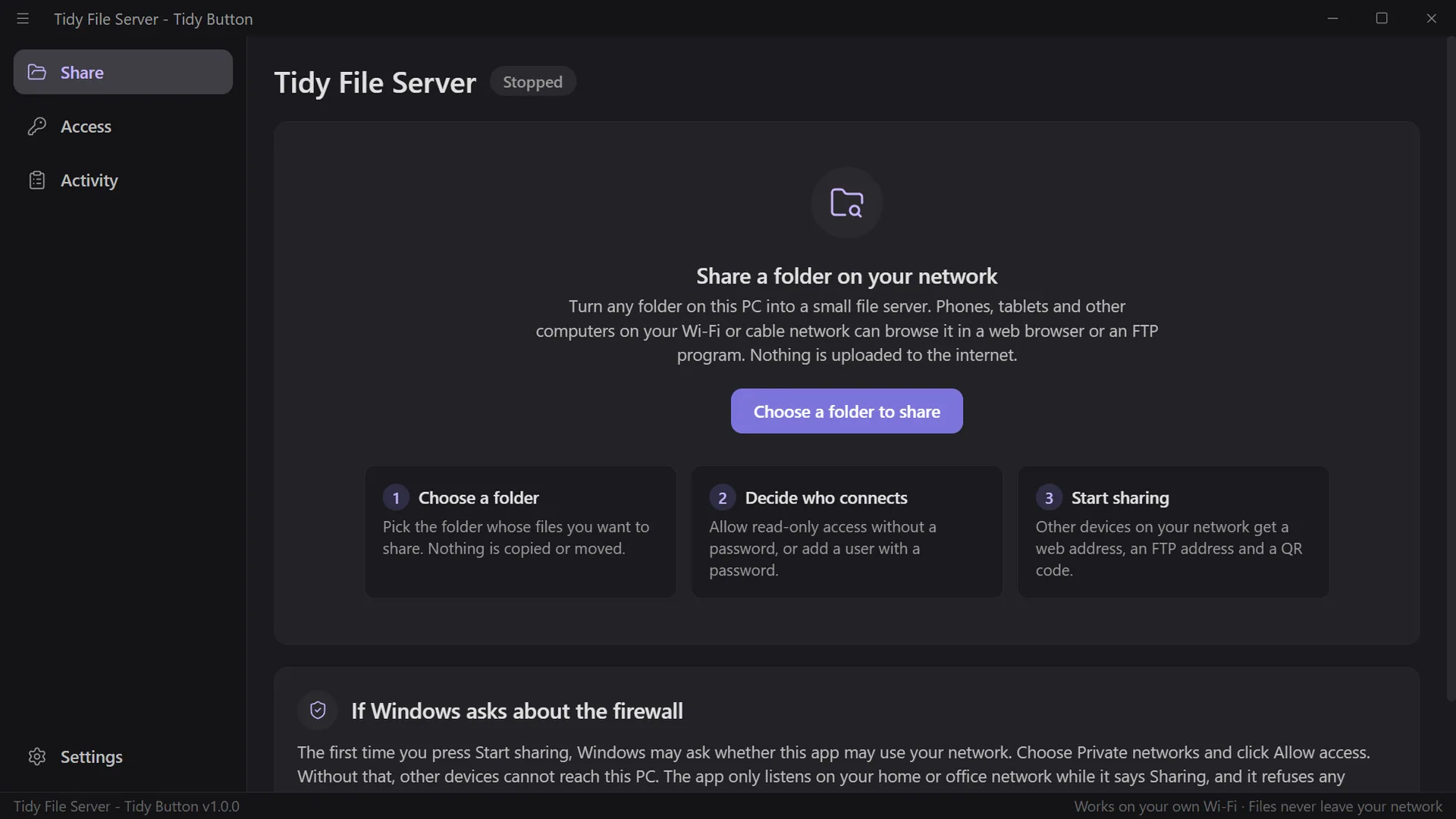
Share a folder
- Open Tidy File Server. Nothing is shared when the app opens.
- Press Choose a folder to share and pick the folder.
- Press Start sharing. The status changes to Sharing.
- Read the web address and the FTP address on the screen, or scan the QR code with a phone camera.
- Press Stop sharing when you are done. The app also stops sharing when you quit it.
The first time you share, Windows may ask about the firewall. Choose Private networks and click Allow access.
Decide who can connect
- Open Access in the left menu.
- Turn Let anyone on my network read on to let visitors browse and download without a password, or off to require a password.
- Press Add a user to give someone a name and a password.
- Choose what that user can see.
In the free version nobody can change your files. Visitors can only look and download.
Read the activity log
- Open Activity in the left menu.
- Read each line: the time, who, what happened, the file and its size.
- Press Save as spreadsheet to keep a copy, or Clear to empty the log.
If something goes wrong
Another device cannot connect. What should I check?
Make sure both devices are on the same Wi-Fi or cable network, that the app says Sharing, and that Windows allowed the app on Private networks. Then type the web address from the Share screen exactly.
Is my folder visible on the internet?
No. The app listens on one private network address and refuses connections that do not come from a private network address. Nothing is uploaded to the internet.
Are passwords sent safely?
Passwords are saved only as a one-way scramble. FTP and the web page send passwords and files as plain text over your network, so choose a password you do not use anywhere else.
A port is already taken. What now?
Choose a different port in the app, or let Windows pick a free one. The app tells you when a port is in use.
Still stuck? Support is by email, and a person reads it.